How to Export NotebookLM Chat History to PDF or Markdown (Free)
Enhance your NotebookLM experience with our free browser extension.
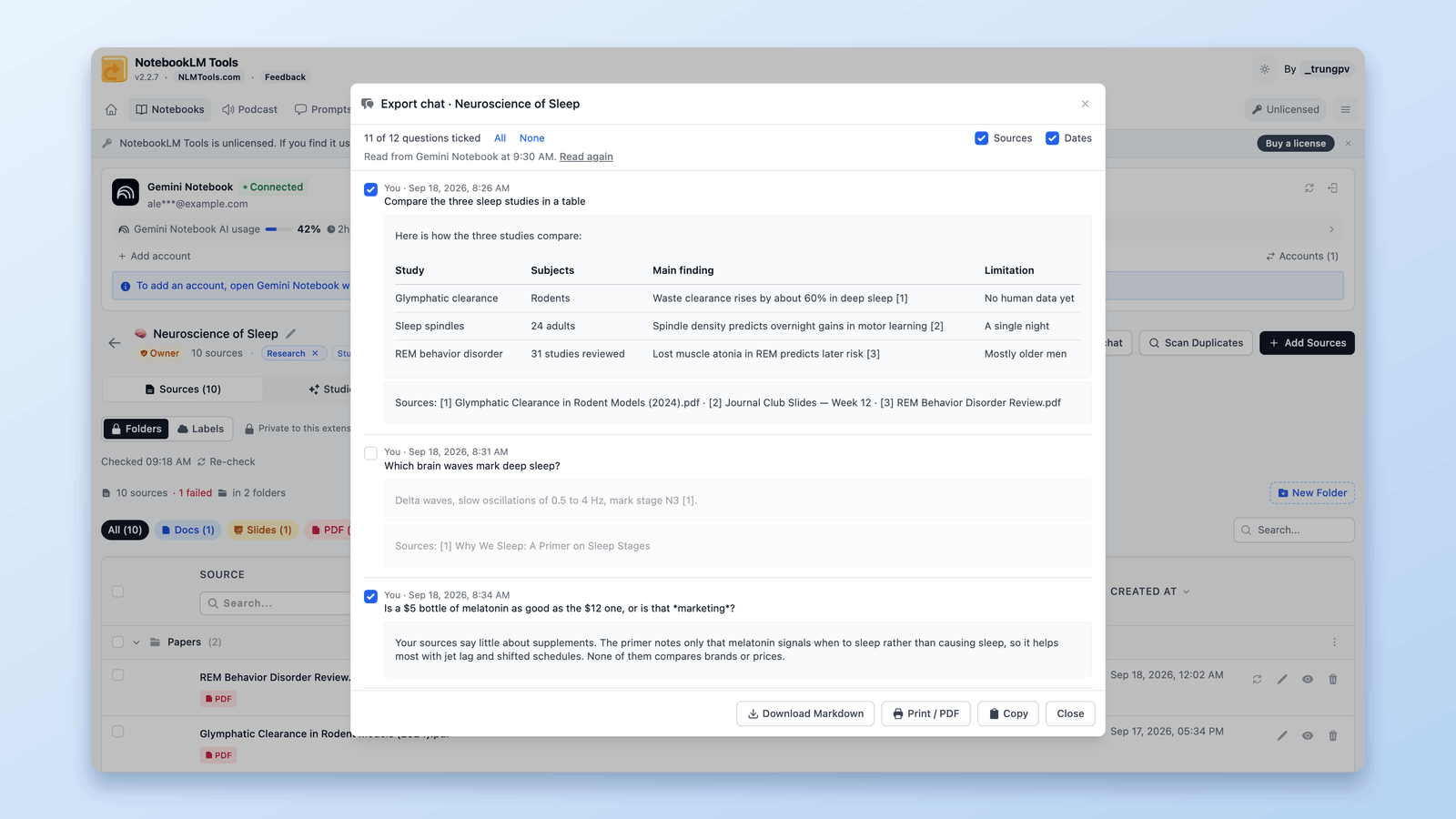
View plansShort answer: NotebookLM (now Gemini Notebook) keeps your chat history inside each notebook, but Google's Help Center documents no way for you to export it. The free NotebookLM Tools extension adds an Export chat button to the notebook page. It reads the chat for you, with no scrolling to the top first, lists it question by question, and saves the questions you tick, each with its answer, as a Markdown file, as a PDF through your browser's print dialog, or to the clipboard. Answers keep their tables, code, and formulas, and the sources they cite are listed by title.
Export a NotebookLM Chat, Step by Step
- Install NotebookLM Tools (Chrome, Edge, Brave, Arc, Opera) or the Firefox version.
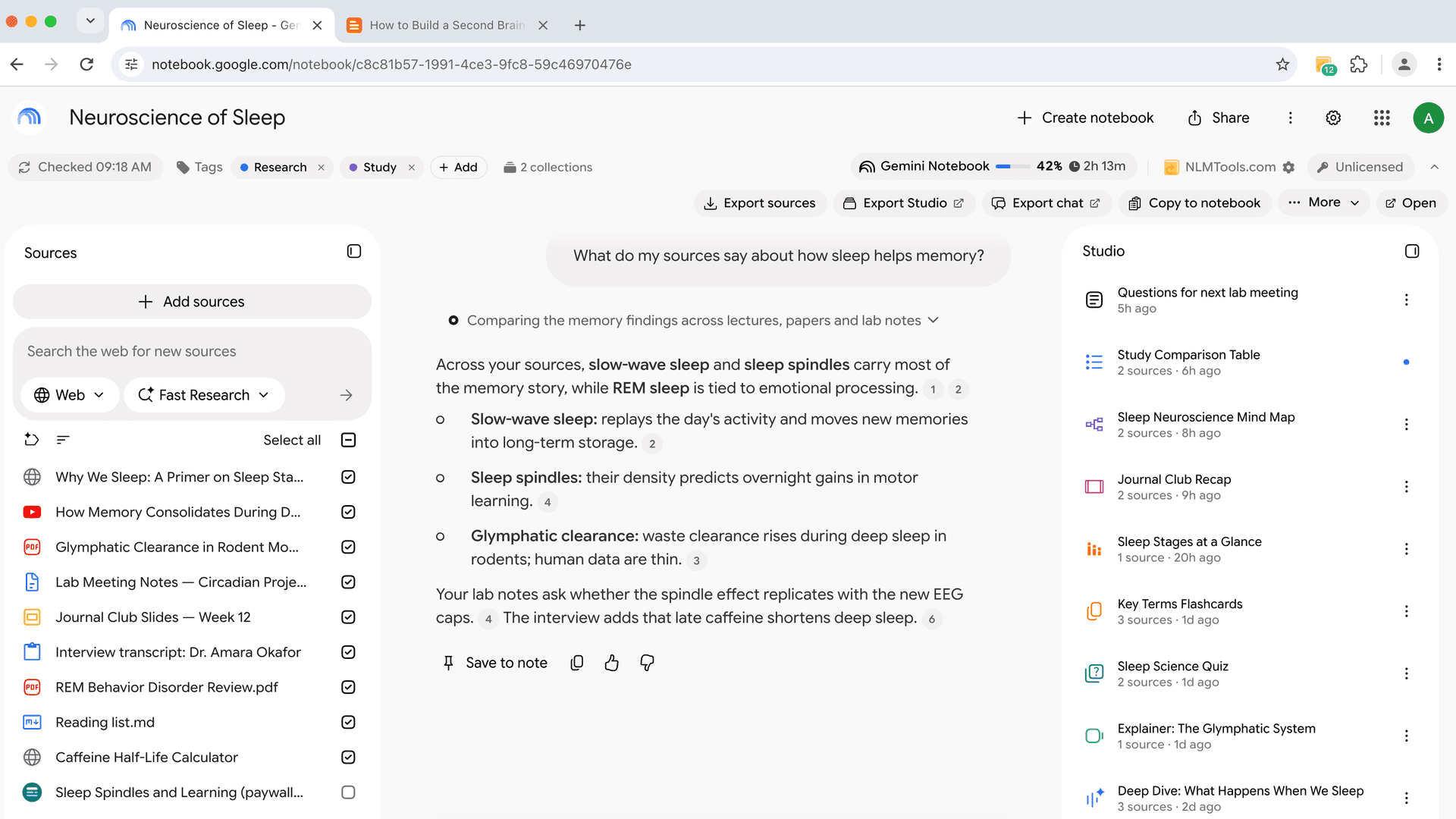
- Open the notebook on notebook.google.com and click Export chat on the toolbar the extension adds to the page. NotebookLM Tools opens in a new tab and starts reading the chat. If the extension is already open on that notebook, the same button is in the header of its notebook page.
- Wait while it reads. A counter shows the messages read so far, and Stop ends the reading early.
- Untick any question you don't want. Every question starts ticked, with its answer under it; All and None switch the whole list, and the line above it keeps count ("11 of 12 questions ticked").
- Choose Download Markdown, Print / PDF, or Copy.
Two options sit above the list, both on by default. Sources adds a line under each answer with the title of every source it cites. Dates adds when each question and answer was written.
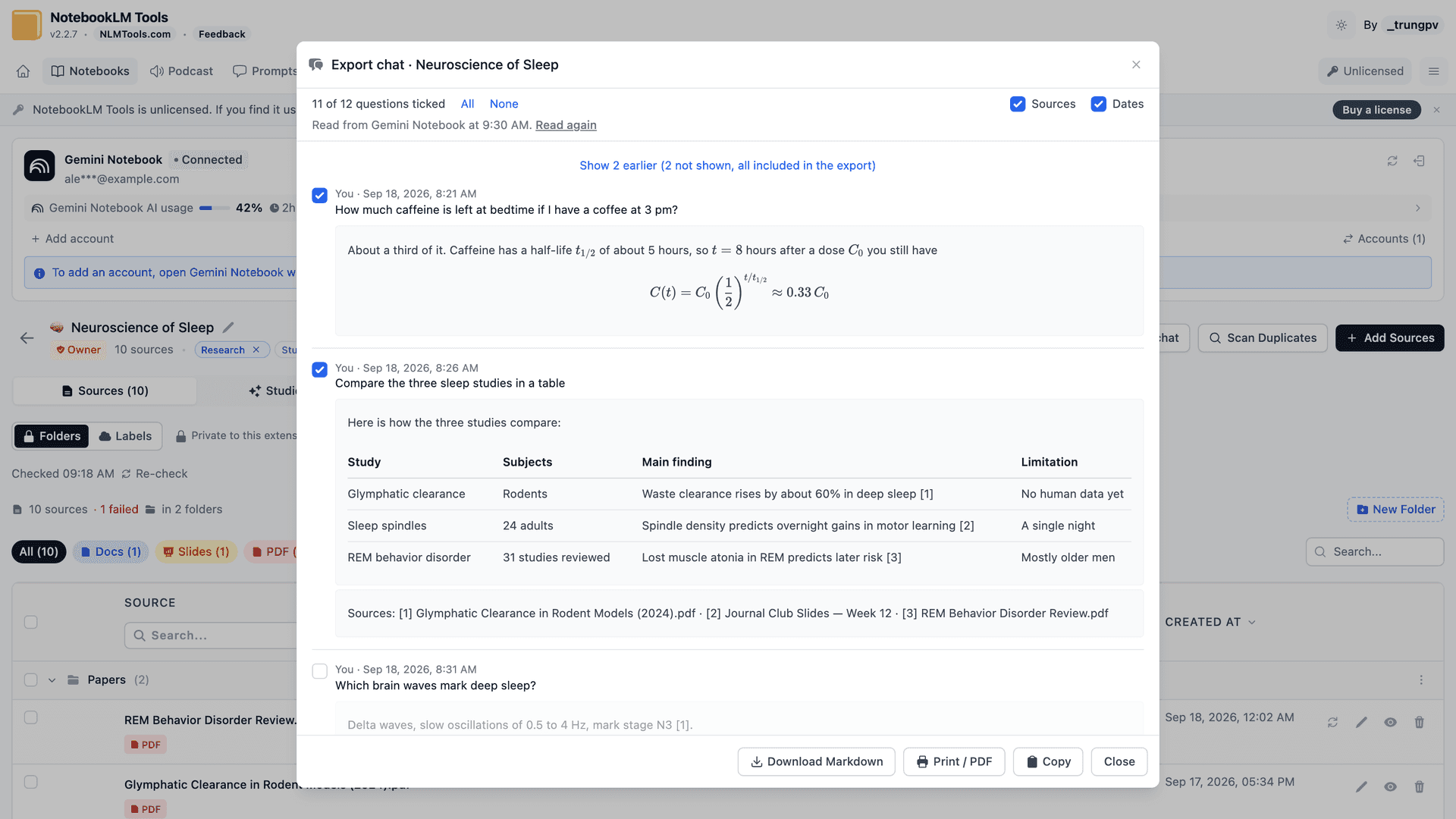
At first the list shows only the ten most recent exchanges, so a long chat opens quickly. A Show 10 earlier link above the list brings back ten more at a time; it also says how many are not shown, and its number drops when fewer than ten are left. The export holds every ticked question either way, shown or not.
What's in the File, and What Isn't
The Markdown file, the PDF, and the copied text all come from the same document:
- A title, "Chat:" followed by the notebook's name.
- Each question as you typed it. Asterisks, dollar signs, numbered lines, and angle brackets in a question show as plain text; they are not read as formatting. In the Markdown file and the copied text, a backslash in front of such a character is what keeps it plain.
- Each answer as NotebookLM formatted it: tables, code blocks with their language, quotes, lists, and formulas. An answer's text goes out uncut, including its closing line.
- Citations. The
[1],[2]markers stay where they were in the text, and a Sources line under the answer gives the title of each source they point to. A source you have since removed is listed as "a source that is no longer in the notebook". - Dates, next to each question and answer.
What you don't get:
- The passage behind each citation. The export names the source, not the passage the citation points to, and the markers are plain text, not links.
- Files, reports, or sites the chat created for you. Those are Studio items, not chat text. For downloading Studio items, see how to download NotebookLM audio and video and how to export NotebookLM to PDF.
- A way back in. The file is a reading copy. It can't be restored into a notebook as chat.
If an answer failed and NotebookLM saved it empty, the export says so in that place: "No answer was saved for this question."
Markdown, PDF, or Copy: Which to Pick
Download Markdown saves one .md file named "Chat" plus the notebook's name. Questions sit under "You" headings and answers under "Gemini Notebook" headings, the app's current name. Formulas are written with $…$ and $$…$$, the notation Markdown tools with math support read. Pick this for a notes app, a repository, or to hand the conversation to another tool.
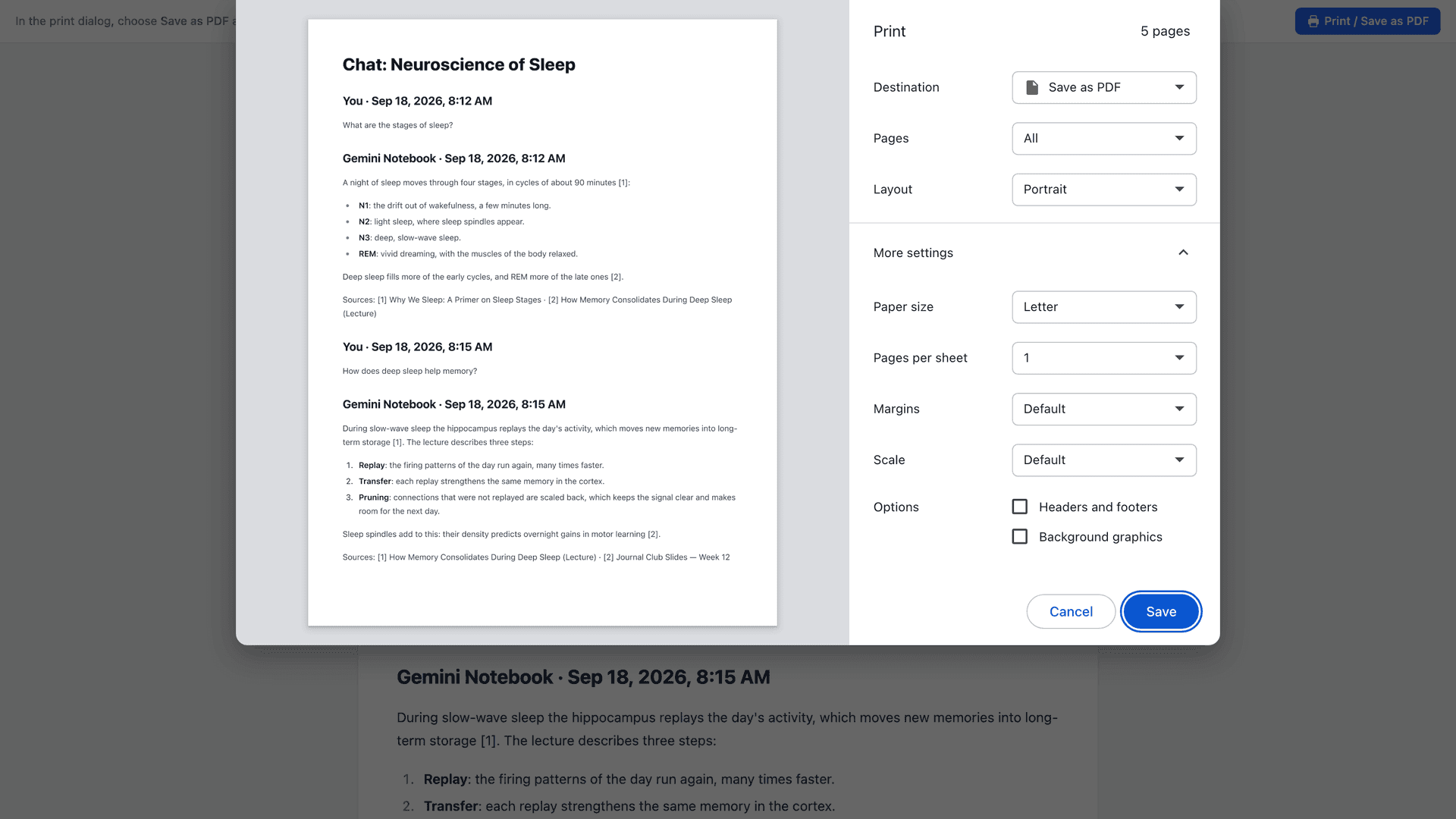
Print / PDF opens a print view in a new tab, and your browser's print dialog opens with it. Choose Save as PDF (Firefox: Save to PDF) as the destination, or pick a printer. Formulas print typeset, and unticking Headers and footers (Firefox: Print headers and footers) under More settings leaves out the date and address lines. A print view holds a limited amount of text. If a chat is too long for it, the extension says "That is too much text for one PDF", and you print it in parts by ticking fewer questions at a time. Download Markdown and Copy have no such limit.
Copy puts the same Markdown text on the clipboard, for pasting into an app that reads Markdown.
There is no Word or Google Docs file. For Docs, Google's own route works one answer at a time, as the next section shows.
Save to Note and Export to Docs, Compared with Export Chat
Google's Help Center documents a way to keep a chat response, in two steps. Save to note pins a response to the notebook: "When you save a response as a note, the original format—including tables and clickable inline citations—gets saved" (Use chat). A note can then go to Google Docs with Export to Docs, found on the note in the Sources panel (Create & add notes).
| Save to note, then Export to Docs | Export chat (NotebookLM Tools) | |
|---|---|---|
| What it saves | One response per note | The questions you tick, each with its answer |
| A chat of twenty questions | Twenty notes, then twenty exports | One export |
| Citations | Clickable inline citations in the note | Markers as text, with source titles listed under each answer |
| Where it ends up | A note in the notebook, then a Google Doc | A Markdown file, a PDF, or the clipboard |
| Keeps up with later changes | No: Google says edits in the Doc "will not synchronize" with the note | No: it is a copy made at that moment |
Save to note is the better choice for one answer you want to keep working with inside the notebook, since Google says notes can be used for Q&A and cited in later responses. Export chat is for taking the conversation out. Google sources last verified: 26 November 2026.
On Google plans that include file generation in chat, you can also ask the chat to write a file. That creates a new document from a prompt; see Can NotebookLM create a PDF itself? for what Google has said about plans.
Long Chats: No Scrolling, but Give It Time
An exporter that copies what is on the page can only take what the page has loaded, which for a long conversation can mean scrolling to the top first. Export chat doesn't work from the page. It asks NotebookLM for the chat directly, a few messages at a time, starting with the most recent.
That takes a while on a long chat, and the dialog says why: every answer arrives with the source passages it was written from. The counter keeps moving while it reads. If you click Stop, you keep what has been read, which is the most recent part of the chat, and the dialog tells you so: "Stopped early. These are the 14 most recent questions." Read again starts over.
Once the chat has been read, it stays available for ten minutes while that extension tab is open: if you close the dialog, the tab's own Export chat button brings the list back without a second wait. Closing the dialog while it is still reading stops the reading, and the next one starts from the beginning.
Does Exporting Change Anything in Your Notebook?
No. Export chat only reads. It sends no message to the chat, changes nothing in the notebook, and deletes nothing. The file is put together in your browser.
Export Before You Copy, Merge, or Clear
Chat history is the part of a notebook that doesn't travel:
- Copying a notebook. Google's Help Center says of a copied notebook: "All Studio content & sources are copied. Chat history & notes are not copied" (Create a notebook). The copy starts with an empty chat. The same holds for the extension's own methods in how to duplicate a NotebookLM notebook.
- Merging notebooks. Sources are copied or moved to the destination; the conversation stays in the old notebook. See how to merge NotebookLM notebooks.
- Clearing the chat. Google documents Delete Chat History in the chat panel's three-dots menu. Export first if any of it matters.
- Deleting a notebook. That is permanent, chat included: see how to recover deleted NotebookLM notebooks and sources.
Google sources last verified: 26 November 2026.
Frequently Asked Questions
Can you export a NotebookLM chat?
Google's Help Center documents no way for a user to export, download, or print a chat; Save to note keeps one response at a time (last verified 26 November 2026). NotebookLM Tools adds Export chat, which saves the questions you tick, each with its answer, as a Markdown file, as a PDF through the print dialog, or to the clipboard. It is part of the free feature set, with no daily limits.
Does NotebookLM save your chat history?
Yes. Google's Help Center says chat history is retained and kept private to you, and that Delete Chat History in the chat panel's three-dots menu clears it (last verified 26 November 2026). It documents no way for you to export it, which is the gap Export chat fills.
How do I save a NotebookLM chat as a PDF?
Click Export chat on the notebook toolbar, untick any questions you don't want, and click Print / PDF. In the print dialog that opens, choose Save as PDF (Firefox: Save to PDF).
Are citations kept when I export a chat?
The [1], [2] markers stay in the text, and a Sources line under each answer gives the title of every source they point to. The passage behind each citation is not exported.
Do I have to scroll through a long chat before exporting it?
No. NotebookLM Tools reads the chat from NotebookLM itself, a few messages at a time. A long chat takes a while; Stop keeps the most recent questions read so far.
Why is my NotebookLM chat history gone?
Google's own pages describe a few situations that can explain it (last verified 26 November 2026):
- Delete Chat History was used; it clears the chat (Use chat).
- The notebook is a copy: "Chat history & notes are not copied" (Create a notebook).
- On the mobile app, Google says of syncing in general that "syncing between devices may be delayed", and suggests quitting the app and relaunching it (mobile app help).
- The enterprise edition, which the extension does not cover, doesn't save chat history: conversations are "kept only for the current browser session" (Google Cloud documentation).
While the history is there, Export chat can save a copy of it.
Take the Conversation With You
The answers in a NotebookLM chat are often the most useful thing a notebook produced, and Google's Help Center documents no export for them. With the free NotebookLM Tools extension, Export chat turns the conversation into a Markdown file or a PDF, with the questions you choose, the formatting intact, and the sources named. See the full feature list for the rest, or pricing for what Pro adds.
Related articles:
- How to Export NotebookLM to PDF — Print / PDF for notes, reports, quizzes, and sources; native slide deck downloads.
- How to Download All Your NotebookLM Sources at Once — Export every source's content as Markdown or JSON.
- How to Download NotebookLM Audio & Video Overviews (MP3, MP4) — The media side of a notebook.
Trusted by 100,000+ NotebookLM users
Related articles
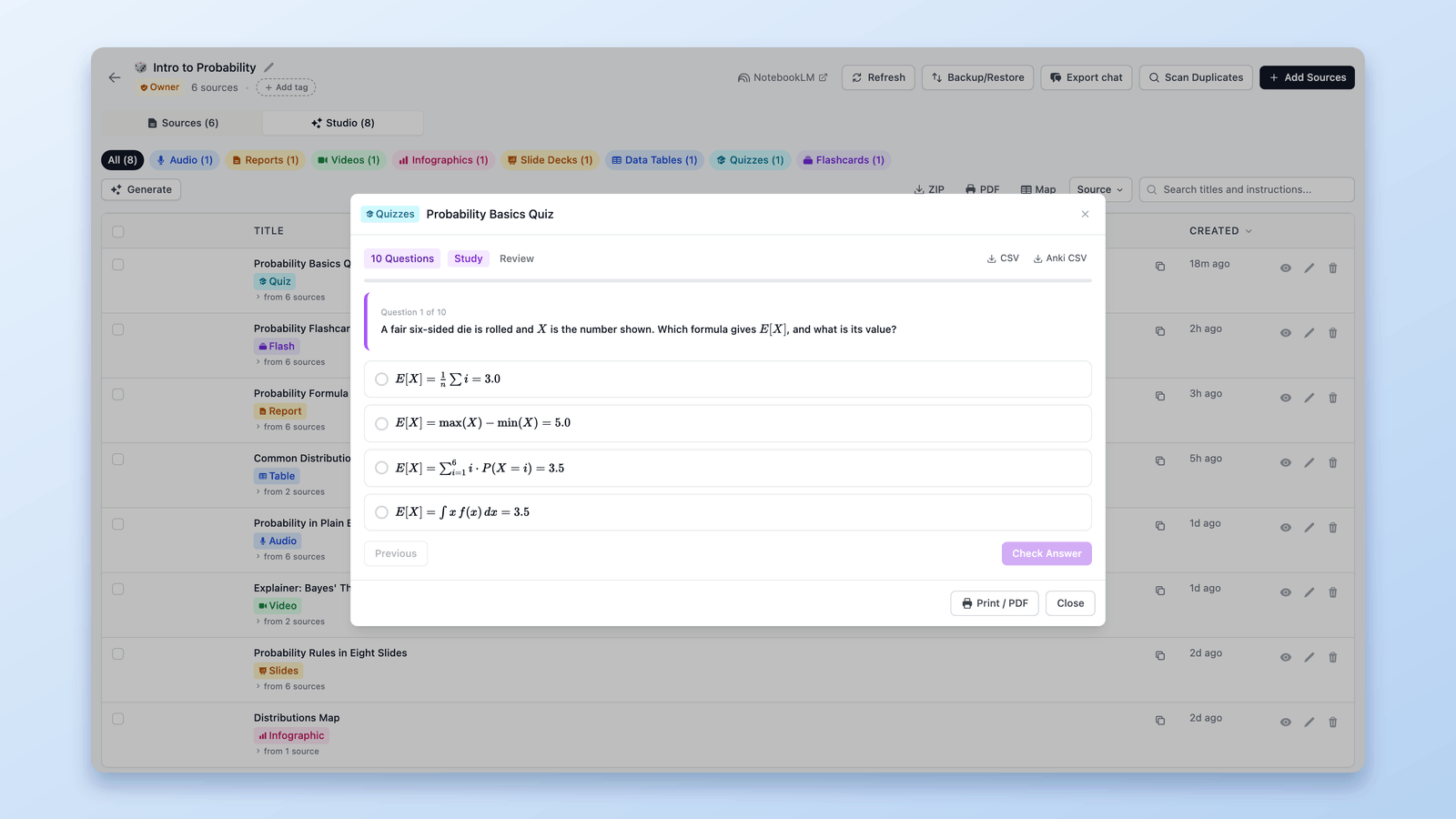
How to Export a NotebookLM Quiz (Spreadsheet, PDF, Answer Key)
Google documents no NotebookLM quiz export. NotebookLM Tools saves quizzes as CSV or Anki cards and prints them with an answer key, for every question type. Free.
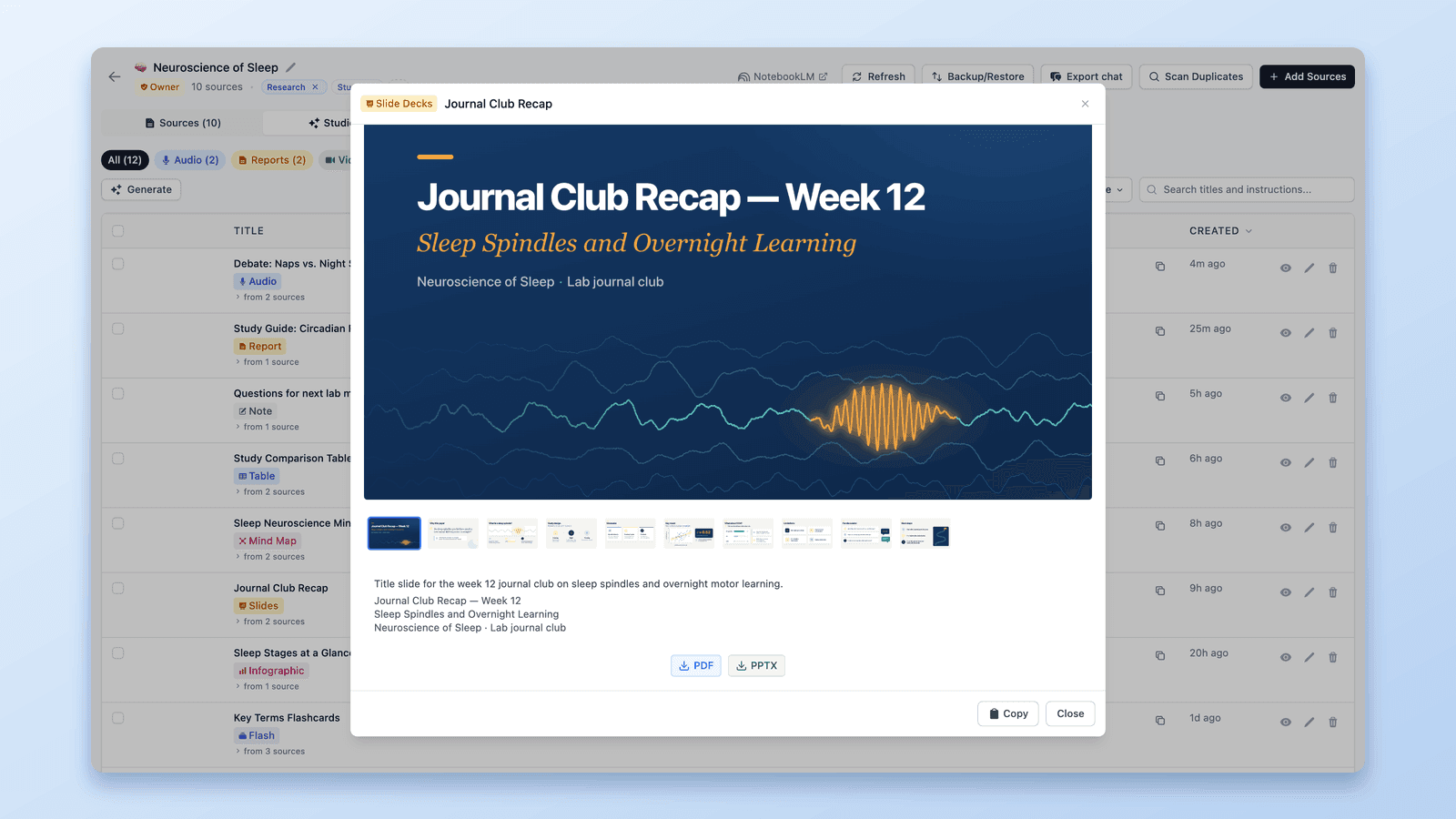
How to Export NotebookLM to PDF (Sources, Notes & Studio)
Yes. Slide decks download as PDF, chat can create one on some plans, and the free NotebookLM Tools Print / PDF button covers notes, reports, quizzes, and sources.
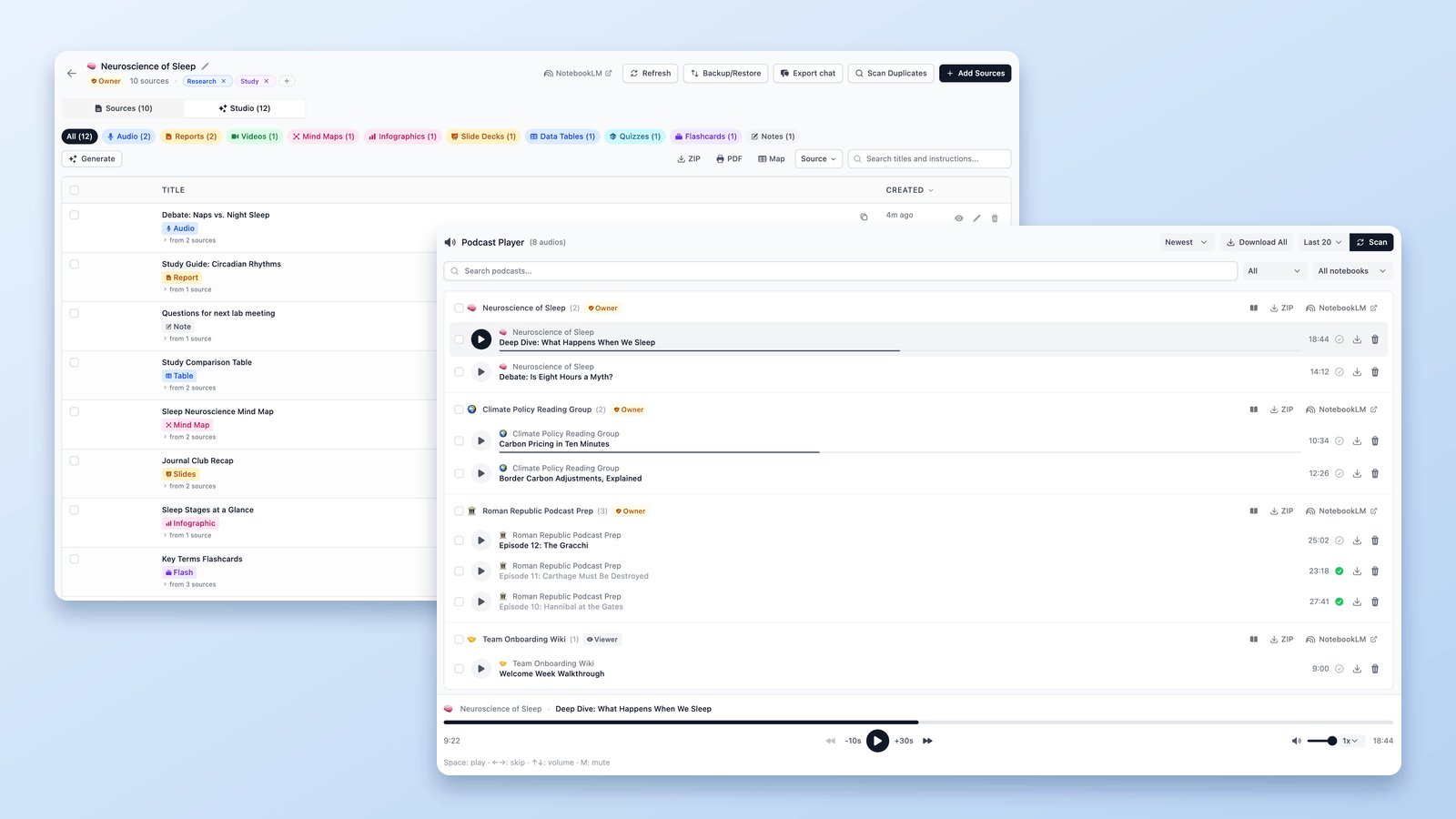
How to Download NotebookLM Audio & Video Overviews (MP3, MP4)
The NotebookLM downloader guide: save Audio Overviews as MP3 — one at a time or all at once as ZIP — download Video Overviews as MP4, free, by link or in bulk.