Deleted a NotebookLM Notebook or Source? What You Can Recover
Enhance your NotebookLM experience with our free browser extension.
View plansShort answer: NotebookLM (now Gemini Notebook) has no undo for deleted notebooks or sources, and deleted content does not sit in a trash folder you can dig through. If you did not export a backup before the deletion, the content is almost certainly gone. If you did, you can import that backup into a fresh notebook with NotebookLM Tools and recover the source list.
This guide is honest about both sides: what is actually recoverable, and how to set up a per-notebook Backup & Restore habit so the next accident is a non-event.
What Can and Cannot Be Recovered
NotebookLM does not offer a trash bin, version history, or per-source undo. Once you confirm a deletion, the content leaves your notebook immediately. There is no hidden Drive folder where deleted notebooks reappear and no third-party service that can pull them back.
What this means in practice:
- Deleted notebooks — unrecoverable by any tool unless you exported a Backup & Restore file beforehand. If you did, you can rebuild the source list into a new notebook.
- Deleted sources within a notebook — same story. Removing a source from a notebook is immediate and final. The extension cannot reach back into NotebookLM and retrieve it.
- Deleted chats — not recoverable.
- Deleted studio items (audio overviews, mind maps, reports) — not recoverable, unless you had saved them beforehand with Export Studio (a ZIP of the notebook's Studio items).
The honest framing is that "recovery" in NotebookLM really means "restore from a backup you already made." There is no other path. If that backup doesn't exist, the work is gone.
If You Have a Prior Backup: How to Restore
NotebookLM Tools ships a per-notebook Backup & Restore dialog. If you previously exported a notebook to .json or .zip, you can bring those sources back into a new notebook:
- Open NotebookLM and create a new, empty notebook.
- On the new notebook's page, click Open on the toolbar NotebookLM Tools adds under the notebook's title — the notebook opens in NotebookLM Tools.
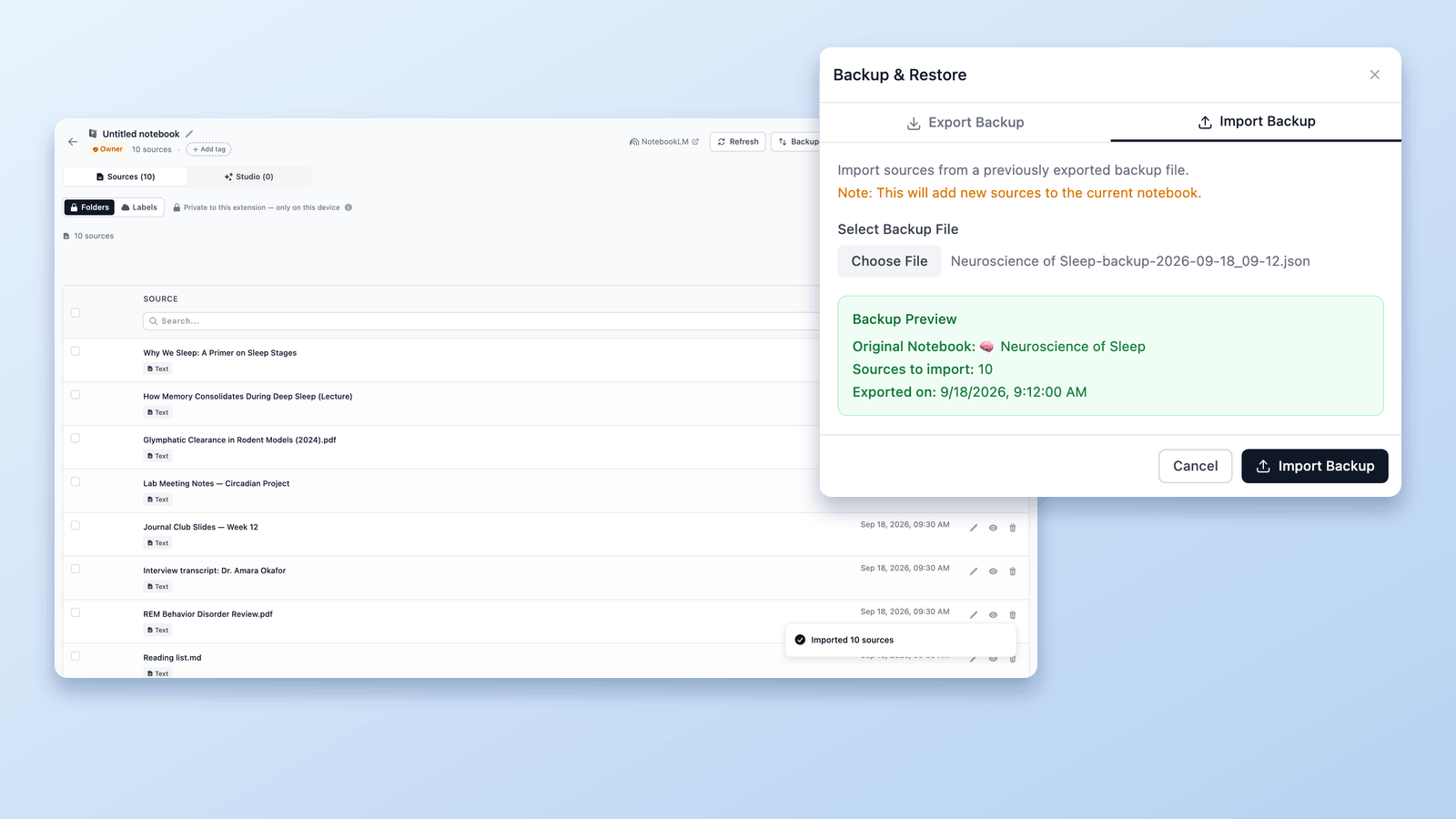
- Click Backup/Restore and switch to the Import Backup tab.
- Select your
.jsonor.zipfile. The dialog shows a preview (original notebook title, source count, export timestamp for JSON; filename for ZIP). - Click Import Backup. The extension adds each saved source to the current notebook one by one. Import is additive — it does not overwrite or delete anything already in the notebook.
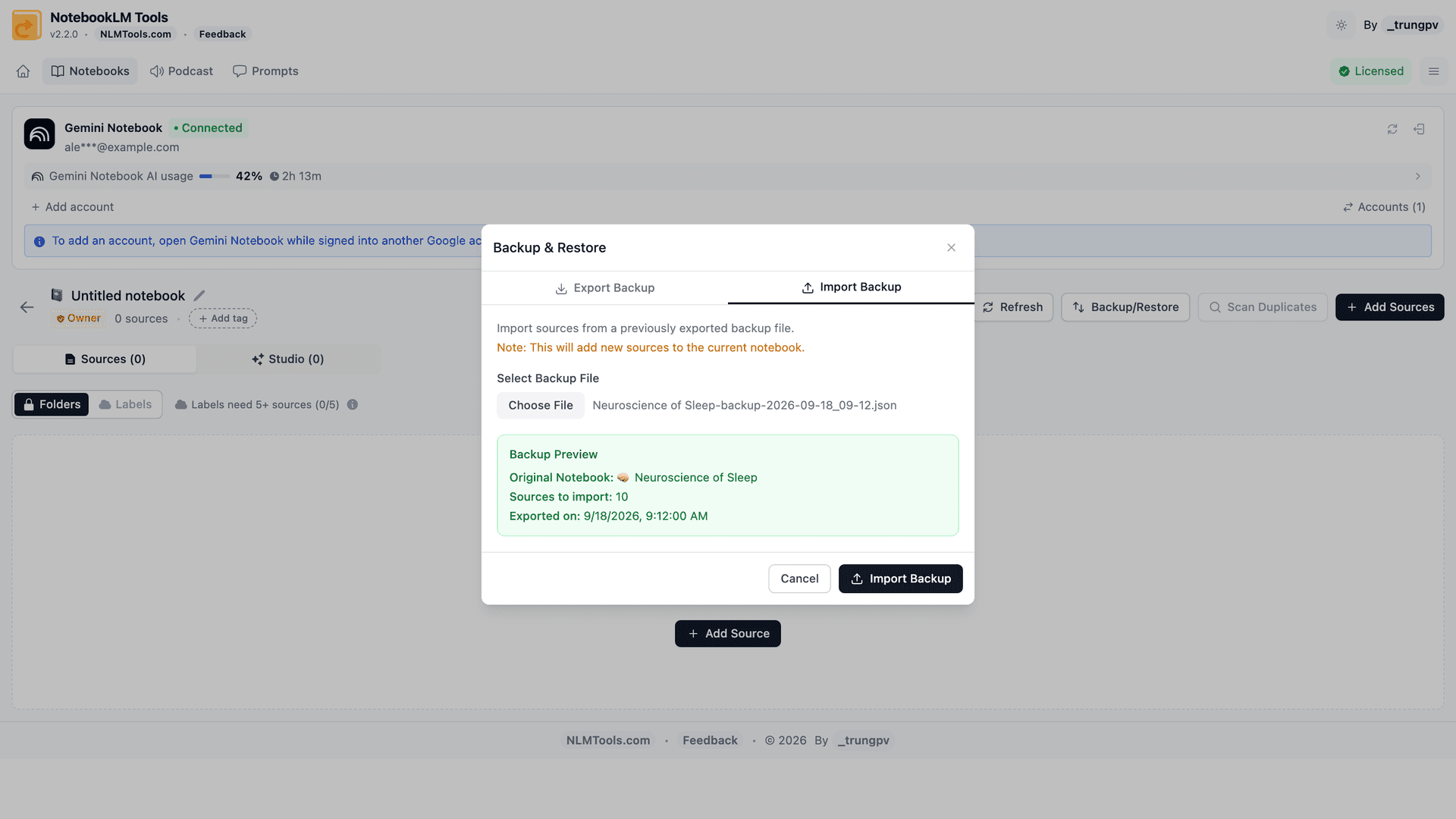
What you get back from a JSON backup: every source's title and full content, with its original URL written at the top, and the source folder organization. Each source returns as a text source — a Drive file, web page, or YouTube video comes back as a text copy, not a live link, so re-add it from the original if you need it to sync again. The file also records the notebook's title and emoji (shown in the import preview), but the import doesn't rename the new notebook, so rename it yourself.
What you get back from a ZIP backup: each .md file (filename index-title.md) comes back as a text source named after the file. The ZIP keeps the original URL as a blockquote at the top of each file, but the import leaves that line out, and folder organization is not included in ZIP — use JSON if you want folders and URLs preserved.
What you do not get back from a source backup, regardless of format: chat history, notes, and studio items. Studio items and notes have their own safety net — Export Studio on the notebook toolbar opens the notebook's Studio tab in NotebookLM Tools, where the ZIP button downloads its Audio Overviews (MP3), Video Overviews (MP4), slide decks, reports, quizzes, flashcards, mind maps, and notes (Markdown) in one file, so export those too before a risky change. Chat history is the real gap: NotebookLM has no chat export, so if a specific chat thread matters, copy it into a note first and include that note in your Studio export.
If the Restore Creates Duplicates
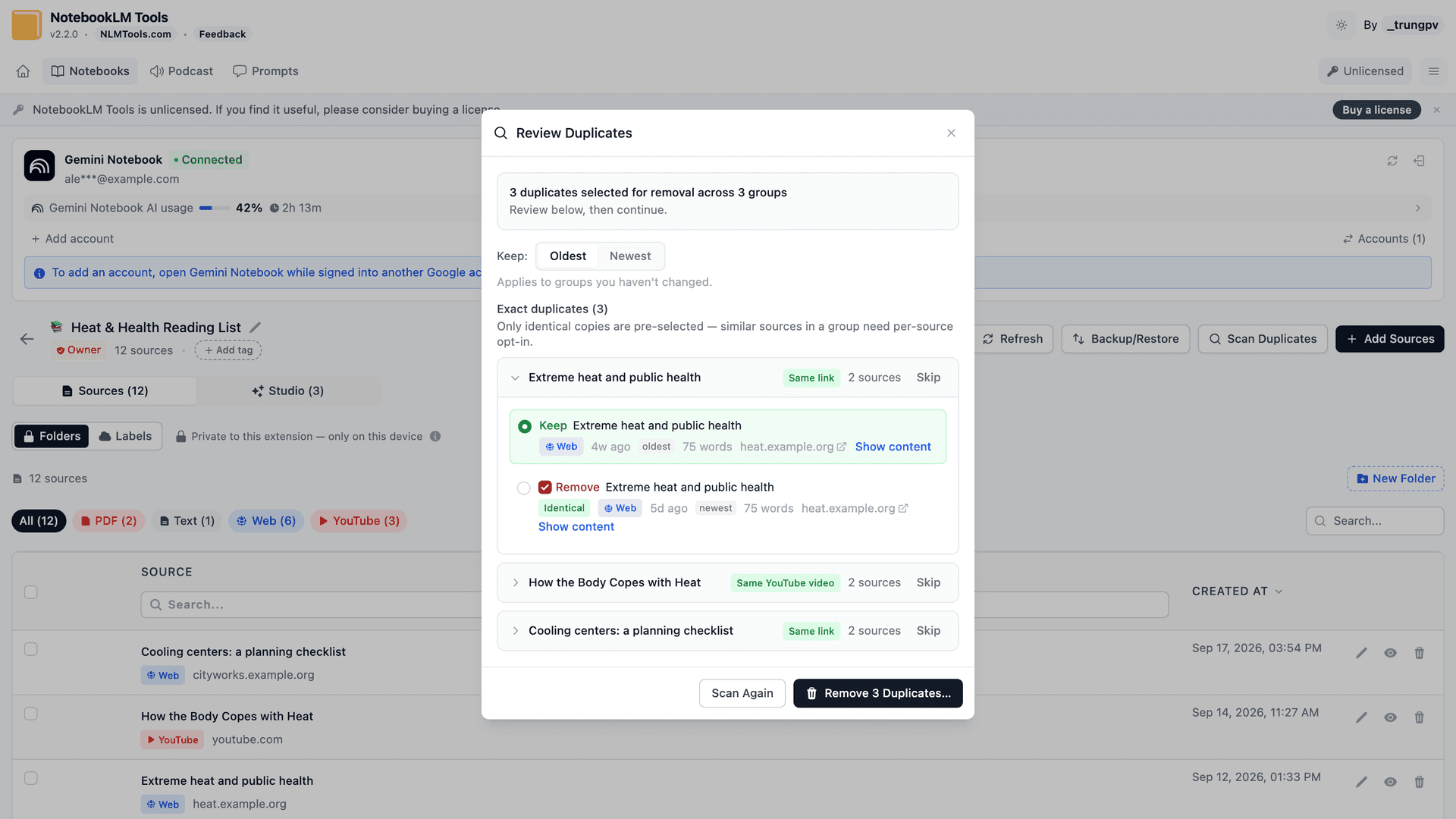
If you import a backup into a notebook that already has sources, you will end up with duplicates. NotebookLM Tools includes a Duplicate Scanner for exactly this case. It groups sources that share an identity — the same URL, YouTube video, or Drive file — or identical content, and it ignores titles (two "Merged Sources" with different content are not duplicates). For each group you pick which copy to keep (oldest or newest by default) and the scanner deletes the rest.
Two ways in: on the notebook page, the toolbar's More menu shows the duplicate count as soon as the notebook loads and opens the scanner with Find duplicates; or open the notebook in the extension and run the scanner from there.
If You Have No Backup
Be direct with yourself here: if you deleted a notebook or source and never exported a backup, NotebookLM Tools cannot recover it, and neither can any other extension, script, or third-party service. The content is not sitting in a hidden folder waiting to be pulled back. It is gone.
The narrow partial-recovery paths that sometimes help:
- If the source was a Google Drive file — the original file may still exist in Drive. You can re-add it as a new source in NotebookLM. You lose anything that depended on the old source ID (such as citations in prior chats), but the content returns.
- If it was a web URL or YouTube video — check your browser history for the URL and re-add it through the normal Add Source flow or via the right-click import.
- If it was pasted text or an uploaded PDF with no external copy — it cannot be recovered.
That's the complete honest list. Anything beyond this is wishful thinking.
Prevention: The Only Thing That Actually Works
The right time to plan recovery is before the deletion. The workflow that actually works:
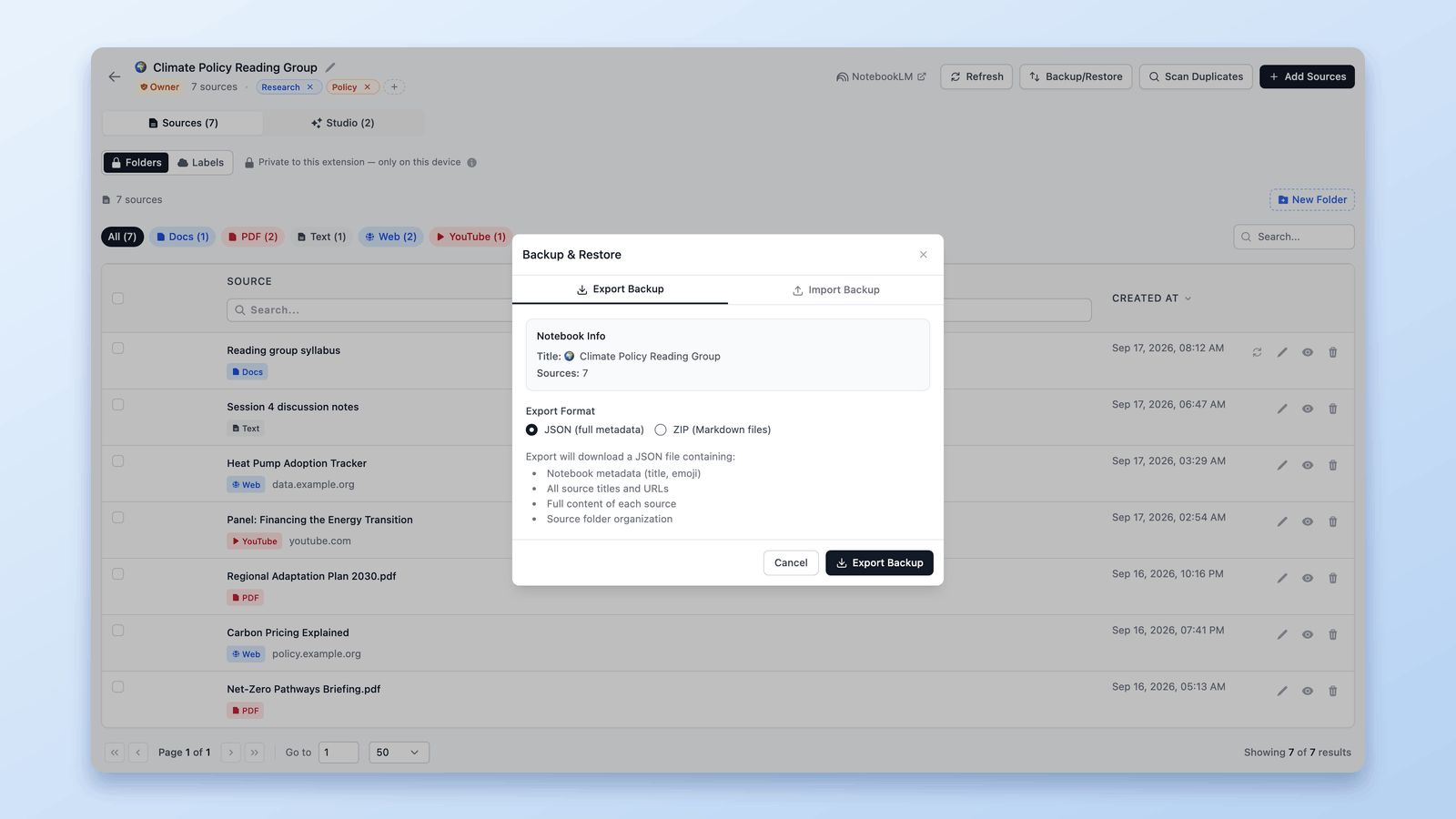
- Export a backup before any destructive action. Before bulk-deleting sources, merging notebooks, or reorganizing a folder structure, click Export sources on the notebook toolbar (or open Backup & Restore in the extension) and export the current notebook as JSON. It takes a few seconds. For big reorganizations, you can also duplicate the notebook first and work on the copy.
- Pick the format that matches your need. JSON preserves folders and full metadata — use it for notebooks you might need to rebuild. ZIP gives you one Markdown file per source — useful if you also want the content outside NotebookLM.
- Keep the backup somewhere persistent. A synced folder (iCloud, Dropbox, Drive) or a git repo works fine. One backup per major milestone is enough for most notebooks.
- Back up on a cadence for active notebooks. Monthly is a reasonable baseline. Weekly if the notebook is changing daily.
- Run the Duplicate Scanner after large imports. Catching duplicates early keeps later cleanups simpler.
Full walkthrough in NotebookLM Tips #6: Backup and Restore.
Frequently Asked Questions
Can NotebookLM Tools recover a notebook I deleted without a backup?
No. Without a prior .json or .zip export, there is no way for the extension — or any tool — to reach back into NotebookLM and retrieve deleted content. The extension only imports from files you have already saved locally.
I removed a source from my notebook by accident. Can I undo it?
NotebookLM has no undo for source removal. If you have a prior backup, import it into a new notebook, then use Copy to notebook on the toolbar to send just the missing source back — importing straight into the original notebook re-adds every source in the backup, not only the missing one. If the source was a Google Drive file, web URL, or YouTube video, you can usually re-add it from the original location. Pasted text or uploaded PDFs with no external copy are not recoverable without a backup.
Does NotebookLM have a trash or version history?
No. Deletions are immediate and final inside NotebookLM. This is the central reason a separate Backup & Restore workflow matters.
Will a backup restore my chat history and audio overviews?
Not from a source backup — that covers titles, URLs, content, and folder structure only. Studio items can be saved separately: Export Studio on the notebook toolbar opens the notebook's Studio tab in NotebookLM Tools, where the ZIP button downloads its Audio Overviews (MP3), Video Overviews (MP4), slide decks, reports, quizzes, flashcards, mind maps, and notes in one file. Chat history is the exception: NotebookLM has no chat export, so copy important chat output into a note inside the notebook and include that note in your Studio export.
How often should I back up?
Before any destructive action, always. For active notebooks, a monthly cadence is sensible; weekly if you edit the notebook daily. Exports are small and take seconds.
What is the difference between JSON and ZIP export?
JSON contains notebook metadata, every source's title and URL, the full content of each source, and the folder organization — it is the format to use if you might need to rebuild the notebook. ZIP produces one .md file per source (filename index-title.md) with the URL as a blockquote; folders are not preserved. ZIP is more useful when you want the content outside NotebookLM.
Can I recover a shared notebook if the owner deleted it?
If you are a collaborator and the owner deletes the notebook, you lose access at the same moment. Nobody can restore it — not even the owner — unless someone exported a backup beforehand. You don't have to be the owner to make one: Export sources and Export Studio on the notebook toolbar work on any notebook you can open, including view-only shared and public notebooks, so back up the shared notebooks you rely on yourself.
The Practical Fix: Back Up First
There is no trash bin or undo inside NotebookLM, and no third-party tool can recover what you haven't already saved. A periodic per-notebook Backup & Restore export is the only reliable insurance. NotebookLM Tools handles the export and the import; see the backup and restore feature.
Related articles:
- NotebookLM Tips #6: Backup and Restore — Full walkthrough of the backup workflow this guide relies on.
- How to Duplicate or Copy a NotebookLM Notebook — Clone a notebook before risky changes so the original stays safe.
- Can You Merge or Combine Notebooks in NotebookLM? — Consolidate notebooks safely using backups as a checkpoint.
- How to Organize NotebookLM Sources with Folders — Reduce accidental deletion with clearer source structure.
Trusted by 90,000+ NotebookLM users
Related articles
NotebookLM Tips #6: Backup & Restore Sources Safely
Learn how to backup and restore sources in NotebookLM for safe experimentation, faster iteration, and confident notebook management using NotebookLM Tools.
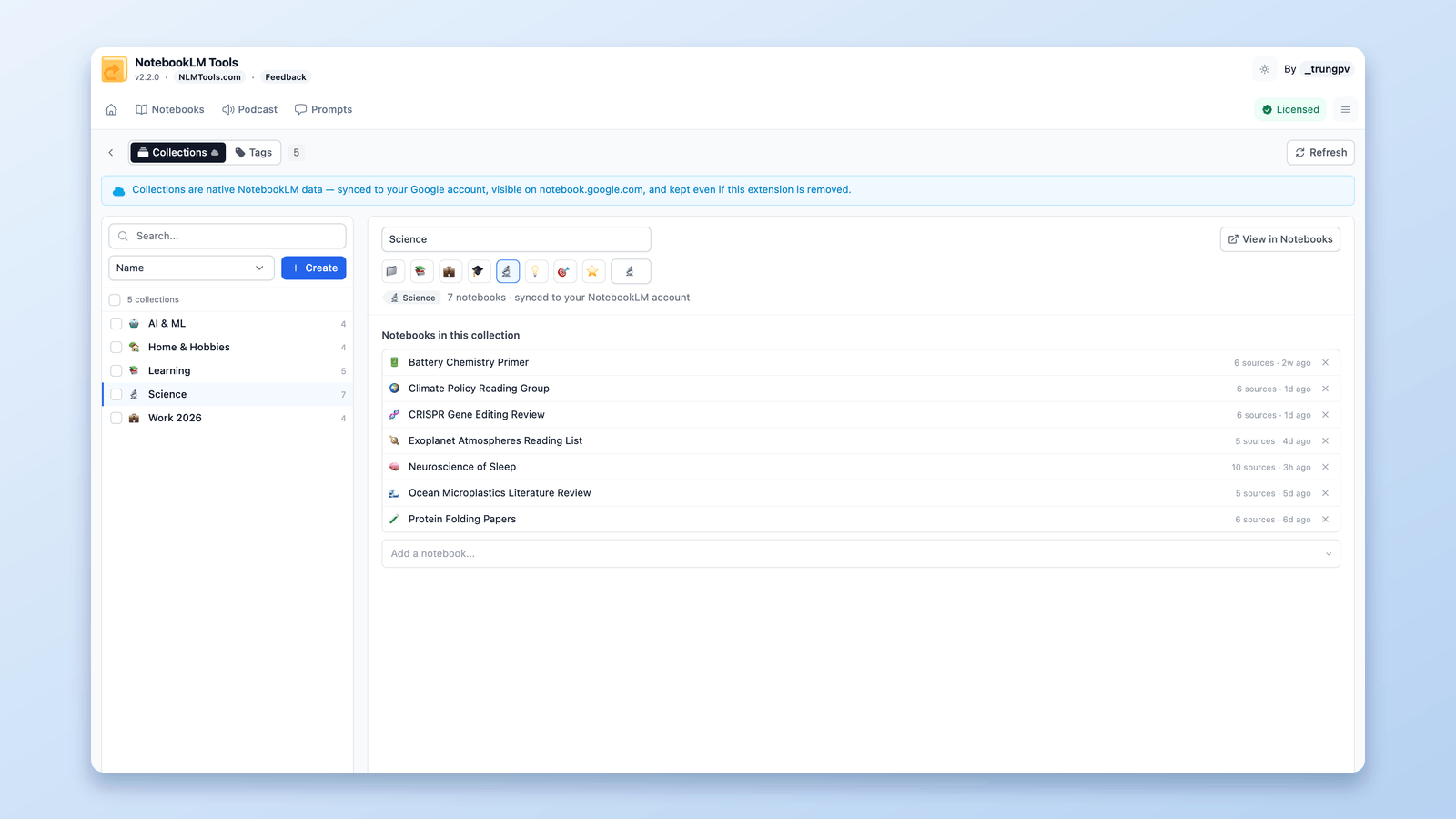
How to Group & Organize Notebooks in NotebookLM (Collections)
Yes, you can group notebooks in NotebookLM. Collections are native notebook folders synced to your Google account — create, bulk-assign, and filter in seconds.
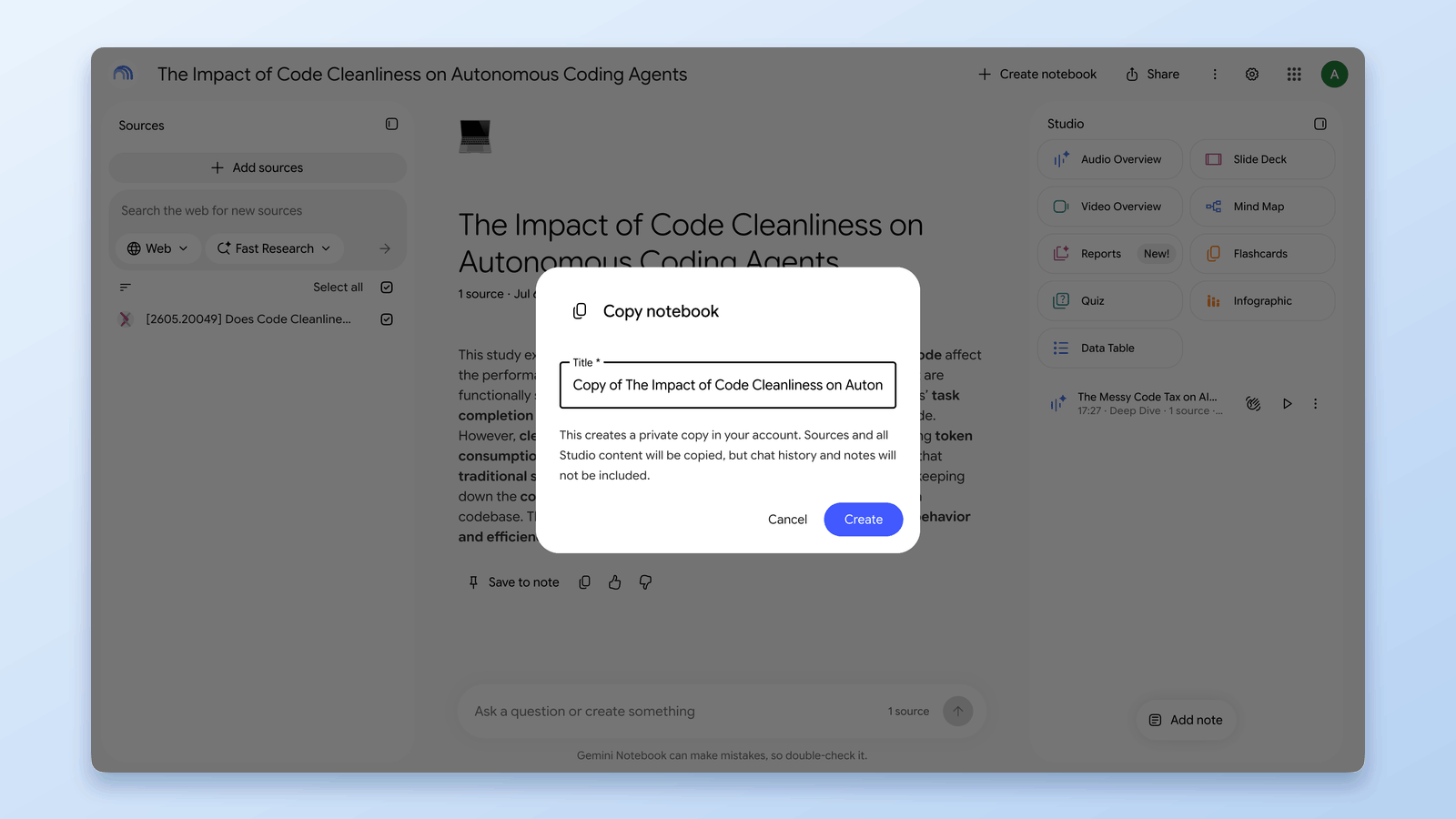
How to Duplicate or Copy a NotebookLM Notebook
NotebookLM added a native Copy action in August 2026. How it works, what it doesn't copy, and when a free extension is still faster: partial copies, moves, merges.