How to Export NotebookLM to PDF (Sources, Notes & Studio)
Enhance your NotebookLM experience with our free browser extension.
View plansShort answer: Yes. NotebookLM (now Gemini Notebook) downloads slide decks as PDF or PPTX on its own. For everything text-based — notes, reports, quizzes, flashcards, data tables, and text sources — the free NotebookLM Tools extension adds one Print / PDF button: it opens a print view, your browser's print dialog appears, and you choose Save as PDF. On Google plans that include file generation, NotebookLM's chat can also write a PDF for you. This guide covers every path.
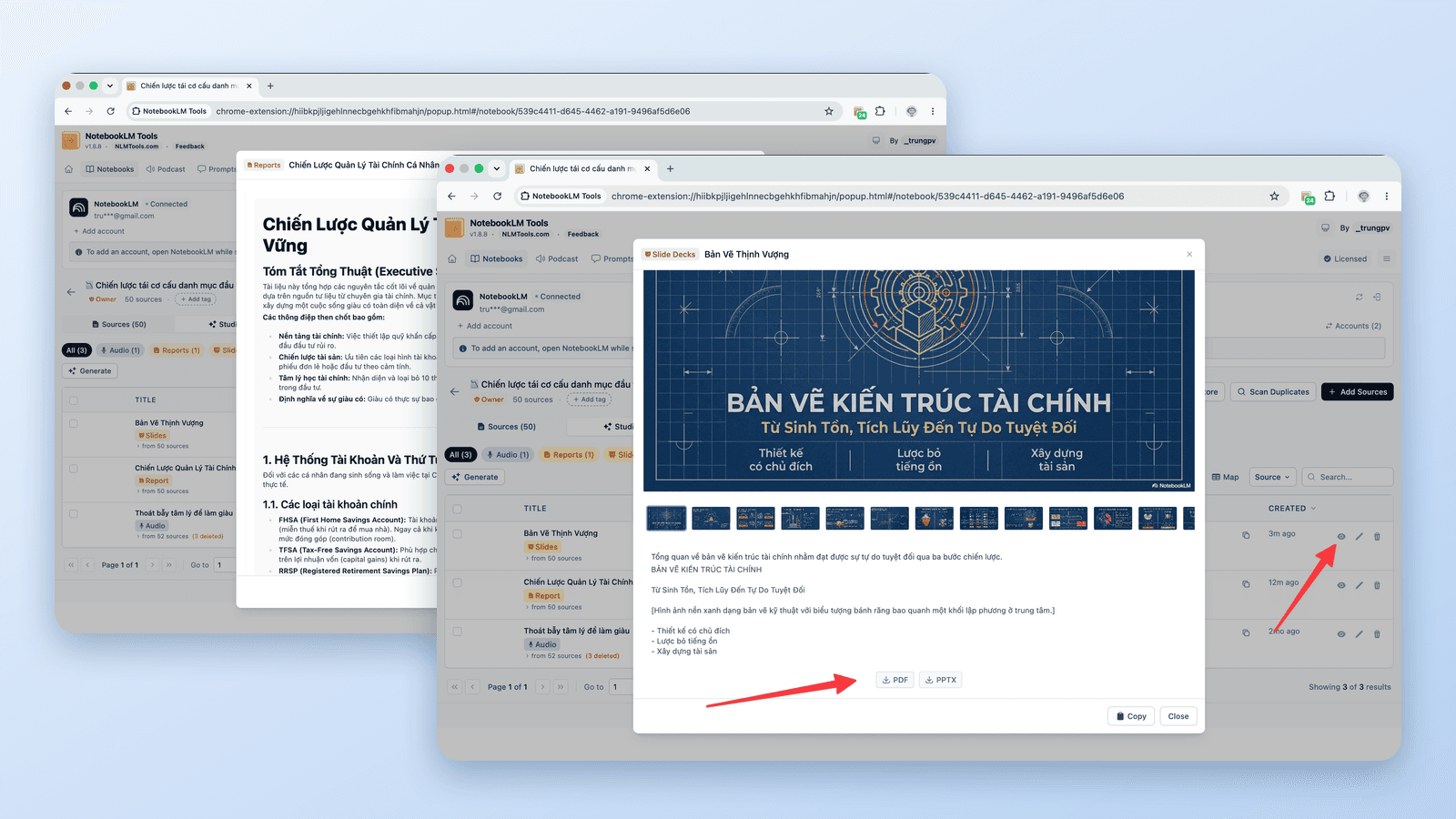
What NotebookLM Exports Natively (and What It Doesn't)
NotebookLM's own export options depend on the item. Google's Help Center documents these:
- Slide decks: the three-dots menu offers Download PDF Document (.pdf) and Download PowerPoint (.pptx), for users 18 and over (Help Center).
- Reports and notes: Export to Docs (reports, notes); a table inside a report can go to Sheets with Export to Sheets.
- Data tables: Export to Sheets, with the table on the first tab and citations on the second (Help Center).
- Flashcards: download as a CSV file. Quizzes: the Help Center documents no download or export (Help Center).
- Infographics download as PNG, and mind maps have a Download button.
- Audio and Video Overviews download as audio and video files (see the audio and video guide).
What's missing from that list is a PDF for anything text-based: the Help Center documents no PDF, DOCX, print, or Save-as-PDF option for notes, reports, quizzes, flashcards, or data tables (last verified 24 September 2026). That gap is what the rest of this guide fills.
Separately, on Google plans that include file generation in chat (Google AI Ultra and eligible Workspace editions first; in July 2026 Google said it would reach Google AI Pro over the coming weeks), you can ask NotebookLM's chat to produce a file — PDF, Word, Markdown, Excel, PowerPoint, CSV, and more (Google's announcement). NotebookLM Tools lists these as Custom Files and includes them in its Export Studio ZIP with their original extension. Last verified: 24 September 2026.
Export Slide Decks as PDF
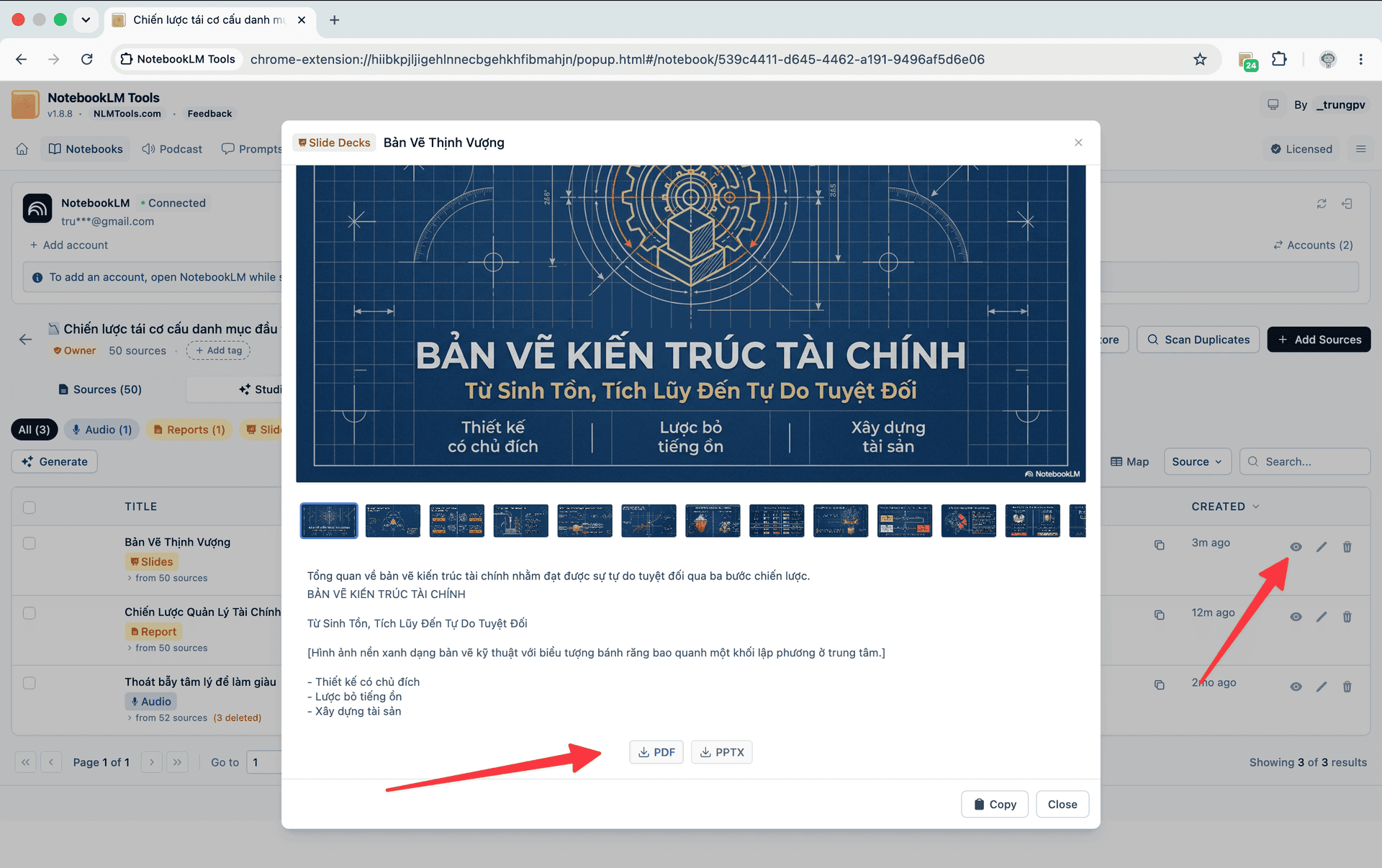
Slide decks are the only standard Studio output NotebookLM exports as a PDF by itself:
- Open the notebook at notebook.google.com and find the finished deck in the Studio panel.
- Open its three-dots menu and choose Download PDF Document (.pdf), or Download PowerPoint (.pptx) if you want to edit the slides.
Google's Help Center says slide decks are available only to users over 18 (source). Last verified: 24 September 2026.
The NotebookLM Tools extension gives you the same two formats from its slide deck viewer (filmstrip navigation, PDF and PPTX buttons), which is handy when you're already working in the extension. To grab every deck in a notebook at once, click Export Studio on the toolbar the extension adds to the notebook page: the ZIP includes each slide deck as one file (PPTX when available, otherwise PDF) alongside the notebook's other Studio items.
Print Any Note, Report, Quiz, or Flashcard Set as a PDF
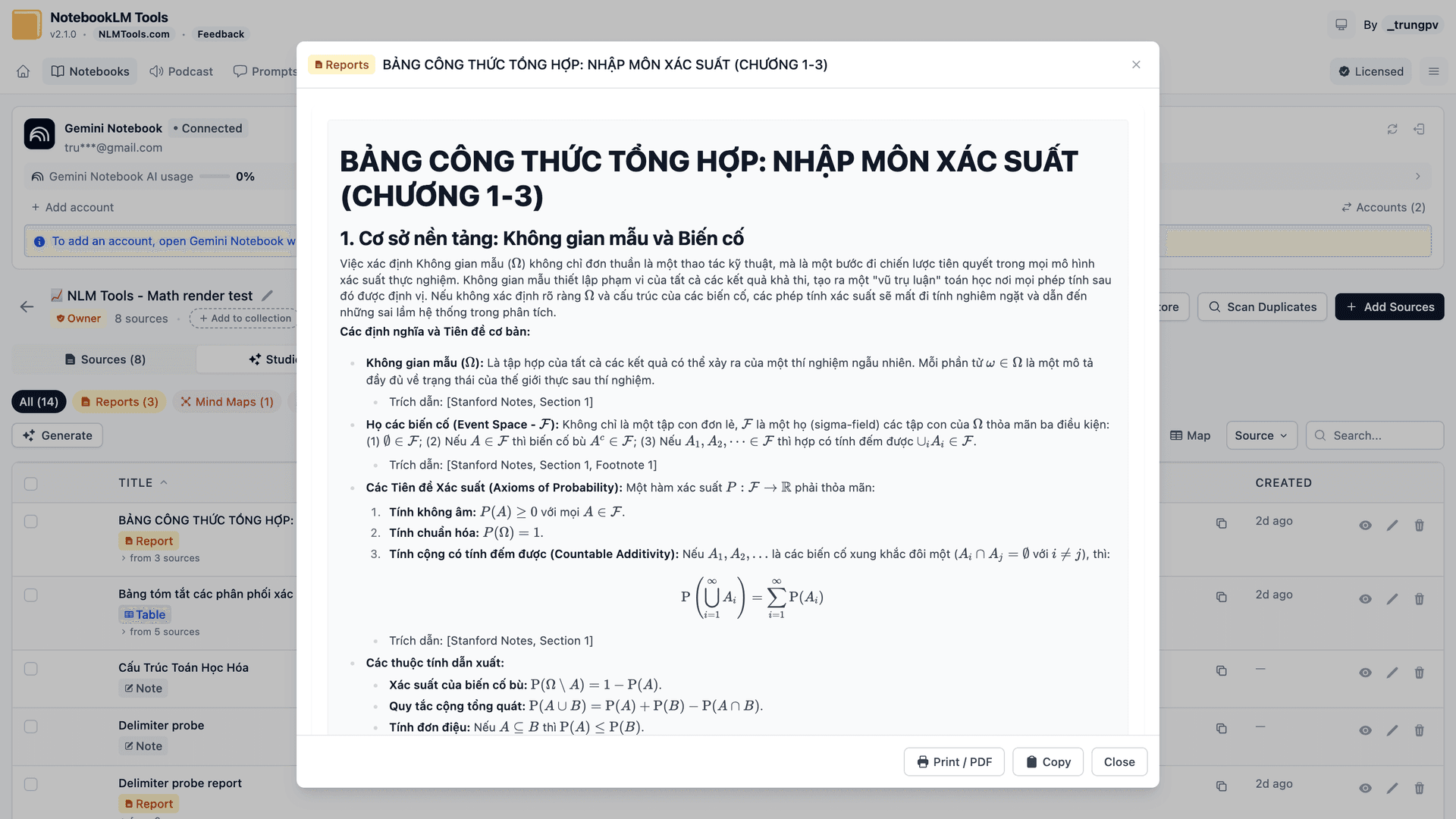
NotebookLM Tools adds a Print / PDF button to the footer of its Studio item dialog for reports, notes, quizzes, flashcards, and data tables. One button, the same steps every time:
- Open the notebook at notebook.google.com and click Export Studio on the toolbar the extension adds to the page. NotebookLM Tools opens on its Studio tab, listing everything in the notebook's Studio panel.
- Click the eye icon (View content) on the item. It opens in a dialog.
- Click Print / PDF in the dialog footer. A print view opens in a new tab, titled after the item, and your browser's print dialog opens on its own.
- Choose Save as PDF (Firefox: Save to PDF) as the destination and save. The file is named after the item. (If you closed the dialog, the print view's own Print / Save as PDF button brings it back.)
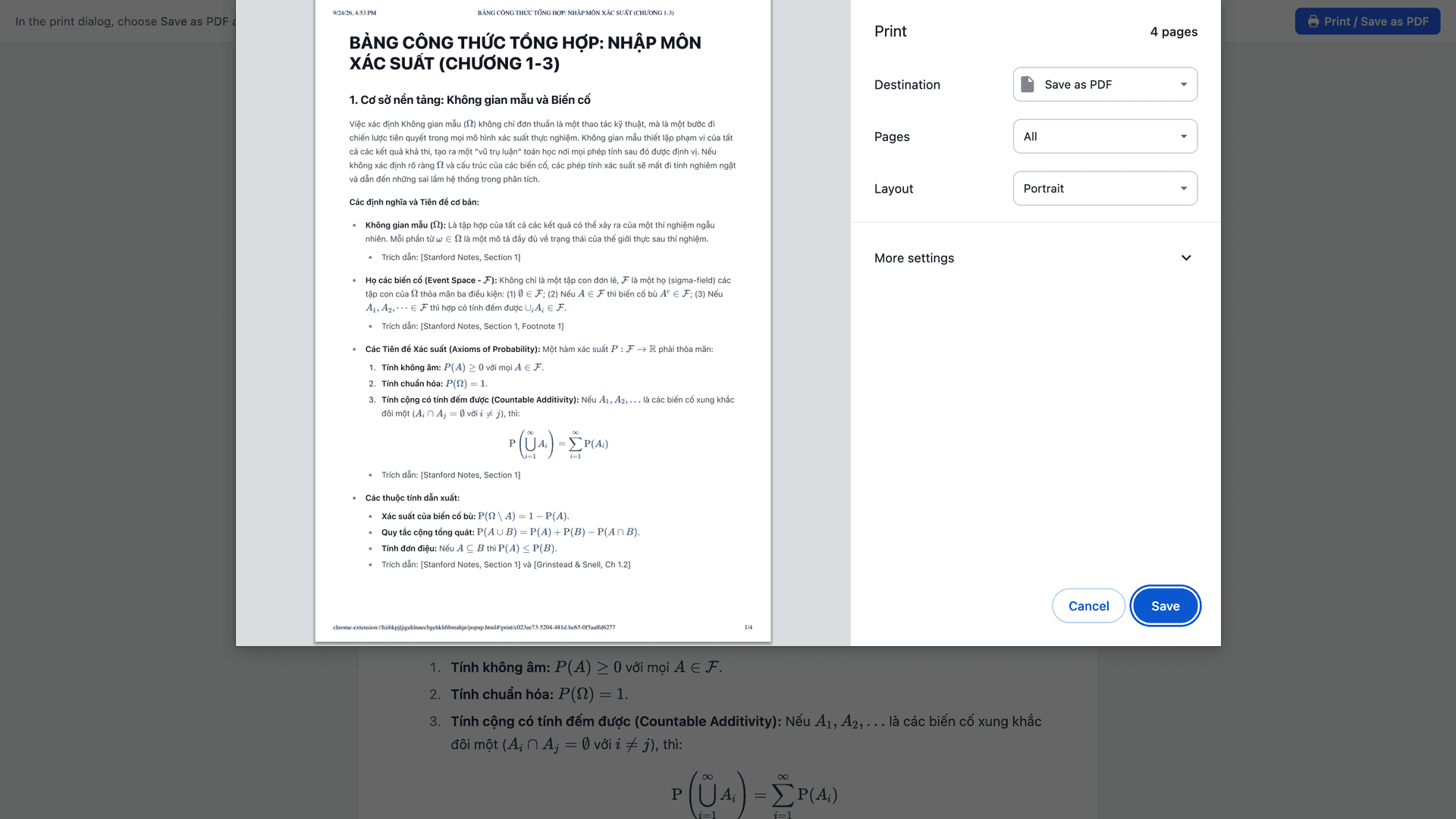
The printout contains just the content — no app interface, sidebars, or buttons (the print view's own bar is left off the page when you print) — so the PDF reads like a document rather than a screenshot. Math is rendered: an equation comes out as an equation, not as \frac{a}{b} text. If your browser's print dialog has a Headers and footers option, untick it to keep the date and page address off the printout.
What each item looks like on paper:
- Report or note (including study guides and briefing docs): the text with its headings and formulas.
- Quiz: a Questions section, with options lettered A, B, C in the same shuffled order the extension's quiz viewer shows, followed by an Answers section with the correct letter and text, the rationale, and the hint. For multiple-choice quizzes that makes a paper test with its answer key; the Answers section starts right after the last question, not on a new page.
- Flashcards: a two-column table, Front | Back.
- Data table: the table plus its notes. (The viewer also has Copy as CSV.)
If you'd rather have a spreadsheet than a PDF, the quiz viewer also has a CSV button and the flashcard viewer an Anki CSV button. See How to Export a NotebookLM Quiz.
No Extension? Print From notebook.google.com Instead
NotebookLM is a web page, and your browser can print any web page, so the manual fallback is the print dialog:
- Open the note or report at notebook.google.com so its full text is on screen.
- Press Ctrl+P (Windows/Linux) or Cmd+P (Mac).
- Set the destination to Save as PDF and save.
This is the manual route: what ends up in the PDF depends on your browser and on how the page is laid out at the time. If you want a content-only page, use the Print / PDF button above.
Export Your Sources
If "export to PDF" really means "get my sources out of NotebookLM," you have three routes:
- One source as a PDF. On the extension's Sources tab, click the eye icon (View source content) on a text source. The Source Content dialog opens with a Rendered | Raw toggle; click Print / PDF in its footer and save as PDF. The print view shows the source the way the Rendered view does: headings, lists, tables, and formulas. A very long source, such as a whole book, opens as Raw text only, without the toggle or Print / PDF; use the next option for it.
- Every source as Markdown or JSON. Click Export sources on the toolbar the extension adds to the notebook page to download a ZIP of Markdown files or a single JSON file with each source's title, URL, and content. Tables and code blocks are preserved. Full walkthrough: How to Download All Your NotebookLM Sources at Once.
- Original Drive PDFs. If a source was a Google Drive PDF, the original file still lives in Drive; download it as PDF directly from there.
Audio and Video Aren't PDFs
Audio and Video Overviews are media, not documents — there's no PDF version. Download Audio Overviews as MP3 and Video Overviews as MP4 instead, individually from the Studio panel, or in bulk with the extension's podcast player (audio) and its Studio ZIP (audio and video). See How to Download NotebookLM Audio & Video Overviews.
Quick Reference: What Becomes a PDF, and How
| Item | Native NotebookLM | With NotebookLM Tools (free) |
|---|---|---|
| Slide deck | Download PDF Document (.pdf) or PowerPoint (.pptx), 18+ | Slide deck viewer → PDF / PPTX; Export Studio ZIP |
| Note / report / study guide | Export to Docs (no PDF documented; browser Ctrl/Cmd+P is a manual fallback) | Print / PDF → Save as PDF |
| Quiz | No download documented | Print / PDF (questions + answer key), or CSV |
| Flashcards | CSV download | Print / PDF (Front / Back sheet), or Anki CSV |
| Data table | Export to Sheets | Print / PDF (table + notes), Copy as CSV |
| Sources (content) | No export documented | Source Content → Print / PDF; Export sources (Markdown / JSON) |
| Original Drive PDF source | Download from Google Drive | — |
| Audio / Video Overview | Download from the Studio panel | MP3 (podcast player); MP3 / MP4 (Studio ZIP) |
Native column per Google's Help Center; browser printing is your browser's own feature, not a NotebookLM export. Last verified: 24 September 2026.
Frequently Asked Questions
Can you export NotebookLM to PDF?
Yes. Slide decks download as PDF natively; notes, reports, quizzes, flashcards, data tables, and text sources become PDFs with the Print / PDF button in NotebookLM Tools; audio and video download as MP3 and MP4.
How do I save a NotebookLM report or note as a PDF?
Open it in NotebookLM Tools (Export Studio → eye icon), click Print / PDF, and choose Save as PDF. Without the extension, press Ctrl/Cmd+P on the item at notebook.google.com.
How do I export NotebookLM slides to PDF?
From the deck's three-dots menu in the Studio panel: Download PDF Document (.pdf) or Download PowerPoint (.pptx), for users over 18 per Google's Help Center (last verified 24 September 2026). The extension's slide deck viewer offers the same downloads.
Can you save NotebookLM sources as a PDF?
One text source at a time, yes: open it in the extension's Source Content dialog and click Print / PDF (very long sources open as Raw text without it). For all sources at once, Export sources gives you Markdown (ZIP) or JSON. Original Drive PDFs download from Drive.
Can you download an Audio or Video Overview as a PDF?
No — download them as MP3 and MP4 instead.
Can NotebookLM create a PDF itself?
On Google plans that include file generation in chat, yes: ask in chat and NotebookLM produces the file (Google AI Ultra and eligible Workspace editions first; in July 2026 Google said Google AI Pro would follow over the coming weeks; last verified 24 September 2026). On other plans, use the extension's Print / PDF button.
One Button for Every PDF
Outside slide decks and the chat file generation some plans include, NotebookLM leaves PDF up to you. The free NotebookLM Tools extension gives notes, reports, quizzes, flashcard sets, data tables, and text sources the same Print / PDF button, plus quiz and flashcard CSV exports, source backups, and bulk media downloads. See the full feature list.
Related articles:
- How to Export a NotebookLM Quiz (Spreadsheet, PDF, Answer Key) — Quiz CSV, printable answer keys, and Anki-ready flashcards.
- How to Download All Your NotebookLM Sources at Once — Export every source's content as Markdown or JSON.
- How to Download NotebookLM Audio & Video Overviews (MP3, MP4) — The media side of exporting from NotebookLM.
- Deleted a NotebookLM Notebook or Source? What You Can Recover — Why exporting is also your backup strategy.
Trusted by 100,000+ NotebookLM users
Related articles
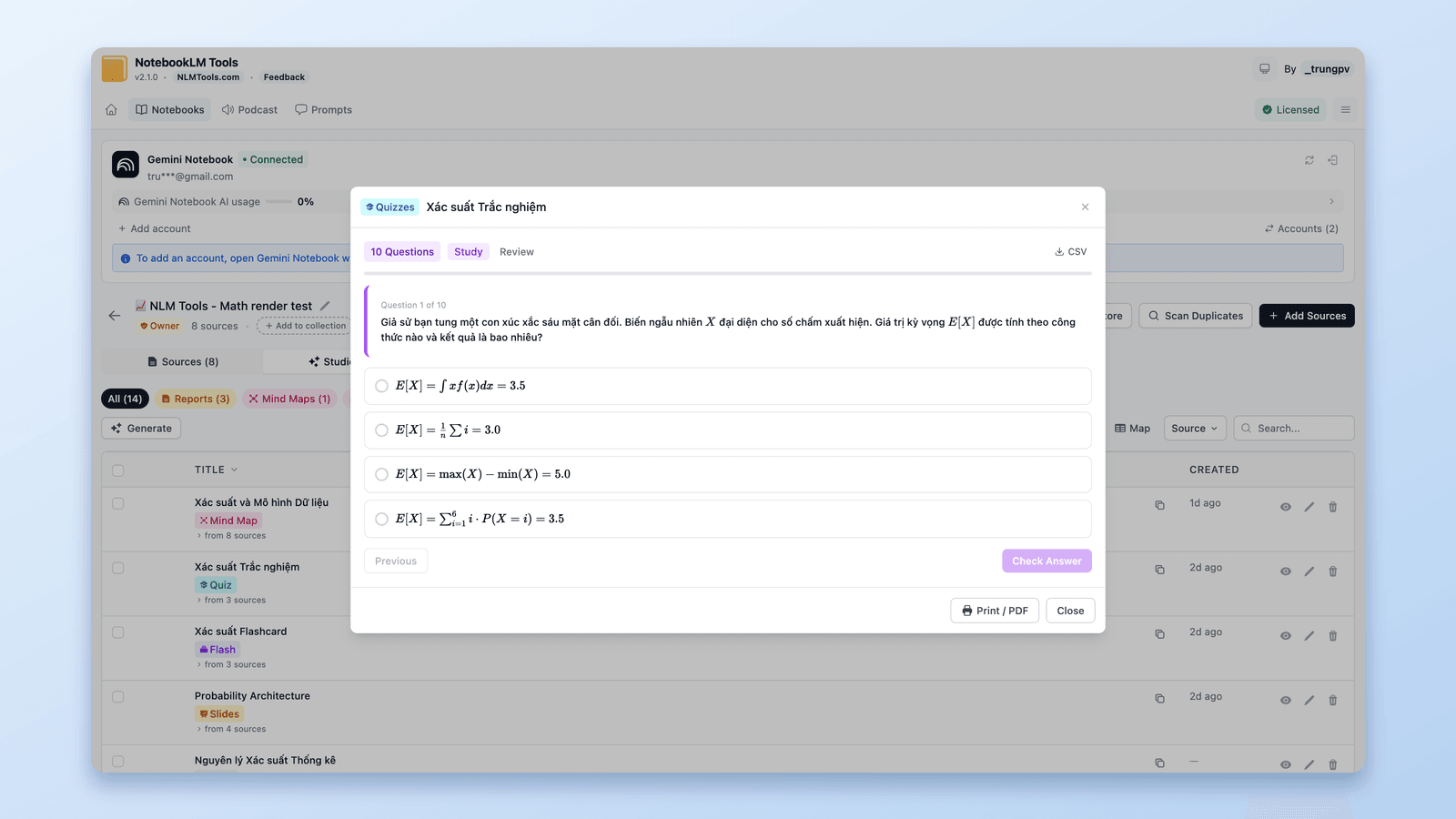
How to Export a NotebookLM Quiz (Spreadsheet, PDF, Answer Key)
Google documents no NotebookLM quiz export. The free NotebookLM Tools extension saves quizzes as CSV, prints them with an answer key, and sends flashcards to Anki.
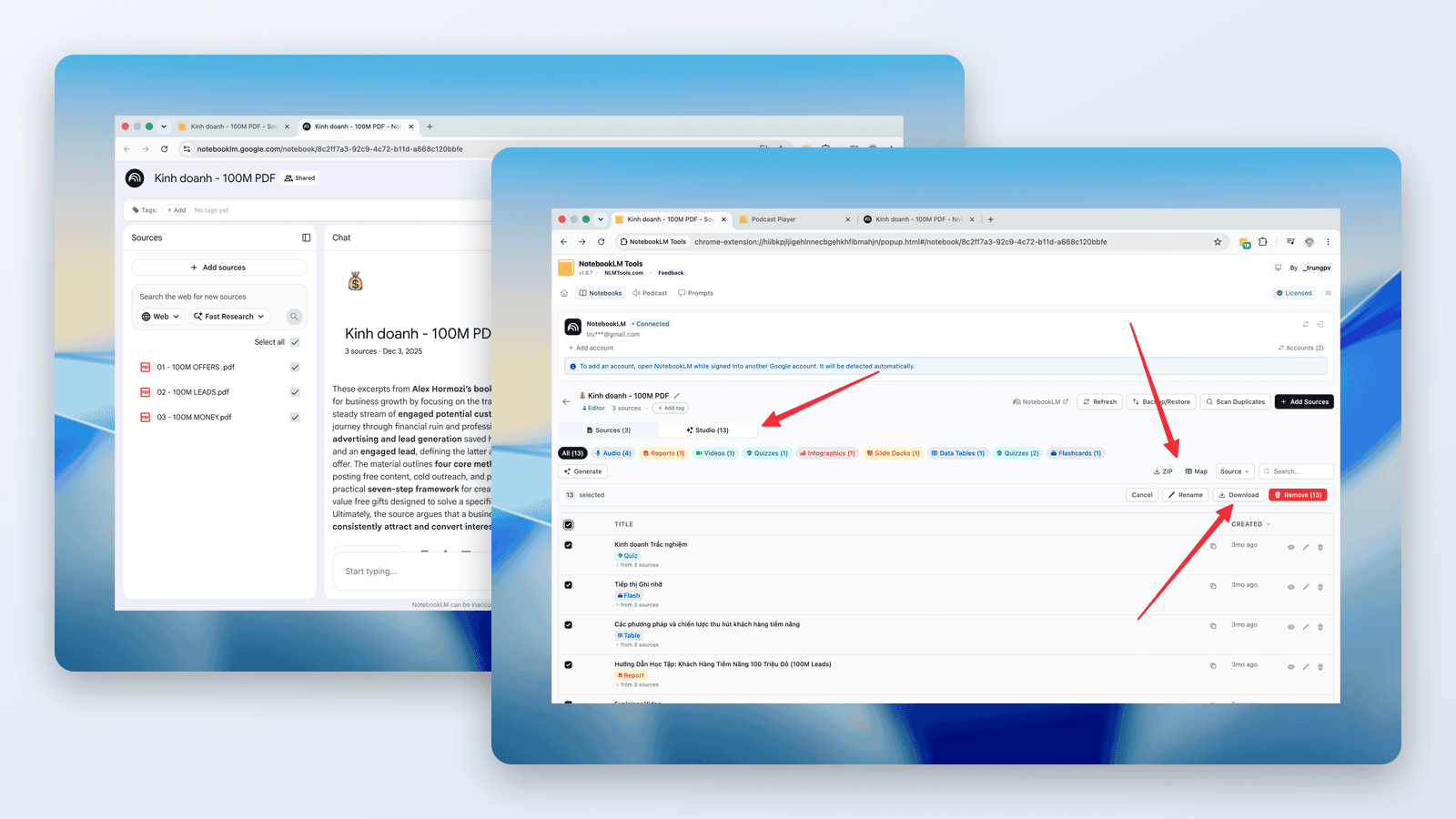
How to Download NotebookLM Audio & Video Overviews (MP3, MP4)
The NotebookLM downloader guide: save Audio Overviews as MP3 — one at a time or all at once as ZIP — download Video Overviews as MP4, free, by link or in bulk.
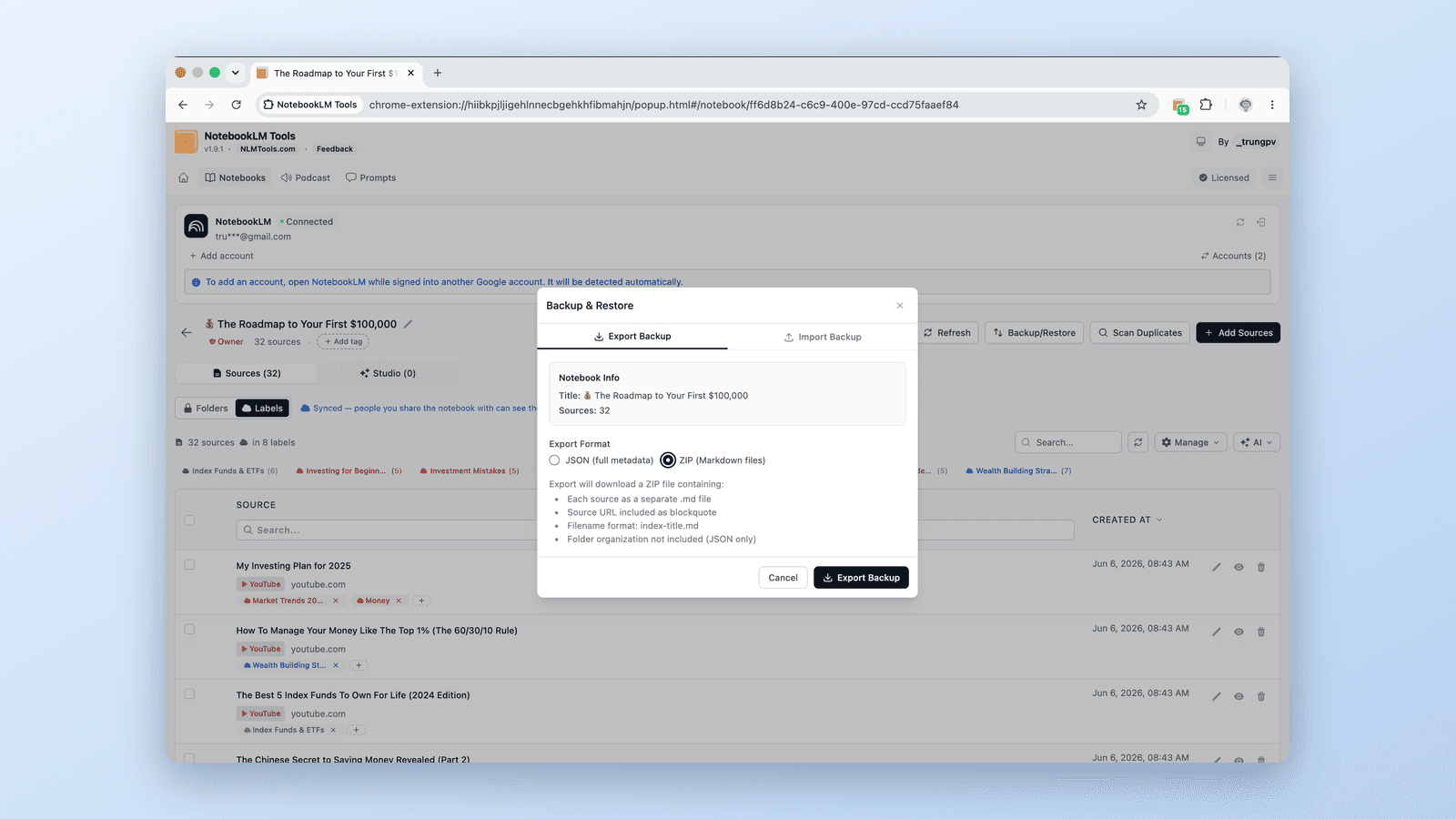
How to Download All Your NotebookLM Sources at Once (Bulk Export)
Yes, you can download sources from NotebookLM. Bulk-export every source — Drive docs, web pages, YouTube videos, uploads — to a backup file in one click, free.