How to Download NotebookLM Audio & Video Overviews (MP3, MP4)
Enhance your NotebookLM experience with our free browser extension.
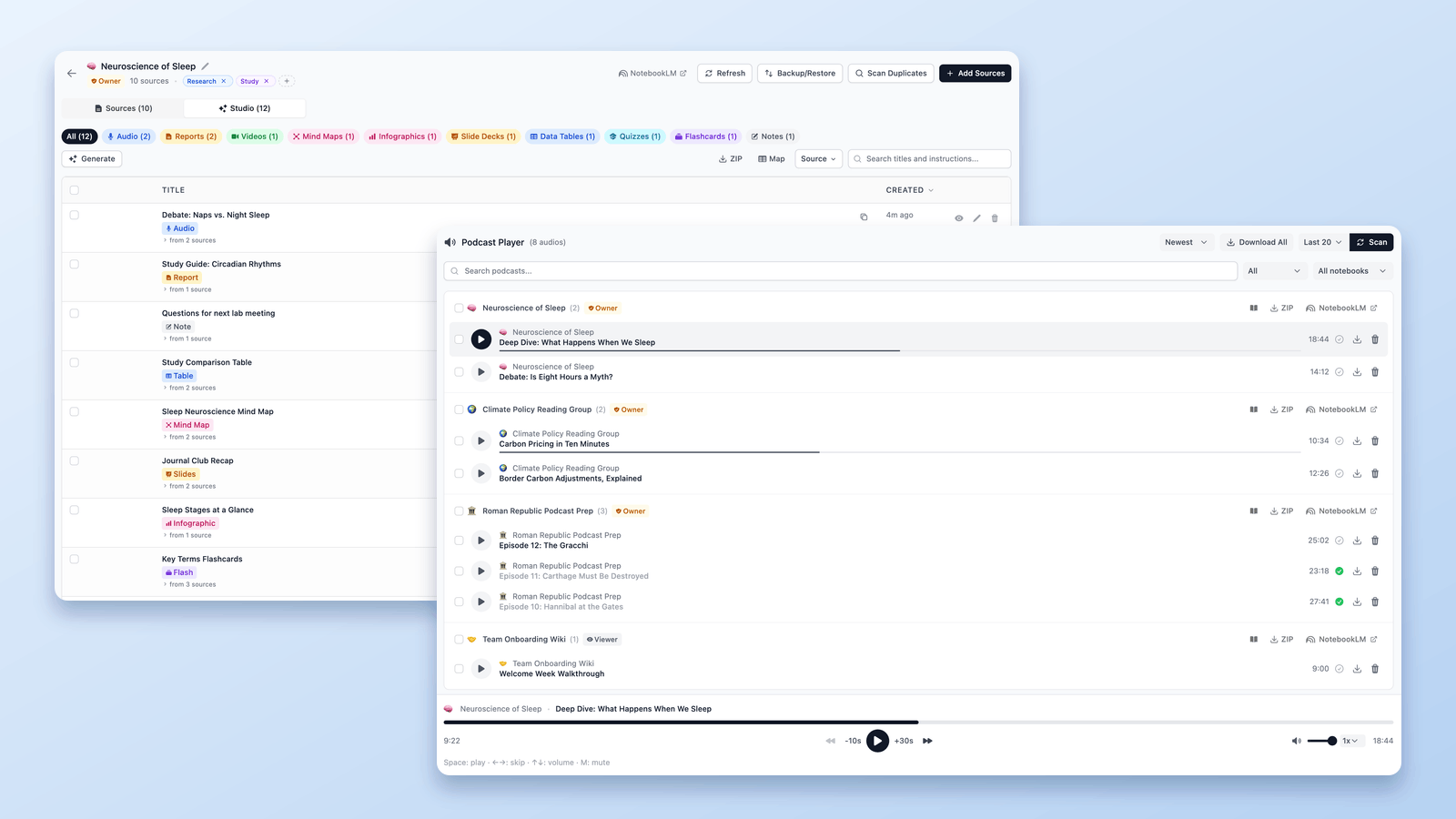
View plansShort answer: NotebookLM (now Gemini Notebook) can download a finished Audio Overview or Video Overview natively — one at a time, from the Studio panel's three-dot menu. For everything beyond that — bulk MP3 downloads, a ZIP of your whole audio collection, quiz spreadsheets, Anki-ready flashcard files, notes and reports as PDF — you'll want the free NotebookLM Tools extension.
This guide covers every download path: audio, video, slides, and other studio items.
Download a NotebookLM Audio Overview (Native)
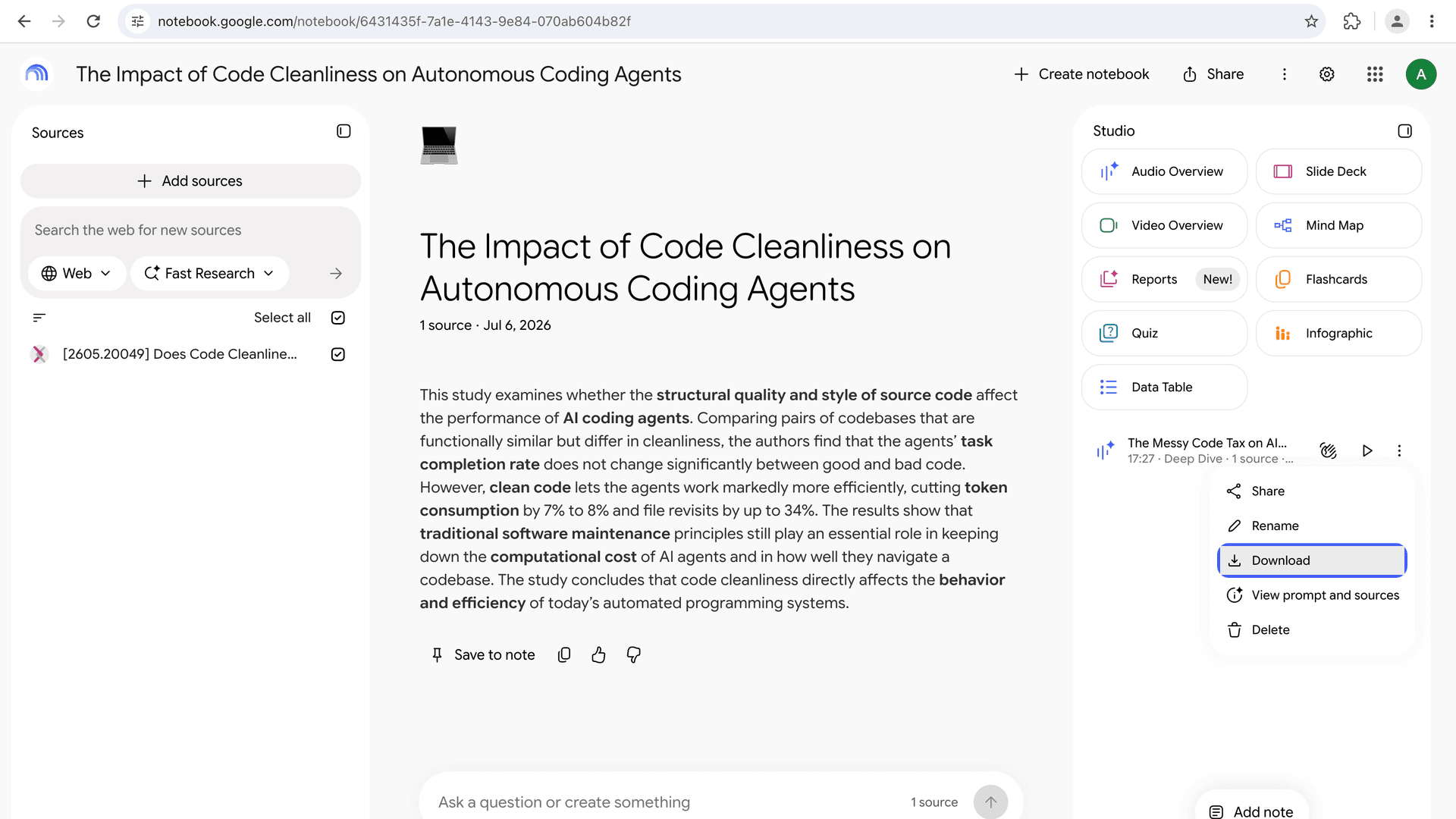
NotebookLM's built-in download works per-episode:
- Open the notebook and find the finished Audio Overview in the Studio panel.
- Click the three-dot menu on the audio.
- Choose Download. The file saves to your computer.
This works fine for a single episode. It breaks down when you've generated audio across ten notebooks and want copies of all of it — there's no "download all," and you have to open each notebook one by one.
Download All Audio Overviews as MP3 or ZIP (Bulk)
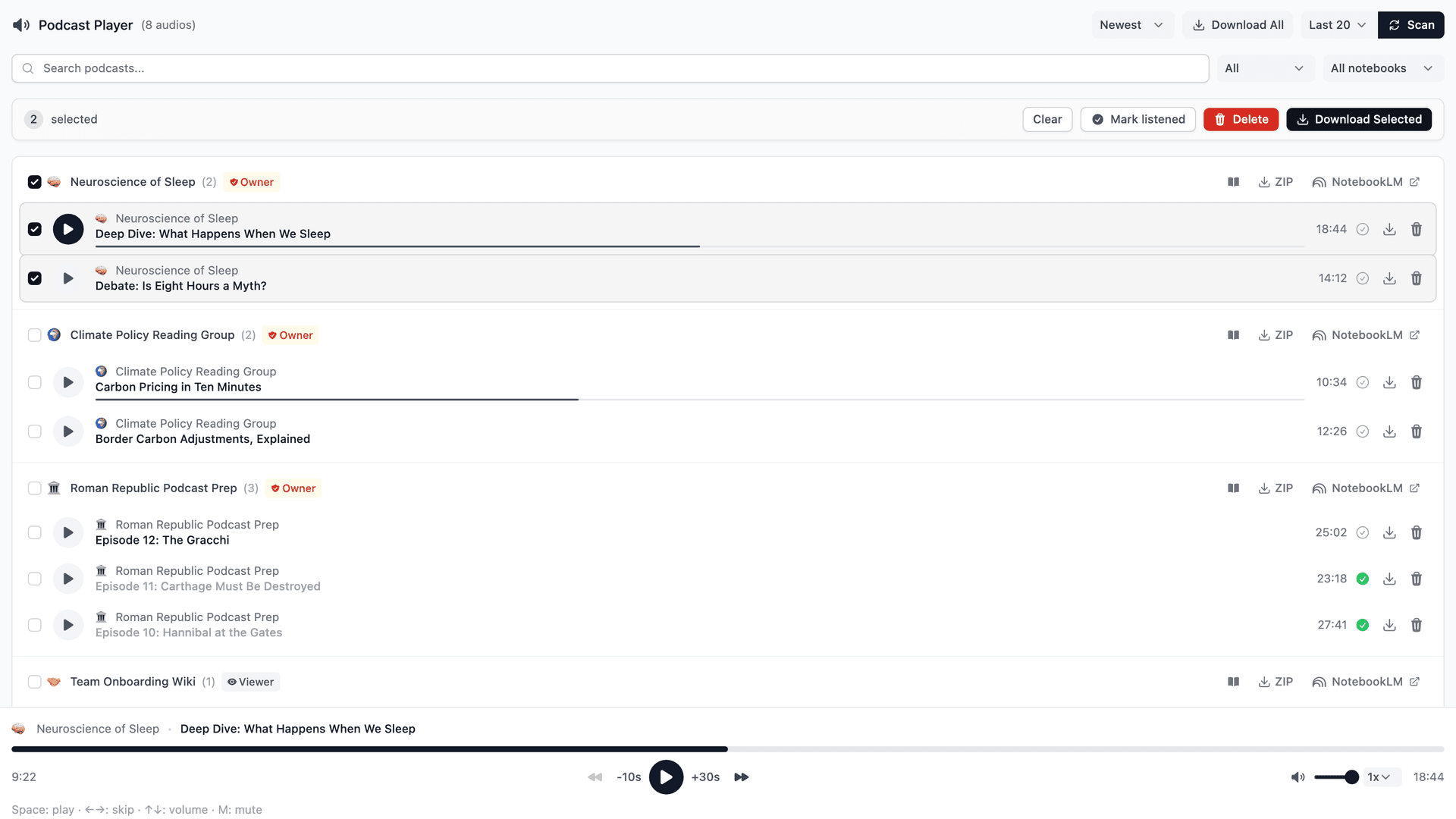
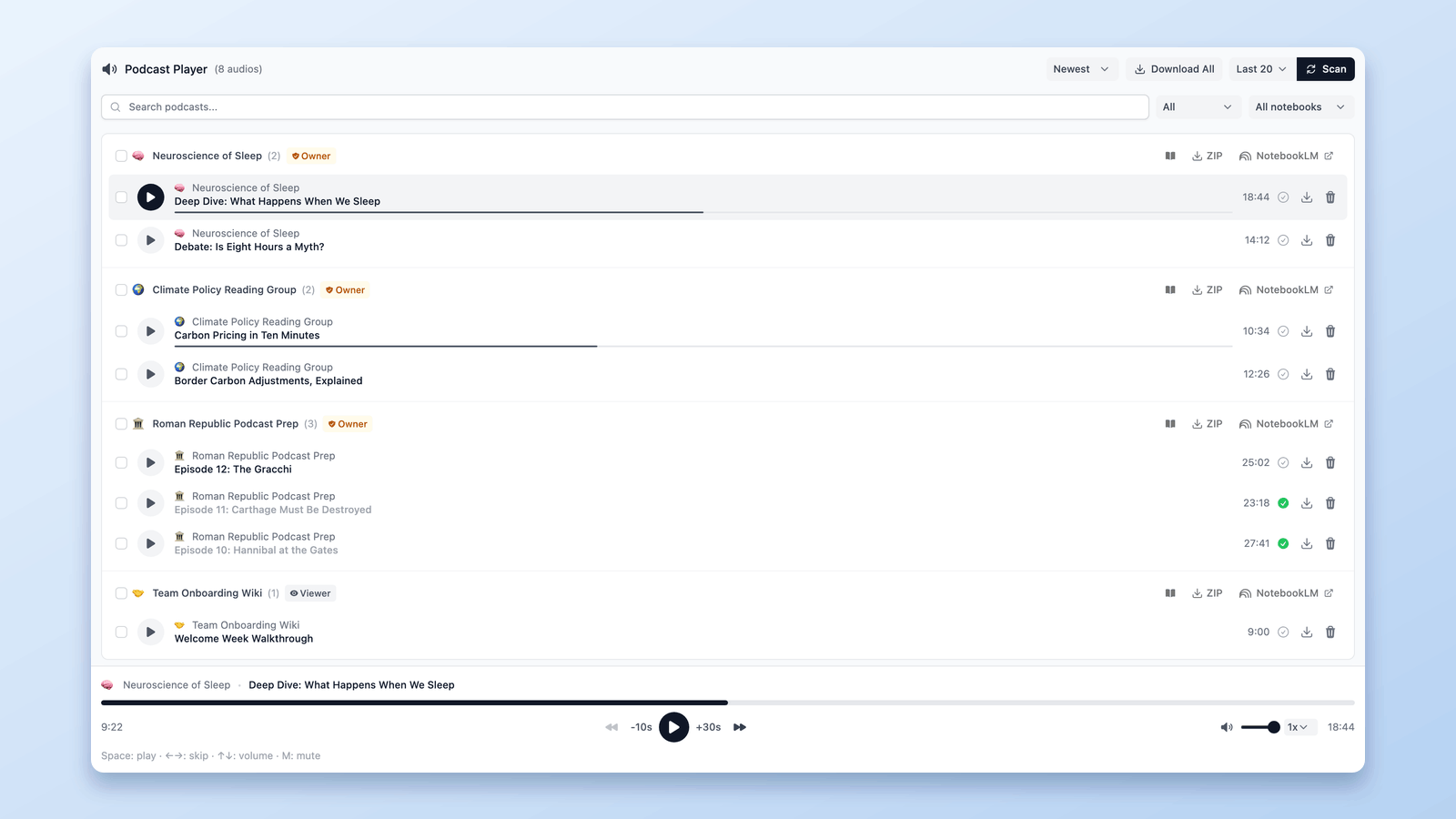
NotebookLM Tools adds a full Podcast Player that treats your Audio Overviews like a podcast library:
- Scans your notebooks in one click — choose All in the menu beside Scan (it starts at Last 20, your 20 most recent notebooks; Last 10 and Last 50 are there too) and click Scan; every finished Audio Overview it finds appears in one list, no matter which notebook it lives in.
- Download individual MP3s — click the download icon next to any episode.
- Bulk download as ZIP — save your entire audio collection in one archive, ideal for offline listening or archiving a finished project.
- Playlists and progress tracking — play episodes back to back, skip already-listened ones, and resume where you left off with a persistent Now Playing bar.
If you listen to NotebookLM audio on a commute, on a run, or anywhere offline, this is the workflow: scan, download MP3s, go. The full setup is covered in the podcast workflow guide.
Download a NotebookLM Video Overview (MP4)
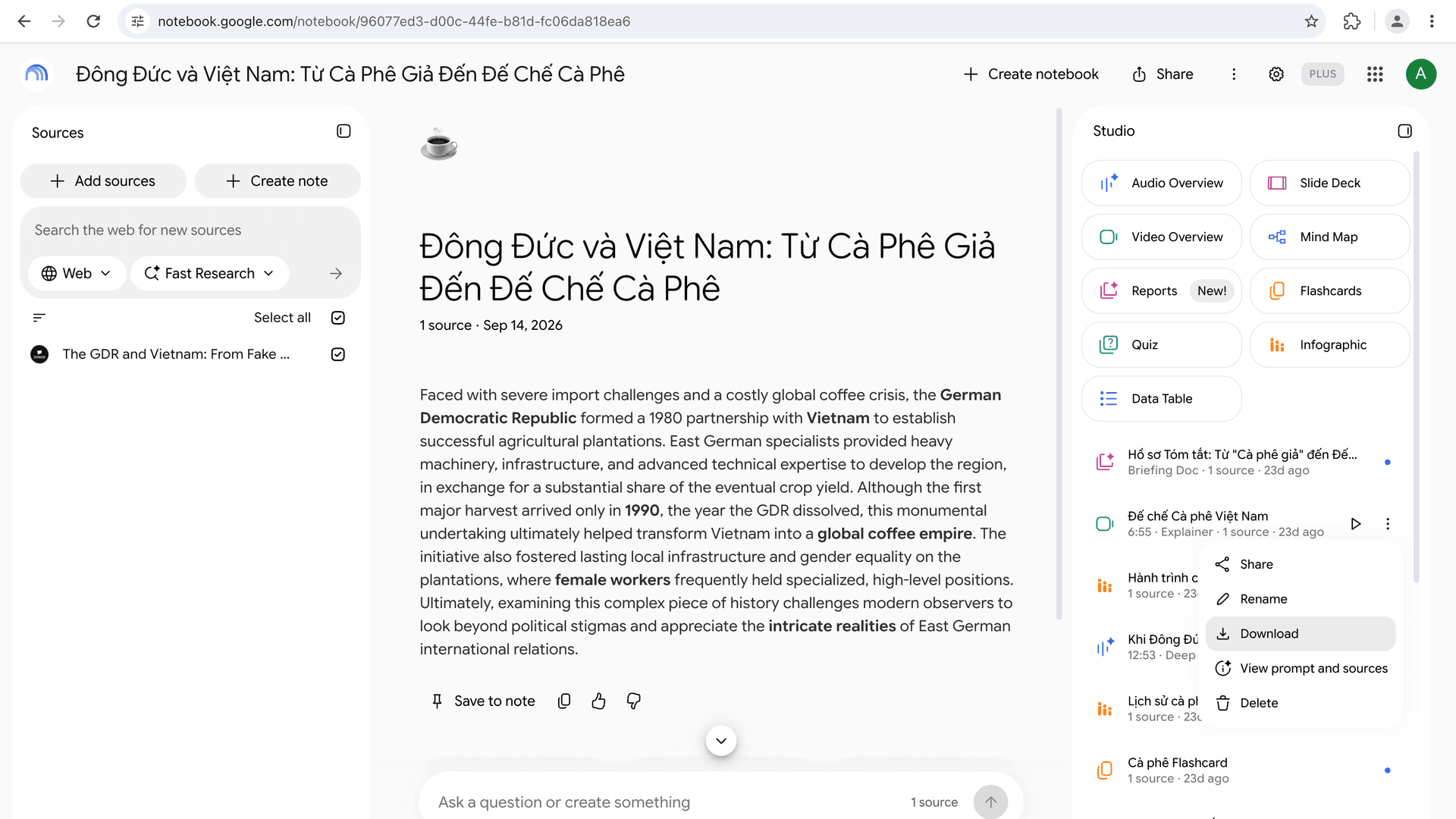
Video Overviews download natively from NotebookLM:
- Open the notebook and go to the Studio panel.
- Click the three-dot menu on the finished Video Overview.
- Choose Download. The video saves as an MP4 file.
From there you can share it, upload it to YouTube or a course platform, or drop it into a presentation.
This works for every format Google offers; its Help Center lists Explainer, Short, and Cinematic (Generate Video Overviews, last verified 26 October 2026). The Short format, announced on 16 October 2026, downloads the same way: in our test a Short Video Overview came down as a vertical 720×1280 MP4 of 77 seconds. NotebookLM Tools fetches the same file when you download a video from its Studio tab or include it in the Studio ZIP.
Downloading from a shared link: if someone shared a notebook with you, open the shared notebook in NotebookLM first — the Studio panel of the shared notebook is where the video lives. You can't download a Video Overview from the link preview alone; you need access to the notebook itself.
Download Slide Decks as PDF or PPTX
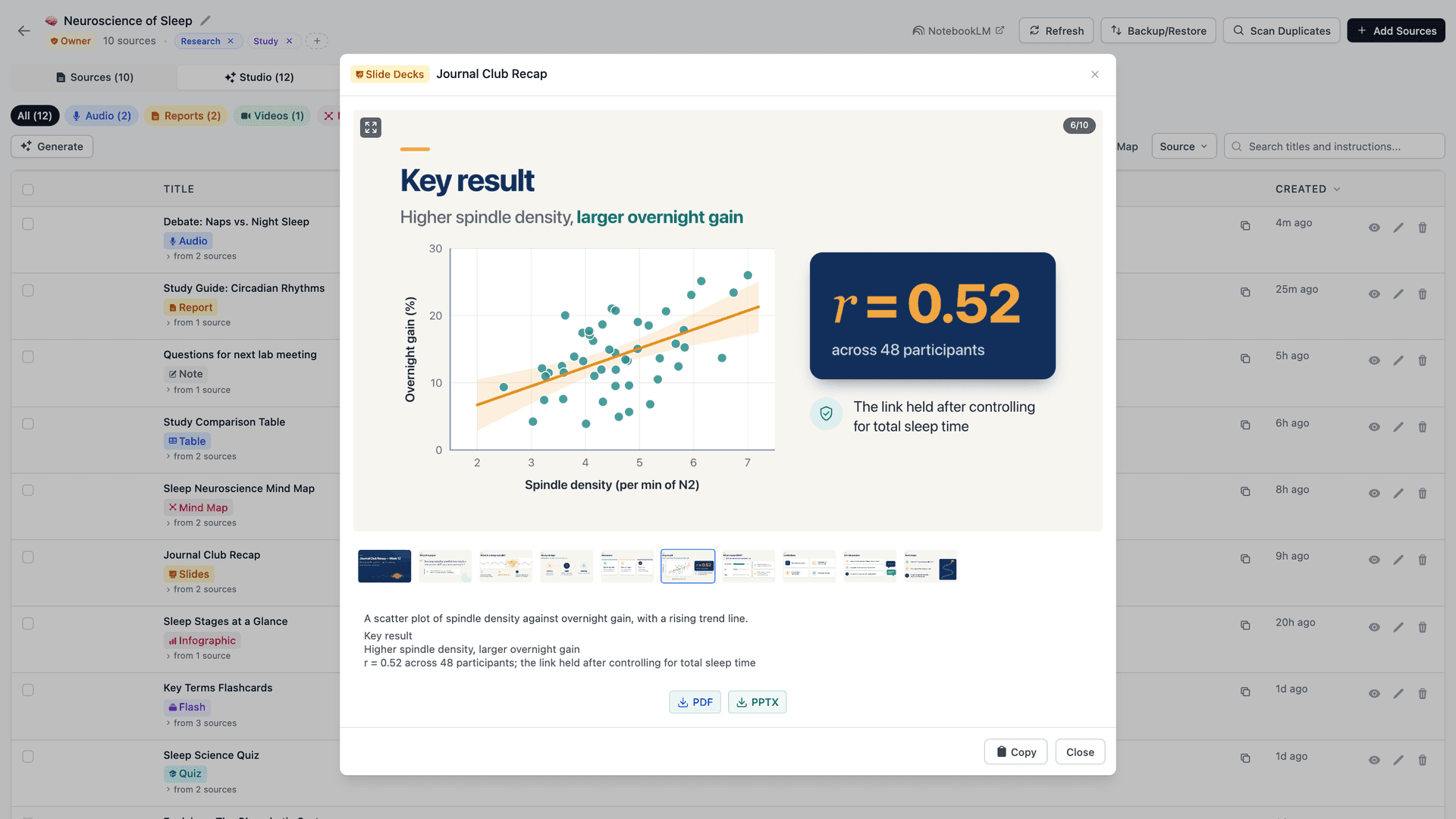
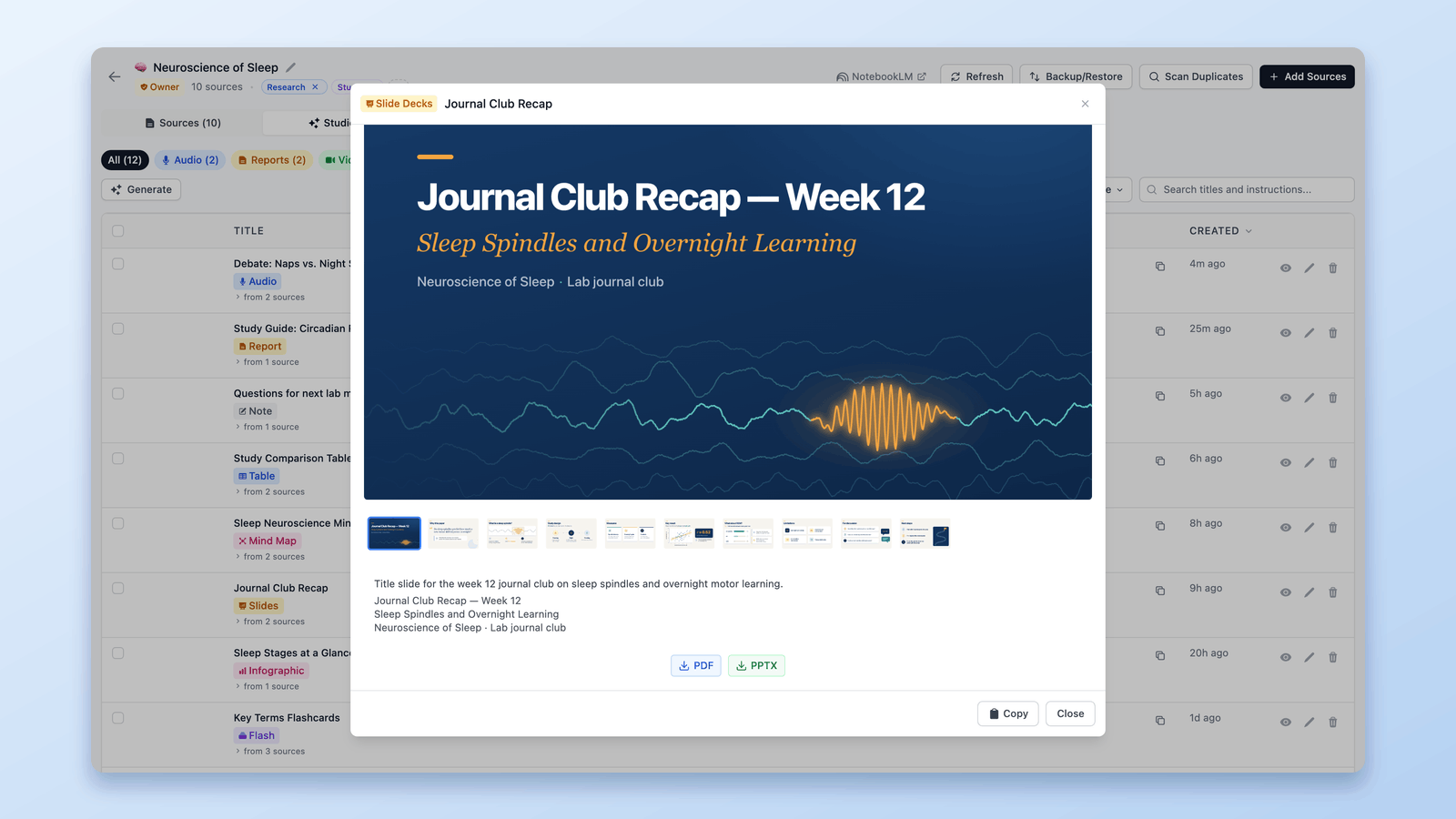
NotebookLM can generate slide decks and, per Google's Help Center, download them as PDF or PPTX from the deck's three-dot menu (slide decks are for users over 18; last verified 24 September 2026). NotebookLM Tools adds a slide deck viewer with filmstrip navigation and one-click PDF and PPTX download, and includes the deck as PPTX or PDF in the Studio ZIP — so every deck in a notebook becomes a file you can present or edit.
Export Other Studio Items
Studio items — quizzes, flashcards, study guides, reports, mind maps — can be viewed inline with the extension and exported as a ZIP. That gives you a portable copy of everything NotebookLM generated for a project, not just the audio and video. The ZIP includes the audio (MP3) and video (MP4) files too. The quickest way in is the notebook page itself: click Export Studio on the toolbar the extension adds there — it also works on shared and public notebooks you can open, not just your own.
Beyond the ZIP, the extension's viewers export items one at a time: a quiz as a CSV spreadsheet (one row per question; multiple-choice questions include their options and the correct answer), flashcards as an Anki-ready file via Anki CSV, and notes, reports, quizzes, flashcards and data tables as a PDF via the Print / PDF button — see How to Export a NotebookLM Quiz and How to Export NotebookLM to PDF.
What About Your Sources?
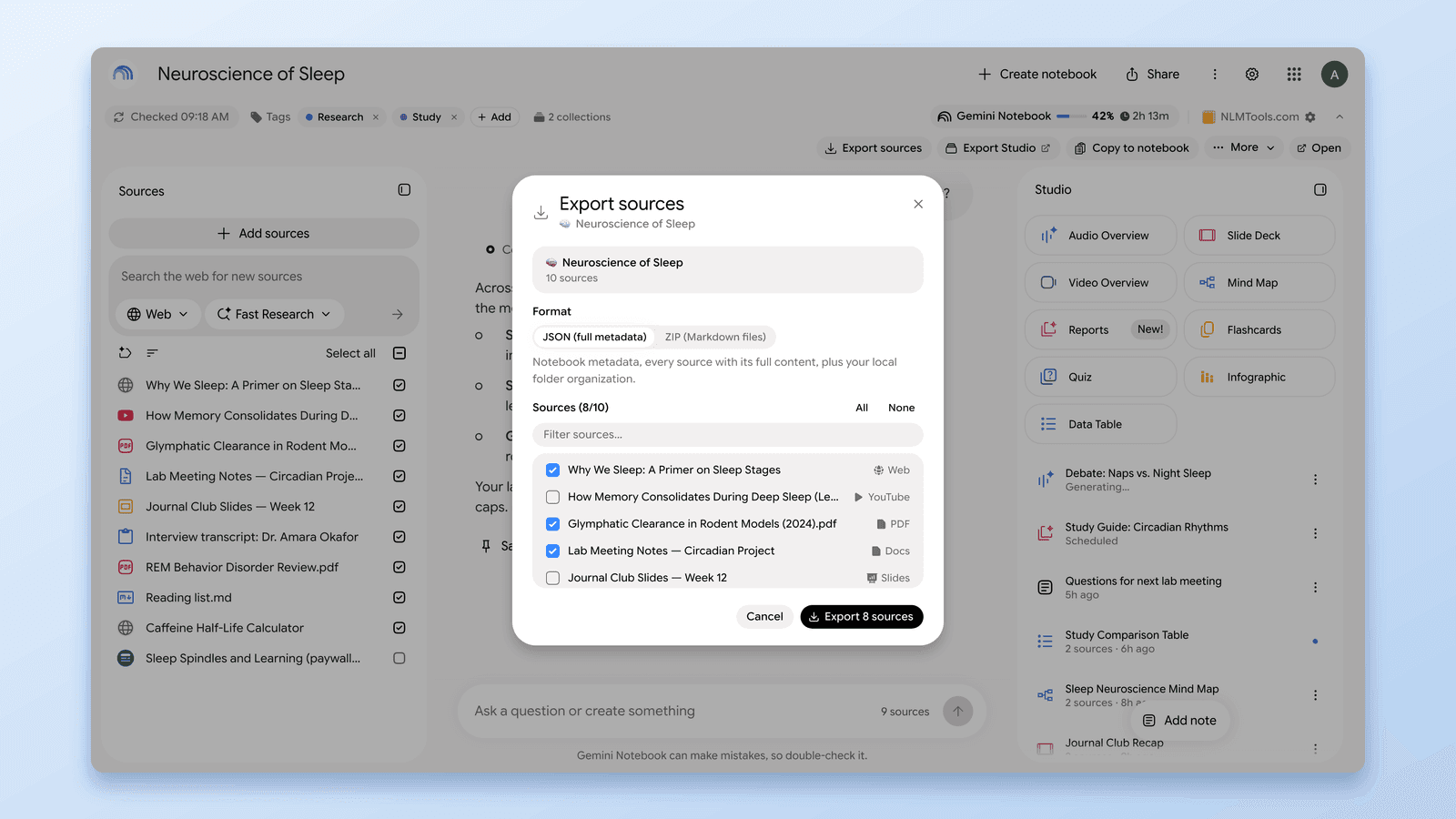
Downloads aren't limited to studio output. If you want a copy of the notebook's inputs — every source's title, URL, content, and folder structure — the extension's Backup & Restore feature exports the whole source list as JSON or ZIP. Full walkthrough: How to Download All Your NotebookLM Sources at Once.
Quick Reference: What Downloads, and How
| Item | Native NotebookLM | With NotebookLM Tools |
|---|---|---|
| Audio Overview | One at a time (Studio panel) | Individual MP3s or bulk ZIP across all notebooks |
| Video Overview | Yes — MP4 from Studio panel | MP4 inside the Studio ZIP (Export Studio) |
| Slide decks | Download PDF or PPTX (Help Center; 18+) | PDF and PPTX download (viewer); one file per deck in the Studio ZIP |
| Quizzes | No download documented in Google's Help Center | CSV spreadsheet, or Print / PDF (question sheet + answer key) |
| Flashcards | CSV download | Anki-ready CSV, or Print / PDF (two-column sheet) |
| Reports and notes | Export to Docs | Markdown in the Studio ZIP, or Print / PDF |
| Data tables | Export to Sheets | Copy as CSV, CSV in the Studio ZIP, or Print / PDF |
| Sources (titles, URLs, content) | No | JSON or ZIP export per notebook |
| Chat history | No export documented (Save to note keeps one answer at a time) | No |
Native column for slide decks, quizzes, flashcards, reports, notes, and data tables last verified 26 October 2026 against Google's Help Center: flashcards and quizzes, slide decks, reports and data tables, notes.
Frequently Asked Questions
Can you download audio from NotebookLM?
Yes. Natively, click the three-dot menu on a finished Audio Overview in the Studio panel and choose Download — one episode at a time. With NotebookLM Tools, you can download every Audio Overview across all notebooks as individual MP3s or one bulk ZIP.
Can you download a NotebookLM Video Overview?
Yes. Open the Studio panel, click the three-dot menu on the finished Video Overview, and choose Download. The video saves as an MP4 file. The Short format saves the same way: a vertical 720×1280 MP4 of 77 seconds in our test.
How do I download all my NotebookLM audio at once?
NotebookLM has no bulk download. The NotebookLM Tools Podcast Player scans every notebook for Audio Overviews and downloads the whole collection as a single ZIP of MP3s.
Can I download NotebookLM slide decks?
Yes. Google's Help Center documents a PDF or PowerPoint download in the deck's three-dot menu (last verified 24 September 2026), and the NotebookLM Tools slide deck viewer exports any generated deck as PDF or PPTX too.
Is the bulk download free?
Yes. The Podcast Player, MP3 downloads, and ZIP export are part of the free feature set. See pricing for what the optional Pro license adds.
Can I download my chat history?
Not natively. Google's Help Center says chat history is retained and kept private to you, but it documents no way to download or export it; Save to note keeps a single answer as a note (last verified 28 September 2026). NotebookLM Tools doesn't export chat either, so save important answers as notes before archiving a notebook.
Get Every Download in One Place
One extension covers the gaps: bulk MP3 downloads with a real podcast player, PDF/PPTX slide exports, quiz and flashcard exports, Print / PDF for notes and reports, studio ZIP archives, and full source backups. Install NotebookLM Tools free, or see the full feature list.
Related articles:
- NotebookLM Tips #4: Podcast Workflow — Turn Audio Overviews into a real podcast library with playlists and progress.
- How to Download All Your NotebookLM Sources at Once — Export the notebook's inputs, not just its outputs.
- NotebookLM Tips #6: Backup and Restore — The full backup workflow for sources and settings.
- How to Export a NotebookLM Quiz (Spreadsheet, PDF, Answer Key) — Quiz to spreadsheet, flashcards to Anki, or a printed question sheet with the answer key.
- How to Export NotebookLM to PDF (Sources, Notes & Studio) — Print / PDF for notes, reports, and sources; native slide deck downloads.
Trusted by 100,000+ NotebookLM users
Related articles
How to Export NotebookLM to PDF (Sources, Notes & Studio)
Yes. Slide decks download as PDF, chat can create one on some plans, and the free NotebookLM Tools Print / PDF button covers notes, reports, quizzes, and sources.
How to Download All Your NotebookLM Sources at Once (Bulk Export)
Yes, you can download sources from NotebookLM. Bulk-export every source — Drive docs, web pages, YouTube videos, uploads — to a backup file in one click, free.
NotebookLM Tips #4: Turn Audio into a Real Podcast Player
Turn scattered NotebookLM audio into a real podcast experience with a central dashboard, continuous playback, speed controls, and one-click sync.