نصائح NotebookLM #6: النسخ الاحتياطي والاستعادة الآمنة
عزز تجربتك في NotebookLM مع إضافة المتصفح المجانية الخاصة بنا.
عرض الخطط
مع نمو دفاتر NotebookLM (المعروف الآن باسم Gemini Notebook) لديك، تصبح بطبيعة الحال أكثر قيمة.
لم تعد مجرد بضع روابط أو ملاحظات — بل أصبحت مجموعات منتقاة من المصادر، وسياق مُحسَّن، ومحتوى مدمج، ونسخ مكررة منظفة، وساعات من العمل المنظم.
في هذه المرحلة، لم يعد دفترك مجرد "بيانات" — إنه عمل.
وهذا يغير سؤالاً مهماً جداً:
ماذا يحدث إذا حدث خطأ ما؟
ربما تريد التنظيف بقوة.
ربما تجرب هياكل جديدة.
ربما تختبر سير عمل الدمج.
ربما تعيد تنظيم المصادر على نطاق واسع.
بدون شبكة أمان، كل تغيير كبير يبدو محفوفاً بالمخاطر.
هذا بالضبط حيث يصبح النسخ الاحتياطي والاستعادة في إدارة المصادر ضرورياً.
توفر هذه الميزة ضماناً بسيطاً لكنه قوي:
يمكنك دائماً استعادة مصادرك.
ليس في نهاية المطاف.
ليس يدوياً.
ليس قطعة قطعة.
بل فوراً — في إجراء واحد.
إذا كنت تريد المتابعة، يمكنك تثبيت NotebookLM Tools من هنا:
NotebookLM Tools - Chrome Web Store
وإذا كنت تريد رؤية كيف يعمل هذا عملياً، يمكنك مشاهدة العرض التوضيحي الكامل أدناه.
ما هو النسخ الاحتياطي والاستعادة فعلاً (وما ليس كذلك)
يوجد النسخ الاحتياطي والاستعادة داخل لوحة إدارة المصادر للدفتر.
التصدير نفسه متاح أيضاً بنقرة واحدة على صفحة الدفتر نفسها: فشريط الأدوات الذي تضيفه NotebookLM Tools هناك يحتوي على زر Export sources يفتح أداة اختيار المصادر مباشرةً على الصفحة.
يعمل على مستوى المصدر، وليس مستوى الدفتر.
هذا يعني:
- أنت تقوم بعمل نسخ احتياطي لجميع المصادر داخل الدفتر الحالي
- أنت لا تصدر الدفاتر بشكل عام
- أنت لا تصدر دفاتر متعددة بشكل مجمع
- أنت لا تدير النسخ الاحتياطية عبر الدفاتر هنا
تم تصميم هذه الميزة خصيصاً لسلامة المصادر داخل دفتر واحد، مما يمنحك طريقة موثوقة لحماية واستعادة وإعادة استخدام المصادر التي تشكل سياقه.
فكر فيها على أنها:
طبقة أمان لكل شيء داخل تبويب المصادر في دفترك.
إذا كنت تبحث عن التصدير والاستيراد على مستوى الدفتر — مثل تصدير دفاتر كاملة، أو معالجة تصدير الدفاتر بشكل مجمع، أو نقل الدفاتر عبر البيئات — فهذا سير عمل مختلف.
للتصدير والاستيراد على مستوى الدفتر، راجع كيفية تصدير وتنزيل المصادر من NotebookLM.
لا تشمل النسخ الاحتياطية مخرجات Studio أيضاً، لكن لها مسارات تصدير خاصة بها: نزّل الملخصات الصوتية وملخصات الفيديو بصيغة MP3/MP4، أو صدّر الشرائح والتقارير والملاحظات إلى PDF.
تصدير النسخة الاحتياطية: إنشاء نسخة آمنة من مصادرك
عند النقر على النسخ الاحتياطي / الاستعادة ← تصدير النسخة الاحتياطية، تقوم الإضافة بإنشاء نسخة احتياطية كاملة من مصادر الدفتر الحالي.
يمكنك الاختيار بين تنسيقين:
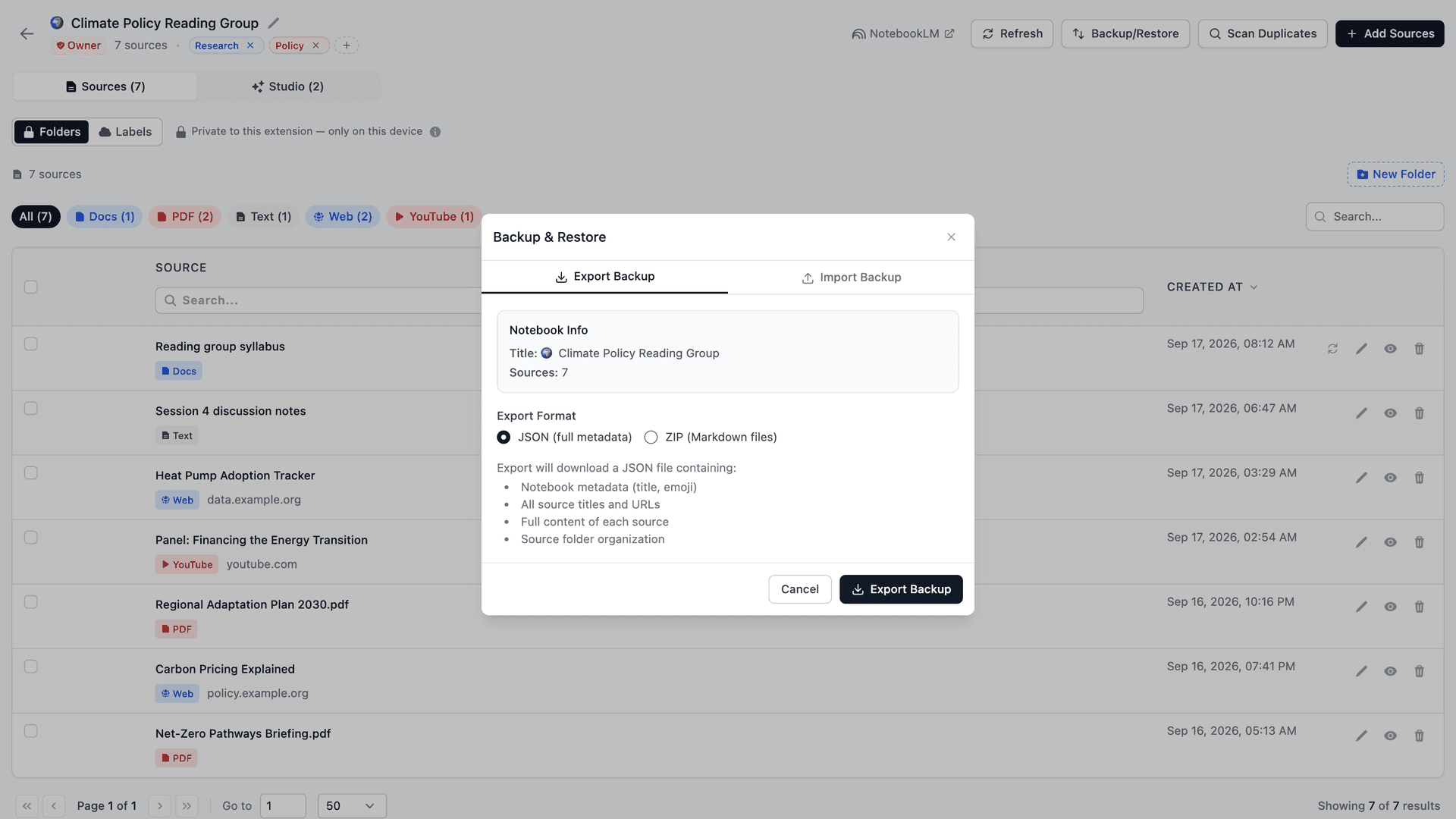
1. JSON (بيانات وصفية كاملة)
هذا يصدر:
- البيانات الوصفية للدفتر (العنوان، الإيموجي)
- جميع عناوين المصادر
- جميع روابط المصادر
- المحتوى الكامل لكل مصدر
- الهيكل الداخلي والبيانات الوصفية
هذا التنسيق مثالي لـ:
- الاستعادة الكاملة
- التخزين طويل المدى
- الترحيل بين البيئات
- استعادة مجلدات مصادرك والنص الكامل لكل مصدر
2. ZIP (ملفات Markdown)
هذا يصدر:
- كل مصدر كملف
.md - Markdown نظيف وقابل للنقل
- محتوى قابل للقراءة البشرية
- سهل المشاركة والأرشفة
هذا التنسيق مثالي لـ:
- قابلية النقل
- التخزين الخارجي
- النسخ الاحتياطية لقاعدة المعرفة
- إعادة استخدام المحتوى خارج NotebookLM
كلا التنسيقين نسخ احتياطية صالحة — فقط محسنة لحالات استخدام مختلفة.
استيراد النسخة الاحتياطية: استعادة مصادرك
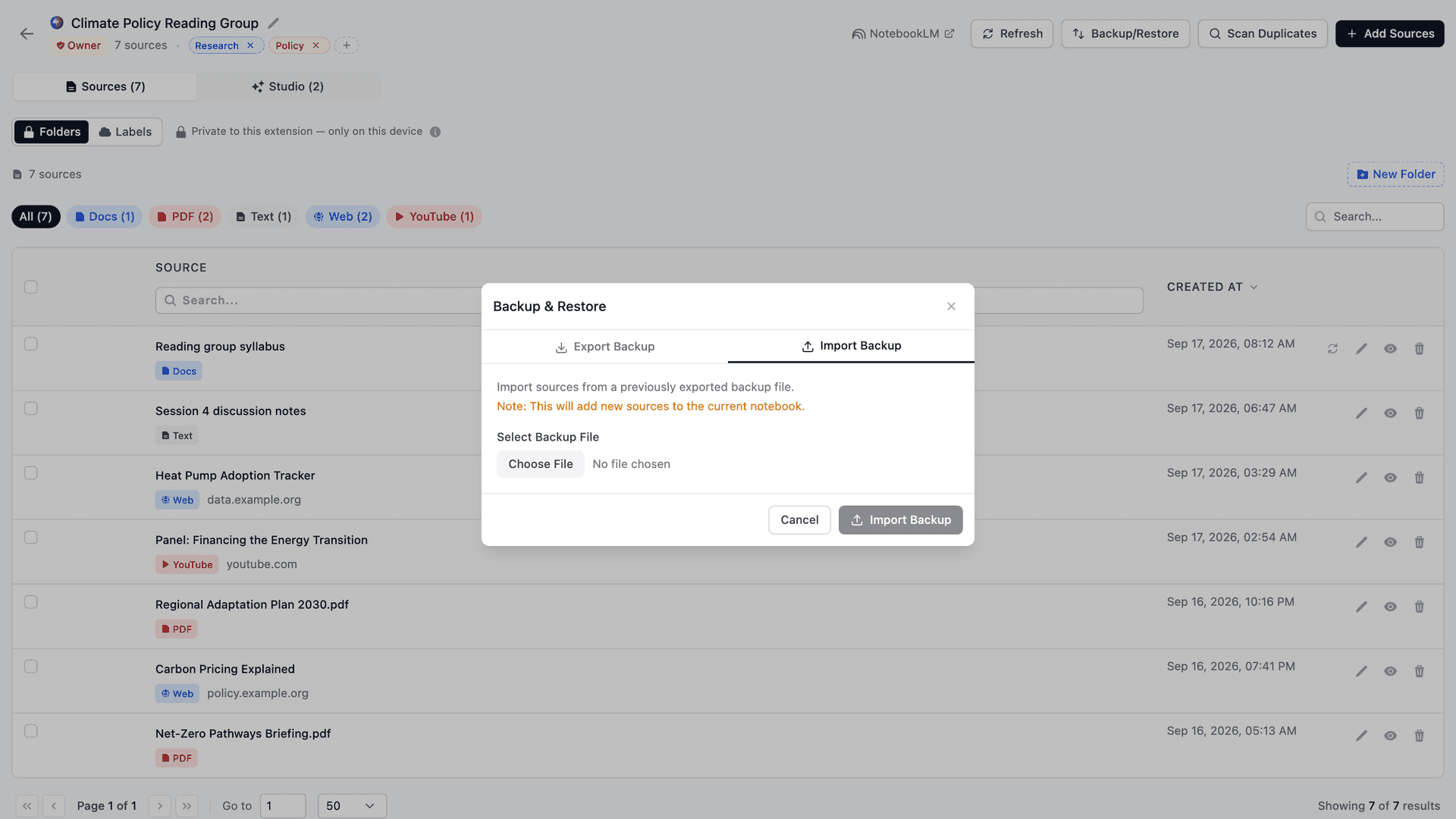
عند التبديل إلى استيراد النسخة الاحتياطية، يمكنك استعادة ملف نسخة احتياطية مُصدَّر سابقاً.
السلوك المهم (كما هو موضح في واجهة المستخدم):
ملاحظة: سيضيف هذا مصادر جديدة إلى الدفتر الحالي.
هذا يعني:
- لا يتم الكتابة فوق المصادر الموجودة
- لا يتم استبدال الدفتر
- يتم إلحاق المصادر بالدفتر الحالي
لذا فإن النسخ الاحتياطي/الاستعادة غير مدمر بالتصميم.
هذا يجعله آمناً لـ:
- الاستعادة
- التكرار
- الترحيل
- اختبار سير العمل
- إعادة بناء الهيكل
- نقل المصادر بين الدفاتر
النسخ الاحتياطي والاستعادة كأداة سير عمل (وليس فقط للسلامة)
هذه الميزة ليست فقط للطوارئ.
إنها تمكن سير عمل جديدة:
- إنشاء نسخ تجريبية من الدفتر
- تكرار مجموعات البيانات المنظمة
- بناء دفاتر قوالب
- نقل المصادر المنتقاة بين الدفاتر
- اختبار استراتيجيات الدمج
- تجربة نماذج تنظيم مختلفة
- مشاركة المحتوى المنظم عبر المشاريع
لذا فهي ليست مجرد نظام نسخ احتياطي — إنها طبقة تنقل للمعرفة.
القيمة الحقيقية
النسخ الاحتياطي والاستعادة يغير سيكولوجية العمل في NotebookLM:
من:
"لا أريد أن أكسر هذا الدفتر."
إلى:
"يمكنني تجربة أي شيء — يمكنني دائماً الاستعادة."
هذا التحول في العقلية ضخم.
إنه يطلق تكراراً أسرع، وهيكلاً أفضل، ودفاتر أنظف — مع منحك سياقاً أعلى جودة، ومساحة أكبر للتجريب، والثقة لإجراء التغييرات دون خوف.
عندما تعلم أن عملك قابل للاستعادة، تتوقف عن التردد.
تنظف الأشياء بثقة أكبر، وتدمج المصادر بقوة أكبر، وتجرب هياكل جديدة دون خوف.
يصبح NotebookLM شيئاً تشكله بنشاط — تحسنه وتعيد تنظيمه وتطوره بمرور الوقت — وليس شيئاً تخاف من لمسه.
وهذا عندما يصل إلى إمكاناته الكاملة.
إذا كنت تريد رؤية كيف يعمل كل هذا في الاستخدام الحقيقي، هناك فيديو تفصيلي كامل حيث أشرح كل شيء خطوة بخطوة.
يمكنك أيضاً تثبيت إضافة Chrome أدناه لتجربتها مباشرة في سير عمل NotebookLM الخاص بك.
NotebookLM Tools - Chrome Web Store
أقوم بتحديث الإضافة بنشاط وتوثيق الميزات الجديدة على الموقع الرسمي، لذا إذا كنت تريد البقاء على اطلاع أو استكشاف ما سيأتي بعد ذلك فهذا هو أفضل مكان للتحقق.
NotebookLM Tools - Supercharge NotebookLM
معظم الميزات التي رأيتها حتى الآن لم تبدأ كفكرة في خارطة الطريق. جاءت من الاستخدام الحقيقي، والاحتكاك الحقيقي، والتعليقات الحقيقية من أشخاص يستخدمون NotebookLM فعلاً كل يوم.
لذا إذا كان هناك شيء في سير عملك يبدو ثقيلاً أو محدوداً أو مزعجاً قليلاً — أخبرني. تلك النقاط المؤلمة الصغيرة عادة ما تكون مصدر الميزة المفيدة التالية.
شكراً لك على الوقت الذي قضيته في القراءة — ولكونك جزءاً من تشكيل المكان الذي ستذهب إليه هذه الأداة بعد ذلك.
السابق في السلسلة: نصائح NotebookLM #5: دمج المصادر لسياق AI أفضل
بداية السلسلة: وسوم NotebookLM أم Collections؟ أيهما تستخدم + تحويل بنقرة واحدة
موثوق به من قبل 90,000+ مستخدمو NotebookLM
مقالات ذات صلة
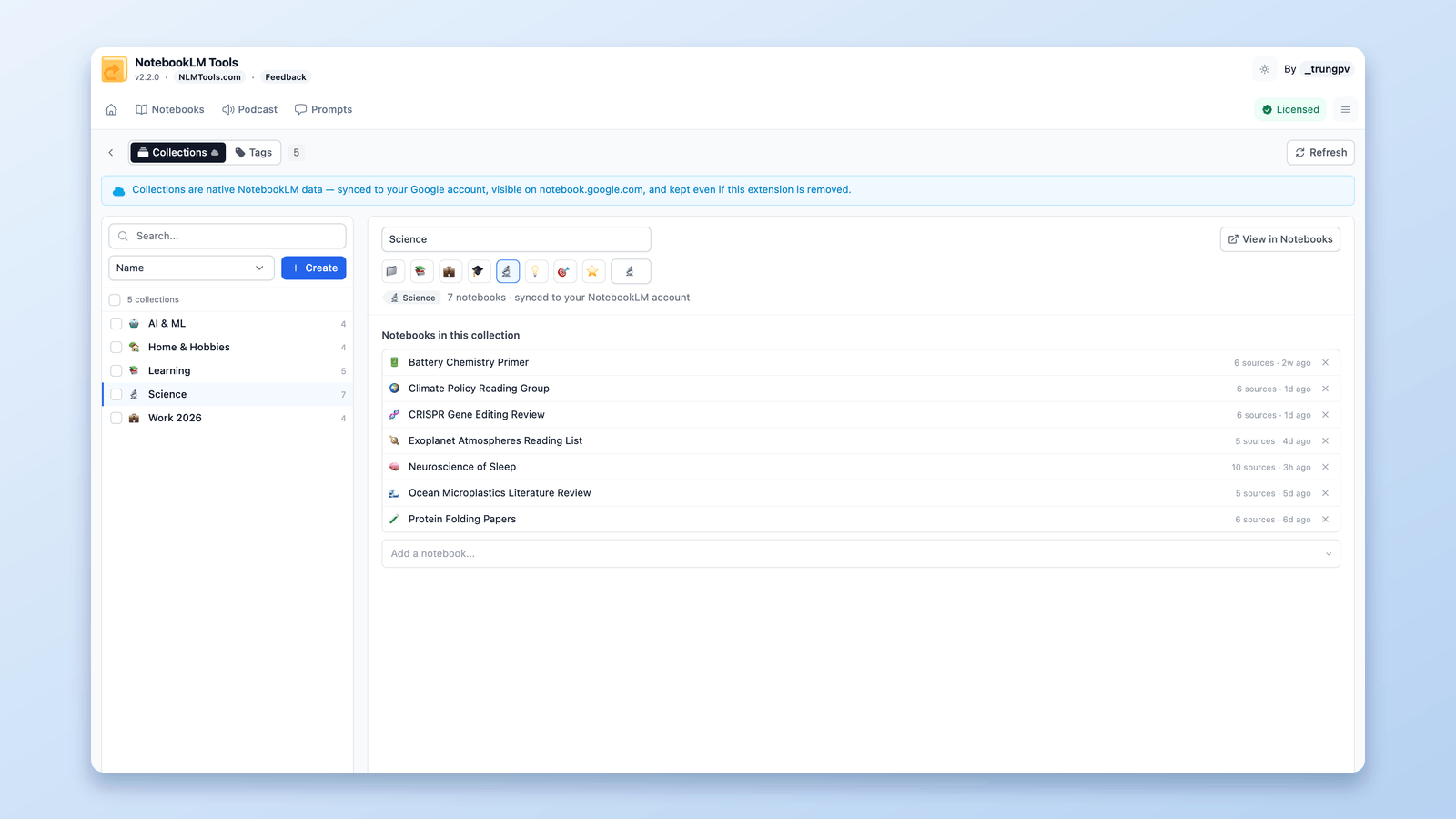
كيفية تجميع وتنظيم دفاتر الملاحظات في NotebookLM (Collections)
نعم، يمكنك تجميع دفاتر الملاحظات في NotebookLM. المجموعات (Collections) مجلدات أصلية للدفاتر مُزامنة مع حساب Google — أنشئها وعيّنها جماعياً وفلترها في ثوانٍ.
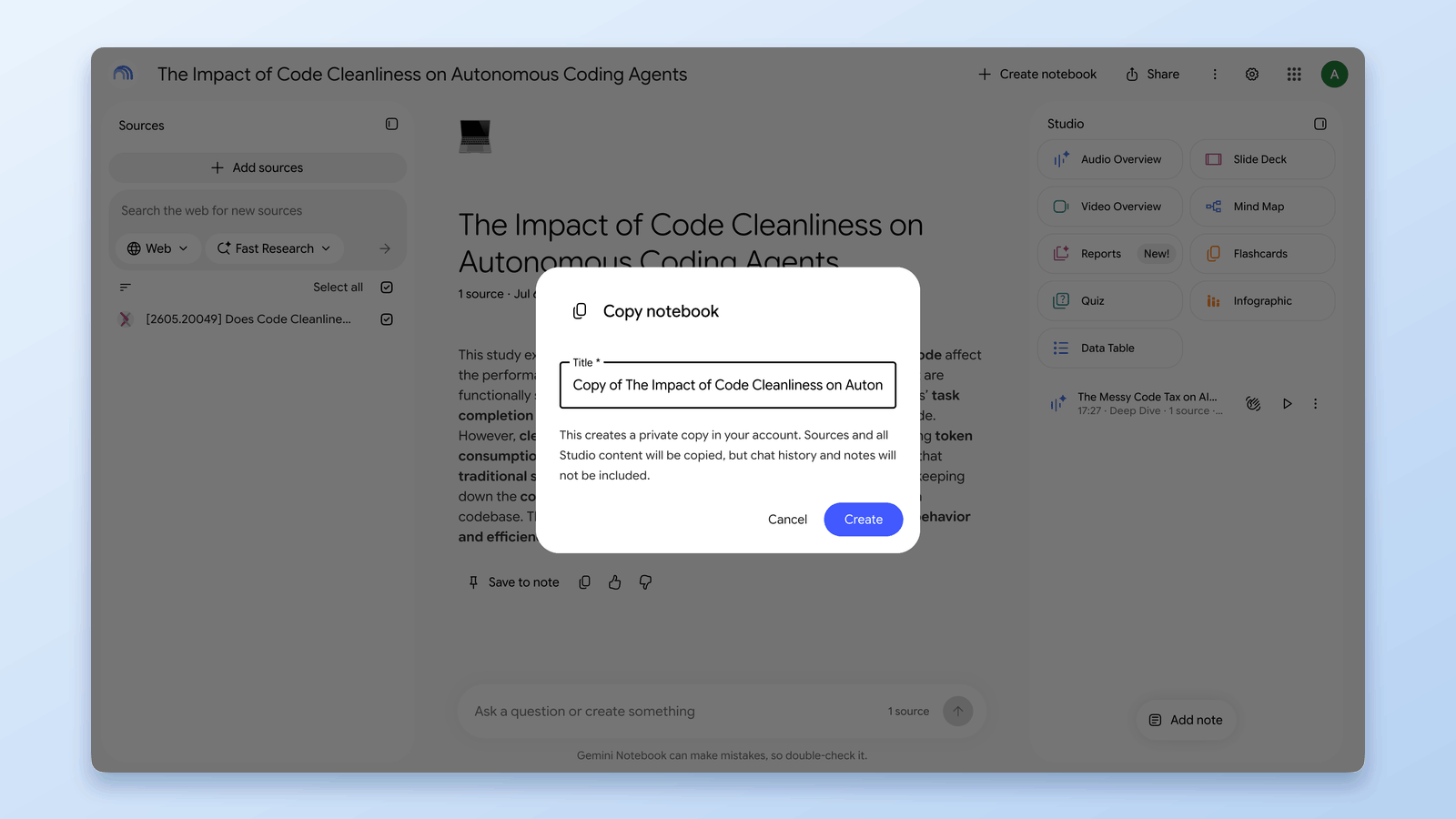
كيفية تكرار أو نسخ دفتر NotebookLM
أضاف NotebookLM إجراء Copy أصلياً في أغسطس 2026. كيف يعمل، وما الذي لا ينسخه، ومتى تبقى الإضافة المجانية أسرع: النسخ الجزئي والنقل والدمج.
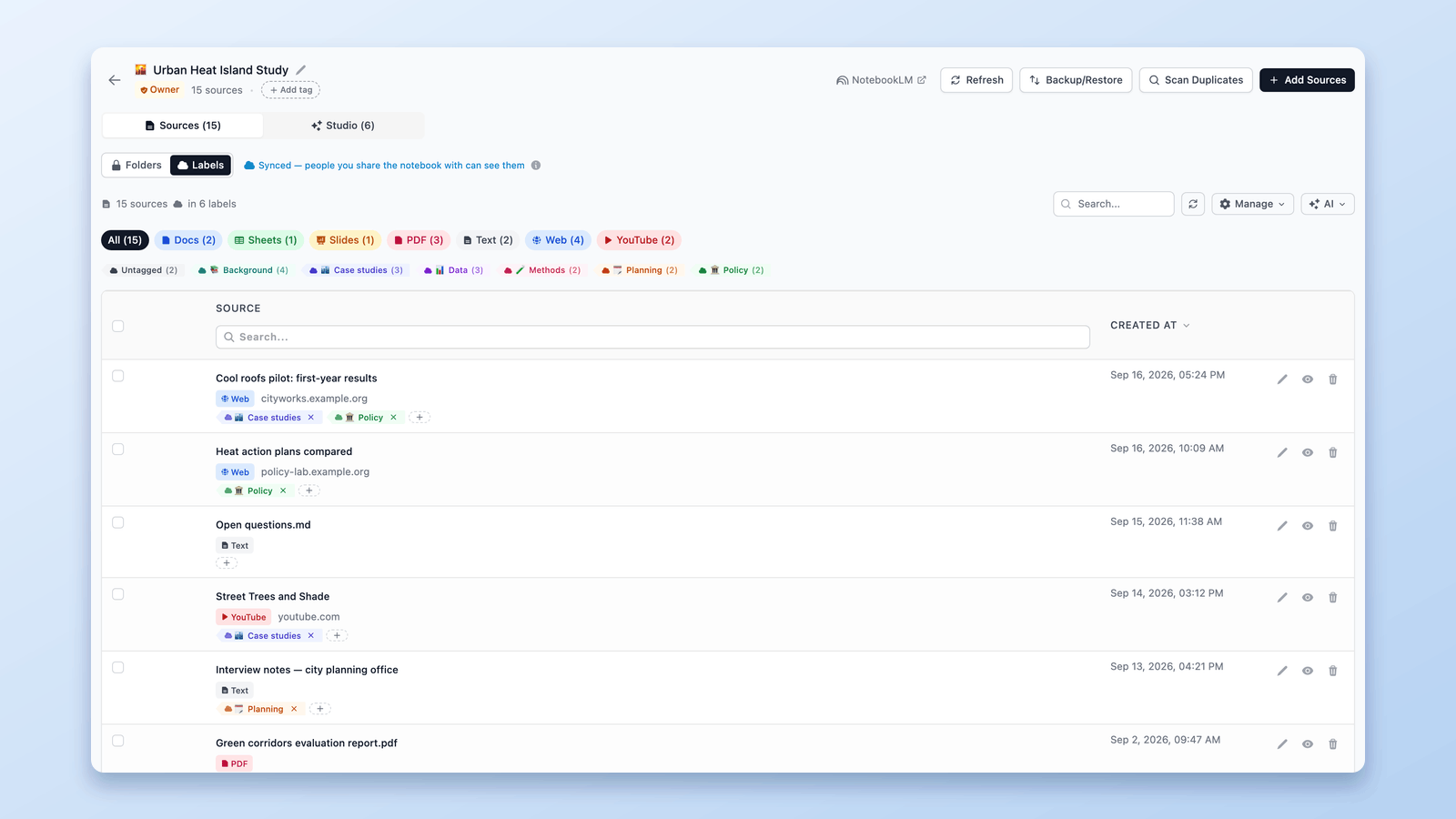
كيف تعمل تسميات المصادر في NotebookLM (وكيف تديرها في جدول)
يضيف NotebookLM تسميات تلقائية لمصادرك عند 5 فأكثر. تعرّف على آلية عملها وأدِرها في جدول: أنشئ تسمياتك، وسِم دفعة، وصفِّ وابحث.