How to Merge Sources in NotebookLM (Combine Duplicates)
Enhance your NotebookLM experience with our free browser extension.
View plans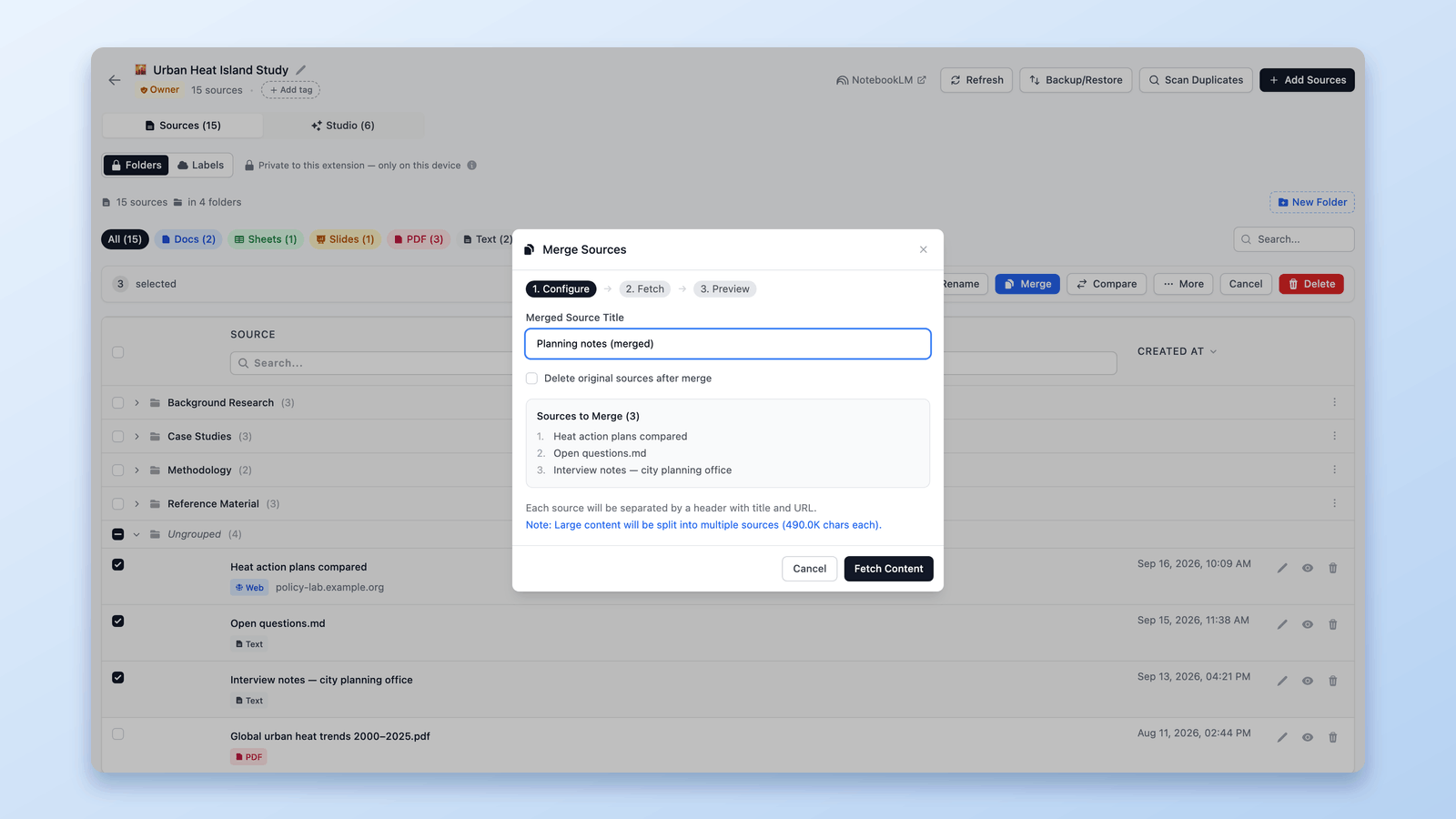
Most notebooks in NotebookLM (now Gemini Notebook) don't struggle because they lack information.
They struggle because their context becomes fragmented over time.
As notebooks grow, related ideas often get split across many small sources — links added on different days, articles saved separately, notes pasted in isolation.
Individually, each source makes sense.
Together, they introduce noise.
This is exactly the problem Source Management — and especially Merge Sources — is designed to solve.
Note: This guide is about merging sources within a single notebook. If you want to combine two entire notebooks into one, see Can You Merge or Combine Notebooks in NotebookLM? instead.
In this article, I'll walk you through everything you can do with it — from basic cleanup to new workflows Merging Sources.
If you want to follow along, you can install NotebookLM Tools here:
NotebookLM Tools - Chrome Web Store
And if you want to see how this works in practice, you can watch the full demo below.
Merging Sources for Better Context
Sometimes the real problem isn't having too many sources — it's that related content is scattered across many small fragments.
When information that clearly belongs together is split into separate sources, NotebookLM has to reason over fragmented context.
This often results in weaker summaries, less coherent answers, and duplicated reasoning.
The Merge Sources feature helps address this by letting you:
- Combine related articles into a single, coherent source
- Reduce duplication and overlapping content
- Improve how NotebookLM reasons over long-form topics
- Keep large notebooks organized as they continue to grow
Because you can preview the result before confirming, merging becomes a safe and intentional refinement step, rather than a risky cleanup action.
Instead of feeding NotebookLM many disconnected fragments, you're giving it a clearer, more focused input to work with.
Reviewing Sources at Any Stage
As notebooks grow, it becomes harder to remember what each source actually contains — especially after merging, deleting, or reorganizing content.
That's where the View feature becomes essential.
Each source has a View icon that lets you preview its content directly inside the extension, without opening it in NotebookLM.
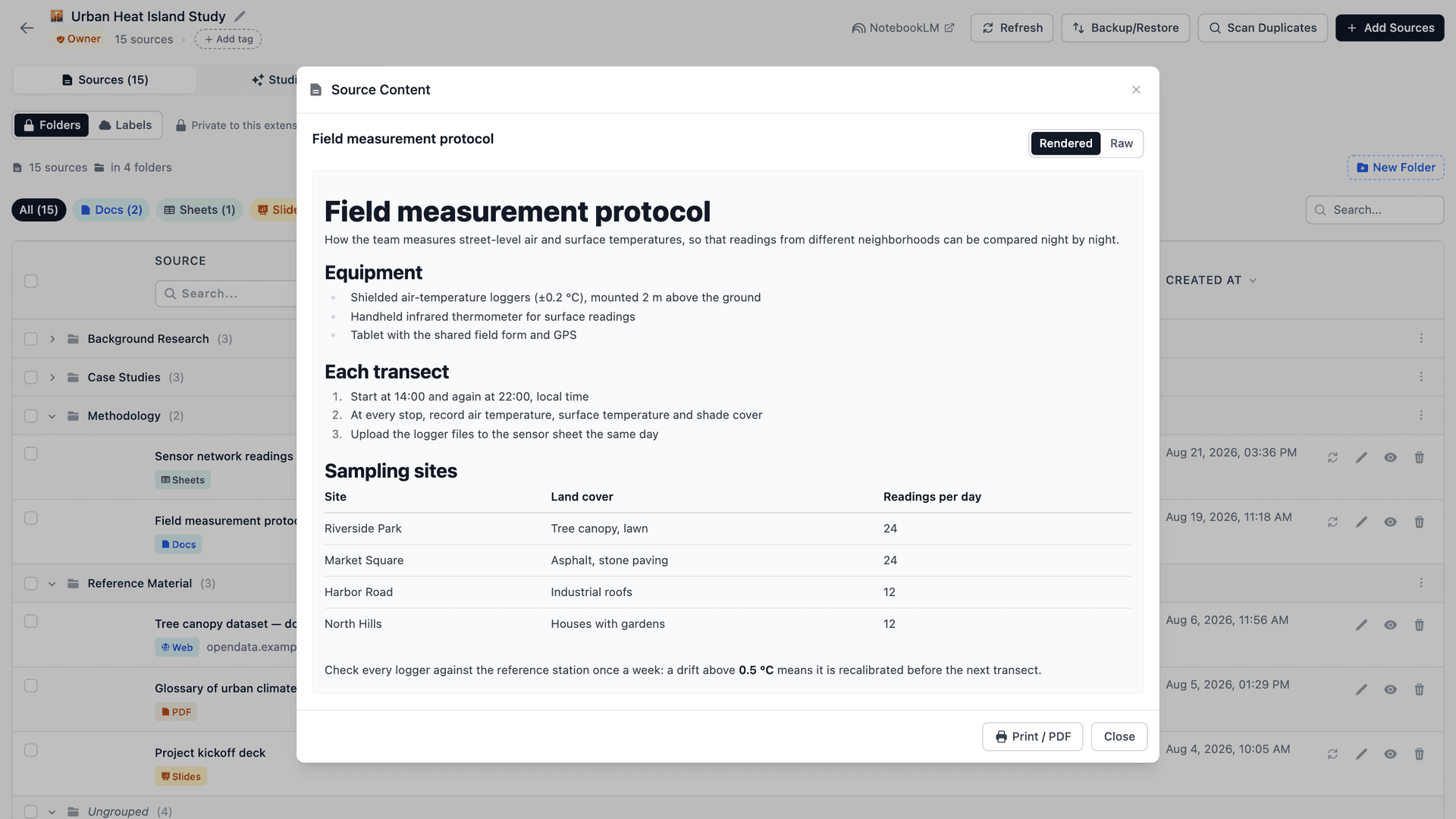
You can use this at any point in your workflow — whether you're reviewing sources before merging, double-checking a merged result, or validating content after changes.
This is useful when you want to quickly confirm:
- What a source contains
- Whether it's still relevant
- If content overlaps with other sources
- Or whether a source is safe to delete, merge, or keep
Because you're viewing the actual content — not just titles — source management becomes much more intentional and reliable.
Whether you're preparing to merge sources or reviewing the result afterward, View helps you stay confident about what's inside your notebook.
And when two sources look nearly identical, the extension's Source Compare shows a track-changes inline diff against the baseline source you pick — an easy way to confirm exactly what differs before you decide to merge.
With a clear understanding of what's inside each source, we can now move on to the next step — making changes safely and intentionally.
How merging works
First, you select the sources you want to combine directly from the Sources list.
Once selected, click Merge to start the merge flow.
In the Configure step, you can:
- Set a title for the merged source
- See exactly which sources are included
- Choose whether to delete the original sources after merging
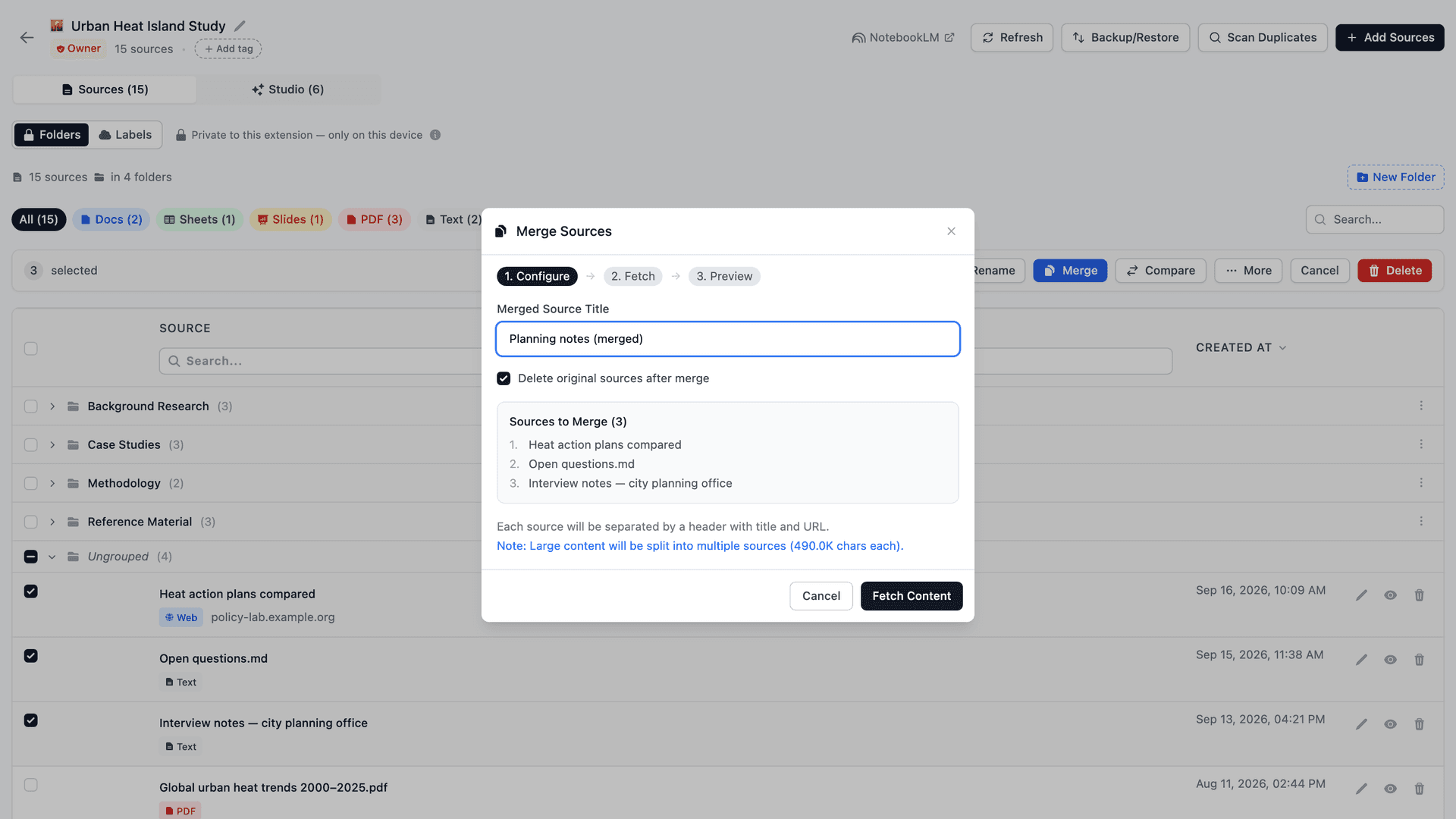
This step ensures everything is clear before anything happens.
Next, the extension fetches the full content from each selected source.
In the Preview step, you can clearly see:
- How many sources will be merged into one
- The total content size
- Whether the original sources will be permanently removed
Below that, the extension shows a truncated preview of the merged content.
This preview doesn't display everything — it's intentionally shortened so you can quickly sanity-check the structure, ordering, and source boundaries without scrolling through the full content.
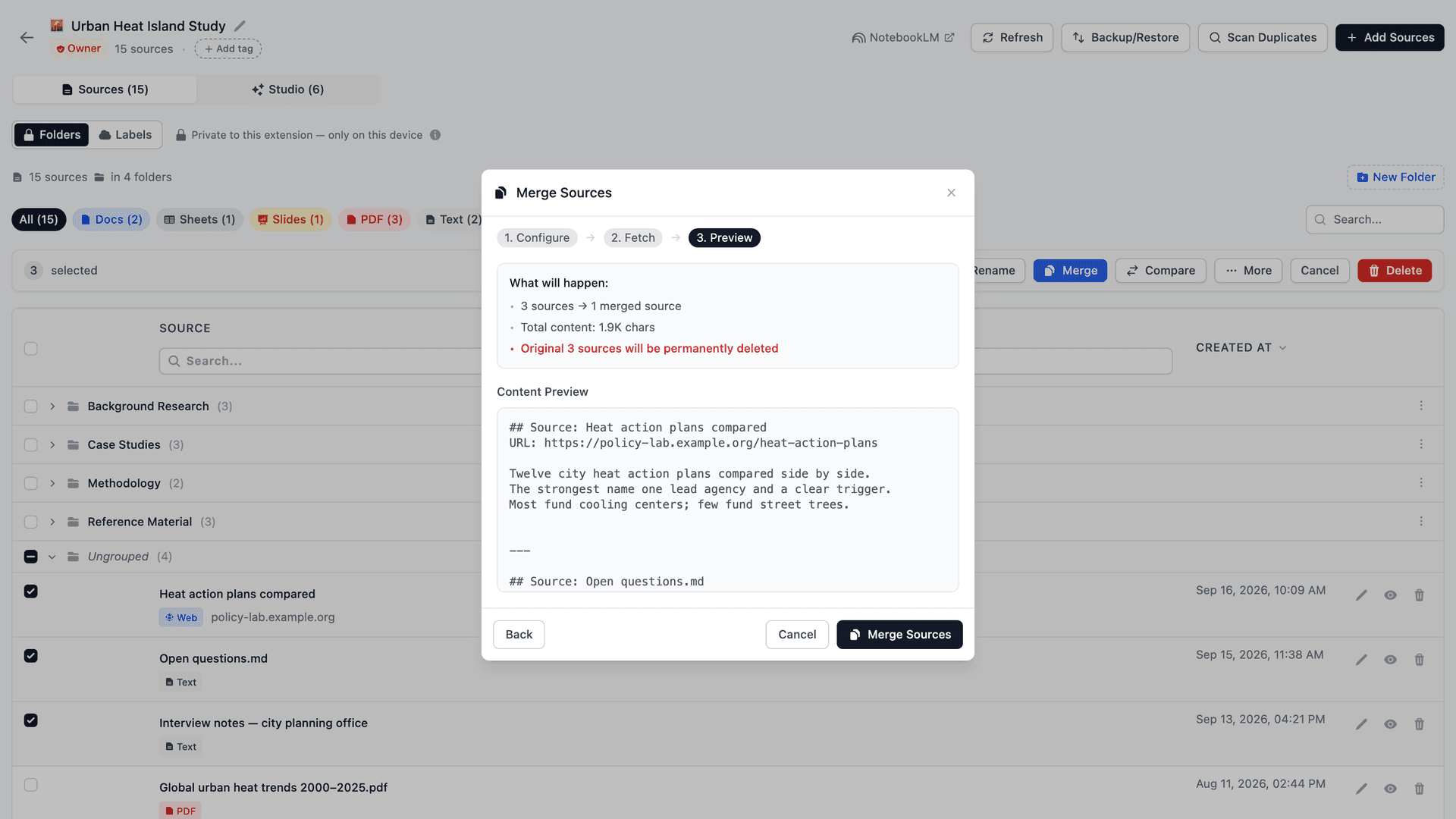
If anything looks off, you can always go back to the previous steps to adjust the selected sources, title, or settings before confirming.
Nothing is finalized until you explicitly click Merge.
When you should — and shouldn't — merge sources
Merge Sources works best when used intentionally.
You should merge sources when:
- Multiple articles clearly belong to the same topic
- Sources were added over time but now feel logically connected
- You notice repetition or overlap
- You want stronger long-form reasoning from NotebookLM
- You're preparing a notebook for deeper analysis or long-term use
You shouldn't merge sources when:
- Sources represent different perspectives you want to compare
- Content only loosely overlaps
- You're still exploring and not ready to consolidate
- Separation is important for later reference
Merge Sources isn't about deleting information — it's about reshaping it.
Think of merging as editing, not cleanup
A useful mental model is to treat merging like editing a document.
Just as you combine paragraphs and group ideas when writing, merging sources helps related information live together.
The content stays the same — only the structure improves.
When paired with quick source previewing through View, source management becomes a powerful way to keep notebooks clear, intentional, and scalable over time.
Instead of letting sources grow into an unmanageable pile, you can actively curate and shape your notebook as your research evolves.
Source management might feel like a small feature at first, but it fundamentally changes how you work with NotebookLM at scale.
Being able to review, merge, reorganize, and preserve your sources turns NotebookLM from a passive knowledge container into an active research workflow.
If you want to see this in action, check out the full video walkthrough and install the extension below:
Full video tutorial:
NotebookLM Tools – Chrome Extension
NotebookLM Tools - Chrome Web Store
And for updates, documentation, and future features, you can always visit the official site:
Official website
NotebookLM Tools - Supercharge NotebookLM
More features are already in the works — driven directly by real user requests.
So if NotebookLM is part of your daily workflow, this is the toolkit that grows with you.
If you have any feedback, ideas, or pain points from your own NotebookLM workflow, feel free to share them. A lot of the features in this extension exist because of real user feedback, and your input genuinely helps shape what comes next.
If something feels missing, awkward, or could be better — I'd love to hear about it. Your feedback is what helps sharpen the extension and make it more useful in real-world workflows.
Thanks for reading.
Previous in series: NotebookLM Tips #4: Turn Audio into a Real Podcast Player — Transform scattered NotebookLM audio into a proper listening experience.
Next in series: NotebookLM Tips #6: Backup & Restore Sources Safely — Shape your NotebookLM without fear of losing work.
Trusted by 90,000+ NotebookLM users
Related articles
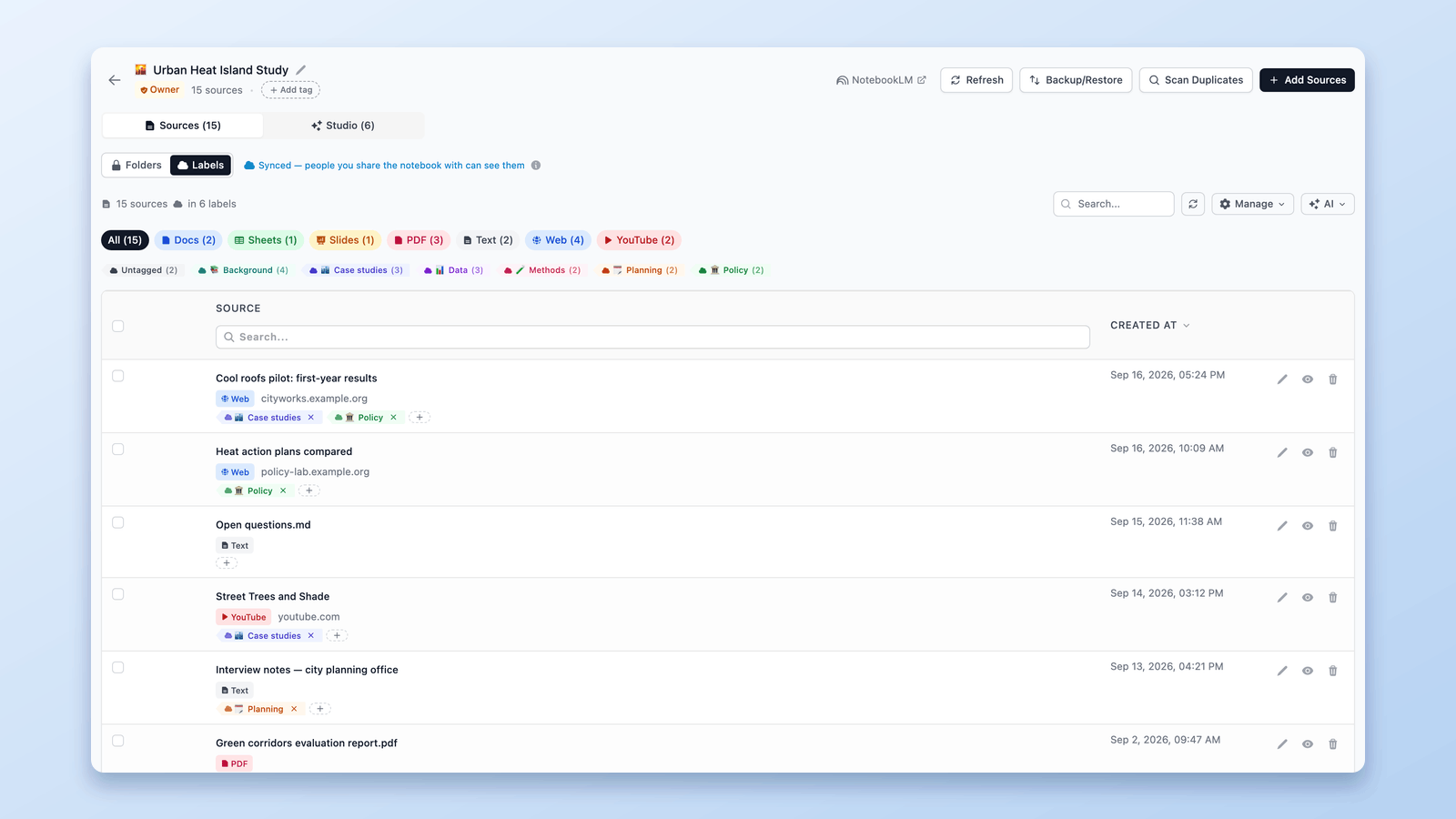
How NotebookLM Source Labels Work (+ Manage Them in a Table)
NotebookLM auto-labels your sources at 5+. See how source labels work — and manage them in a table: make your own, bulk-tag, filter, and search.
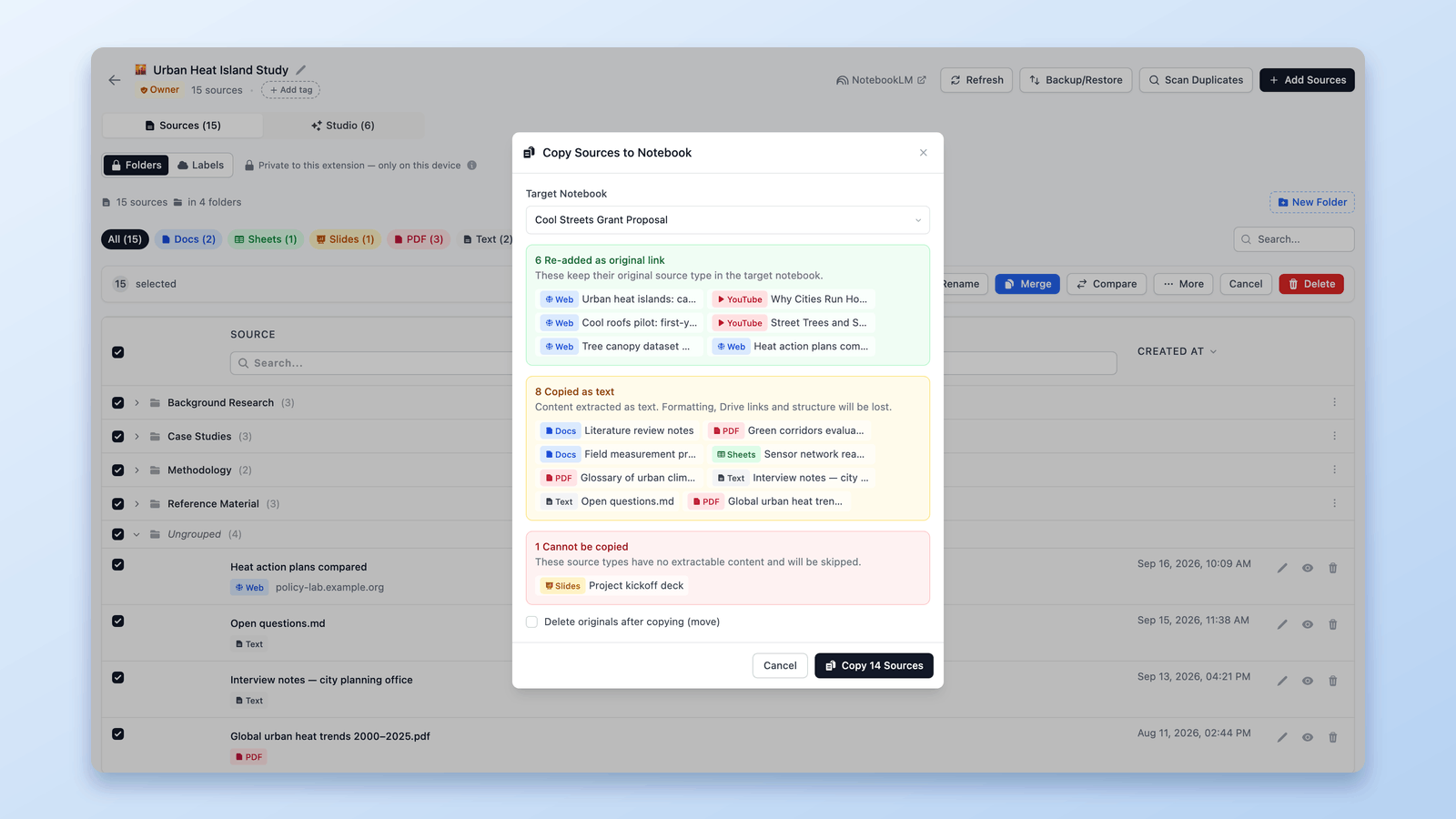
Can You Merge or Combine Notebooks in NotebookLM? Here's How
Not natively — but there's a workaround that works. Combine two or more NotebookLM notebooks by moving every source across in bulk with a free extension.
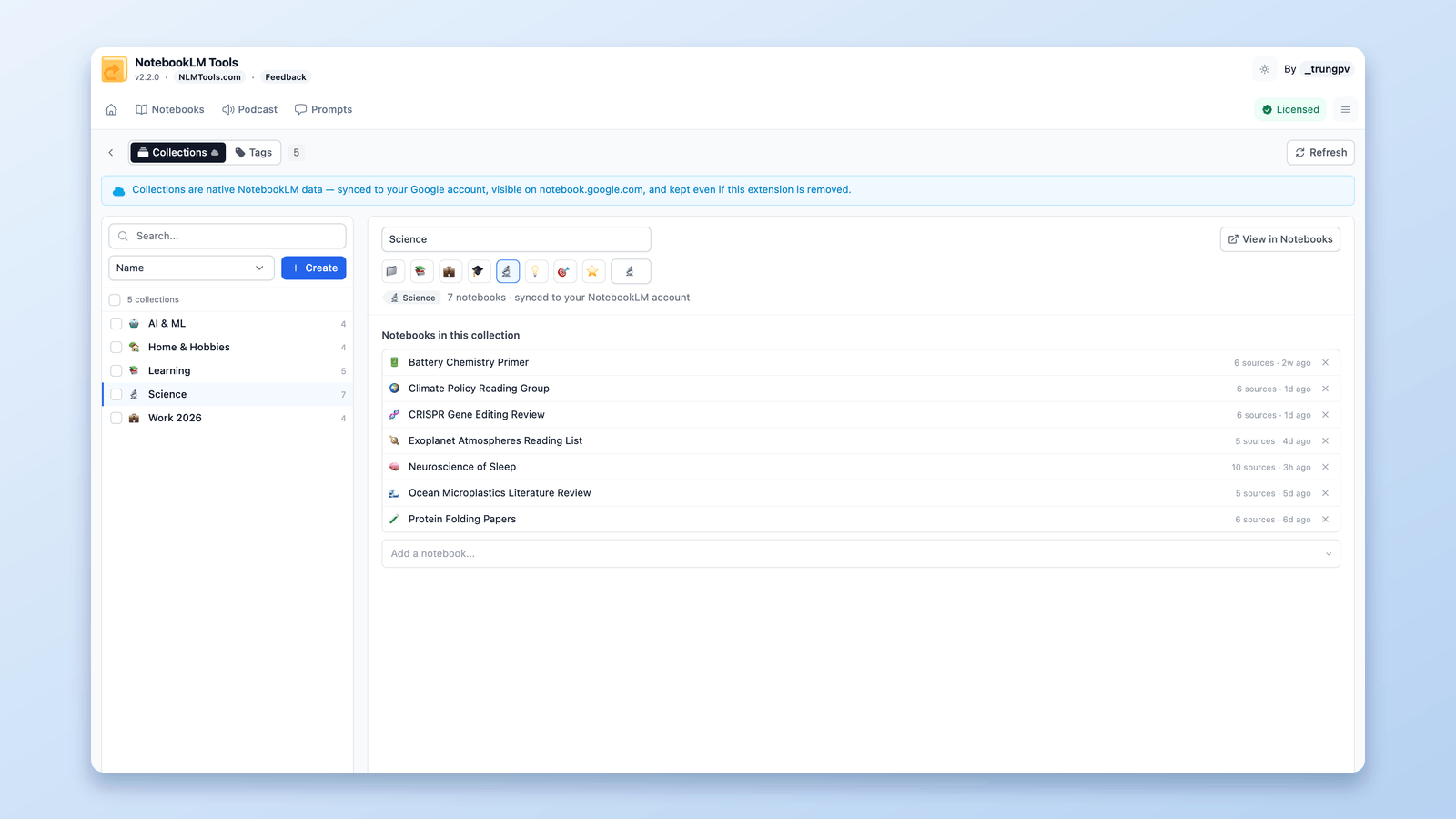
How to Group & Organize Notebooks in NotebookLM (Collections)
Yes, you can group notebooks in NotebookLM. Collections are native notebook folders synced to your Google account — create, bulk-assign, and filter in seconds.