How to Group & Organize Notebooks in NotebookLM (Collections)
Enhance your NotebookLM experience with our free browser extension.
View plans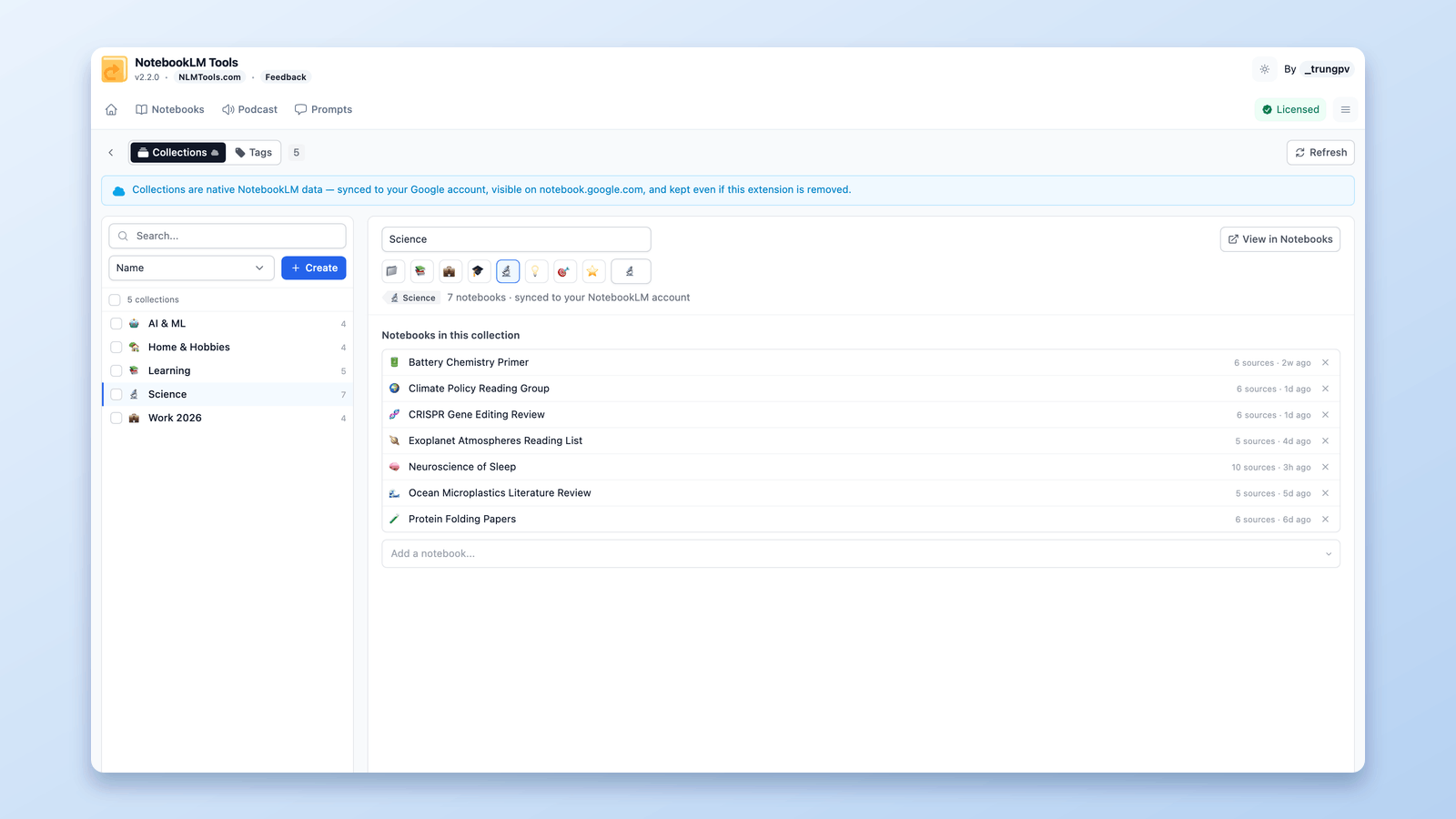
If your NotebookLM homepage has turned into an endless wall of notebook cards, you've probably wondered whether you can group notebooks into folders. The answer is yes — NotebookLM has a native feature for exactly this, called Collections, and with the right tooling it takes seconds to organize everything.
Collections group entire notebooks — by project, course, client, or any structure that fits how you work. They're synced to your Google account, they show up on the NotebookLM homepage (now at notebook.google.com), and they stay put no matter which browser or device you sign in from.
In this guide, I'll show you what collections are, how to create and manage them efficiently with the free NotebookLM Tools extension, and how they compare to the other organization features — folders, labels, and tags.
What Are NotebookLM Collections?
Collections are NotebookLM's built-in way to group notebooks. Each collection has a name and an optional emoji, and groups the notebooks you file into it.
Three properties make collections different from a classic folder tree:
- They group notebooks, not sources. A collection lives at the account level and organizes whole notebooks. (To organize the sources inside one notebook, use source folders instead.)
- A notebook can belong to several collections. The same notebook can sit in "Thesis", "Spring Semester", and "To Review" simultaneously — no duplicate copies needed.
- They're native and synced. Collections are stored in your Google account, not in your browser. They appear on notebook.google.com itself, follow you across devices, and remain even if you uninstall every extension.
NotebookLM (renamed Gemini Notebook by Google in July 2026) provides the basics natively. Where it falls short is management at scale: assigning dozens of notebooks one at a time gets old fast. That's the gap NotebookLM Tools fills.
Collections vs Folders vs Labels vs Tags
NotebookLM organization now spans four features — two native, two added by the extension. Here's the one table to keep straight which does what:
| Feature | What it groups | Native or extension | Synced? | Visual marker | Best for |
|---|---|---|---|---|---|
| Collections | Notebooks | Native (Google) | ✅ Google account | Emoji | Grouping notebooks by project, course, or client |
| Tags | Notebooks | Extension (local) | ❌ This browser only | 10 custom colors | Private, color-coded notebook organization |
| Source folders | Sources in one notebook | Extension (local) | ❌ This browser only | Folder icon | Structuring a big notebook's source list |
| Labels | Sources | Native (Google) | ✅ Synced (with the notebook) | Emoji | AI-grouped source categories, shared with collaborators |
Rule of thumb: collections and tags organize your library of notebooks; folders and labels organize the sources inside a notebook. If sources are what you need to structure, start with the source folders guide or the source labels guide.
How to Create a Collection
Directly in NotebookLM
The NotebookLM homepage has a Collections tab where your collections live — Google's own controls cover the basics, with a name and an optional emoji for each collection.
The native flow works fine for a handful of notebooks. It gets tedious when you're filing thirty.
With NotebookLM Tools: the Manage Collections page
Install NotebookLM Tools and open the Manage Collections page (on the Notebooks page, select Collections and click Manage) — a two-pane workspace built for doing this at scale.
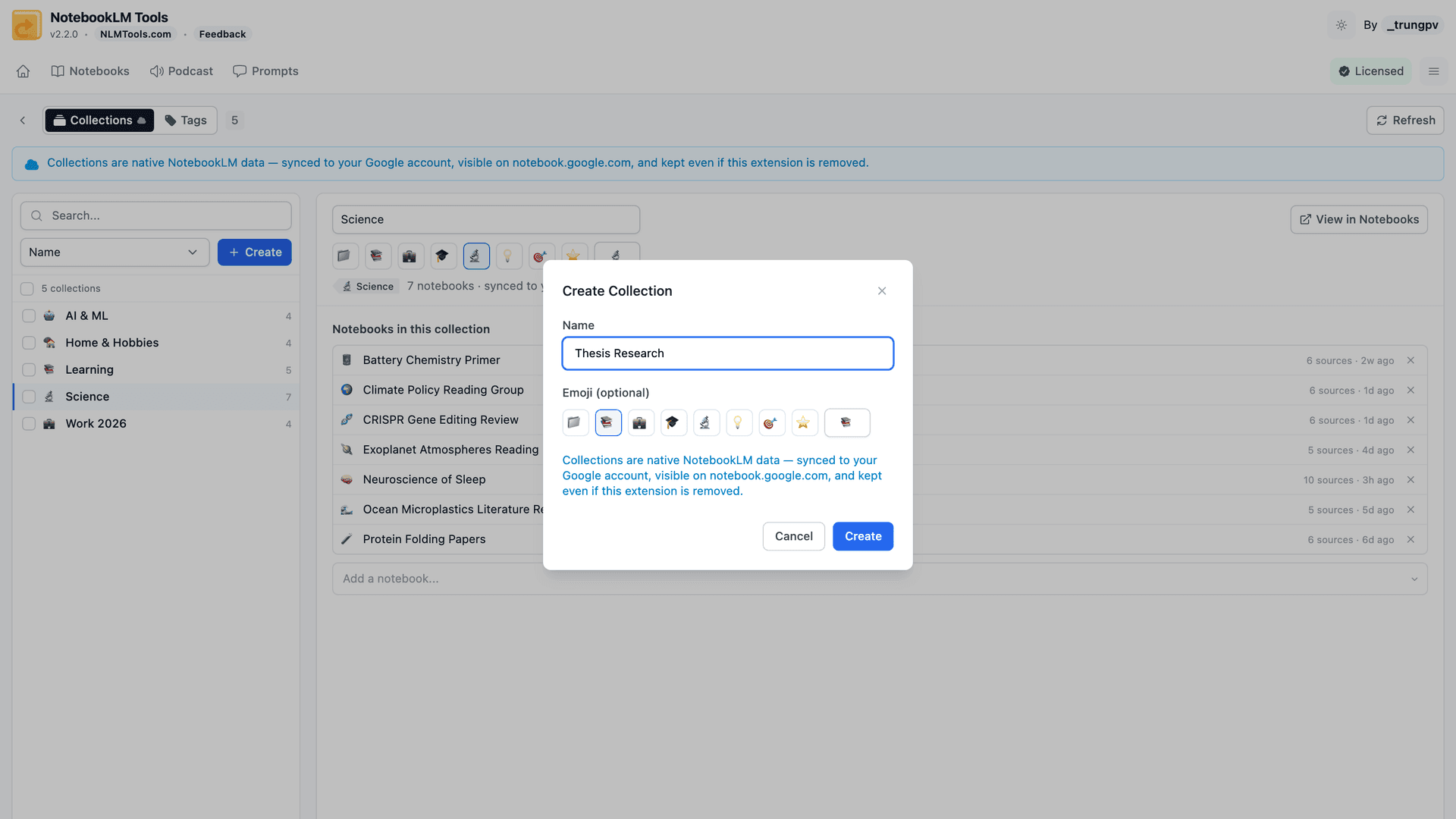
On the left: every collection, searchable and sortable by name or most used, with notebook counts. On the right: the selected collection's details — rename it, set or clear its emoji, add notebooks from a search box, or jump to a filtered view of its members.
Everything you do here writes straight to your NotebookLM account. Create a collection in the extension and it's instantly real on notebook.google.com.
Assign Notebooks in Bulk
This is where the extension pays for itself (it's free, but still). In the notebooks dashboard, select any number of notebooks and choose Add to Collection. Two modes:
- Add mode — the selected notebooks join the collection, keeping their existing collections.
- Replace mode — the selected notebooks' collections are replaced entirely with your new choice. Perfect for cleaning up an old structure in one pass.
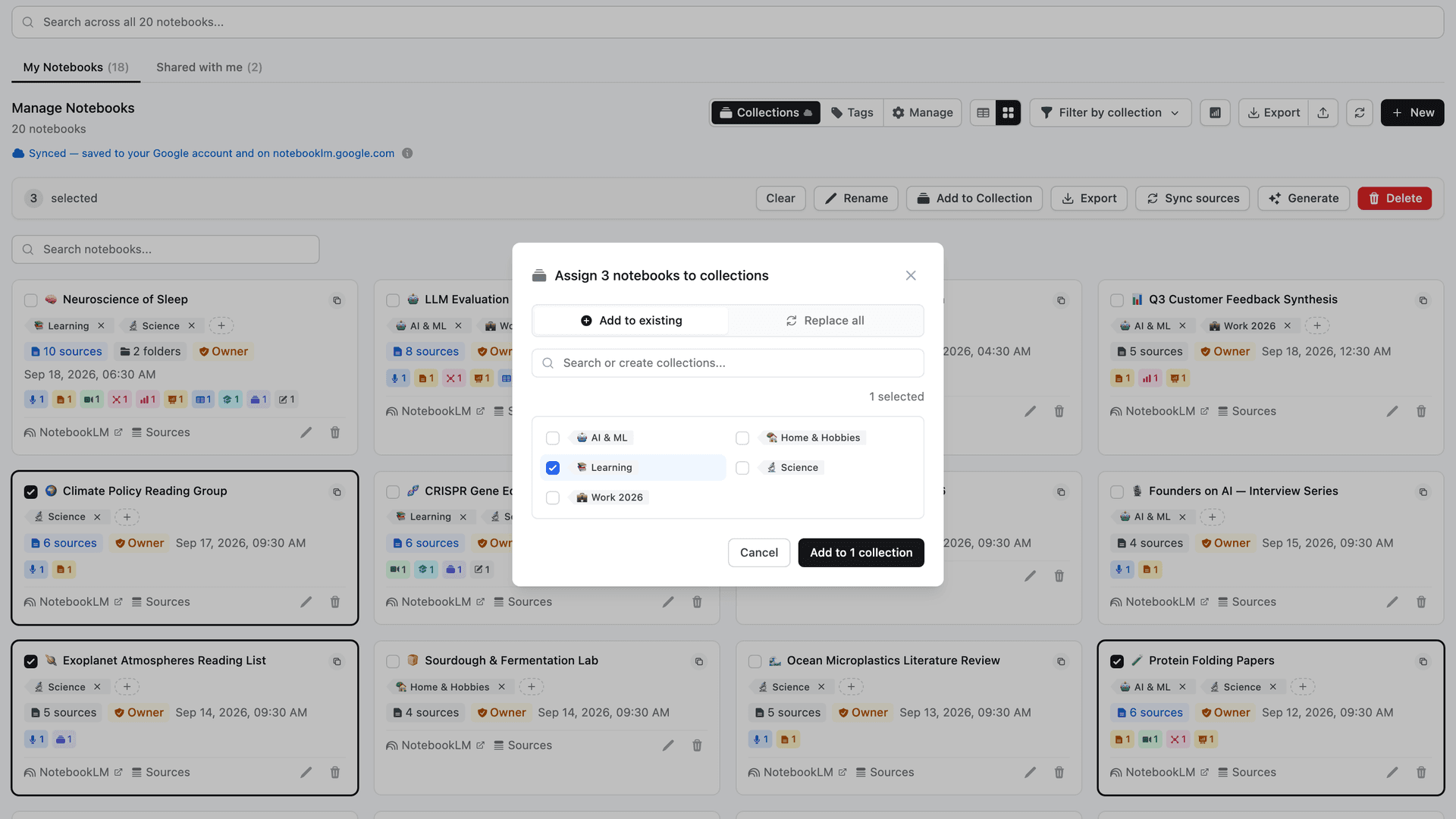
Filing a semester's worth of notebooks takes one selection and one click instead of thirty round-trips through a dialog.
Filter and Find Notebooks
Multi-select filtering and the "Not in a collection" filter
Filter your notebook list by one collection or several at once (a notebook matches if it's in any of them). The "Not in a collection" filter is the cleanup superpower: it shows exactly the notebooks you haven't filed anywhere yet, so nothing slips through. (While it's on, the filter button shows a compact "Uncollected" chip.)
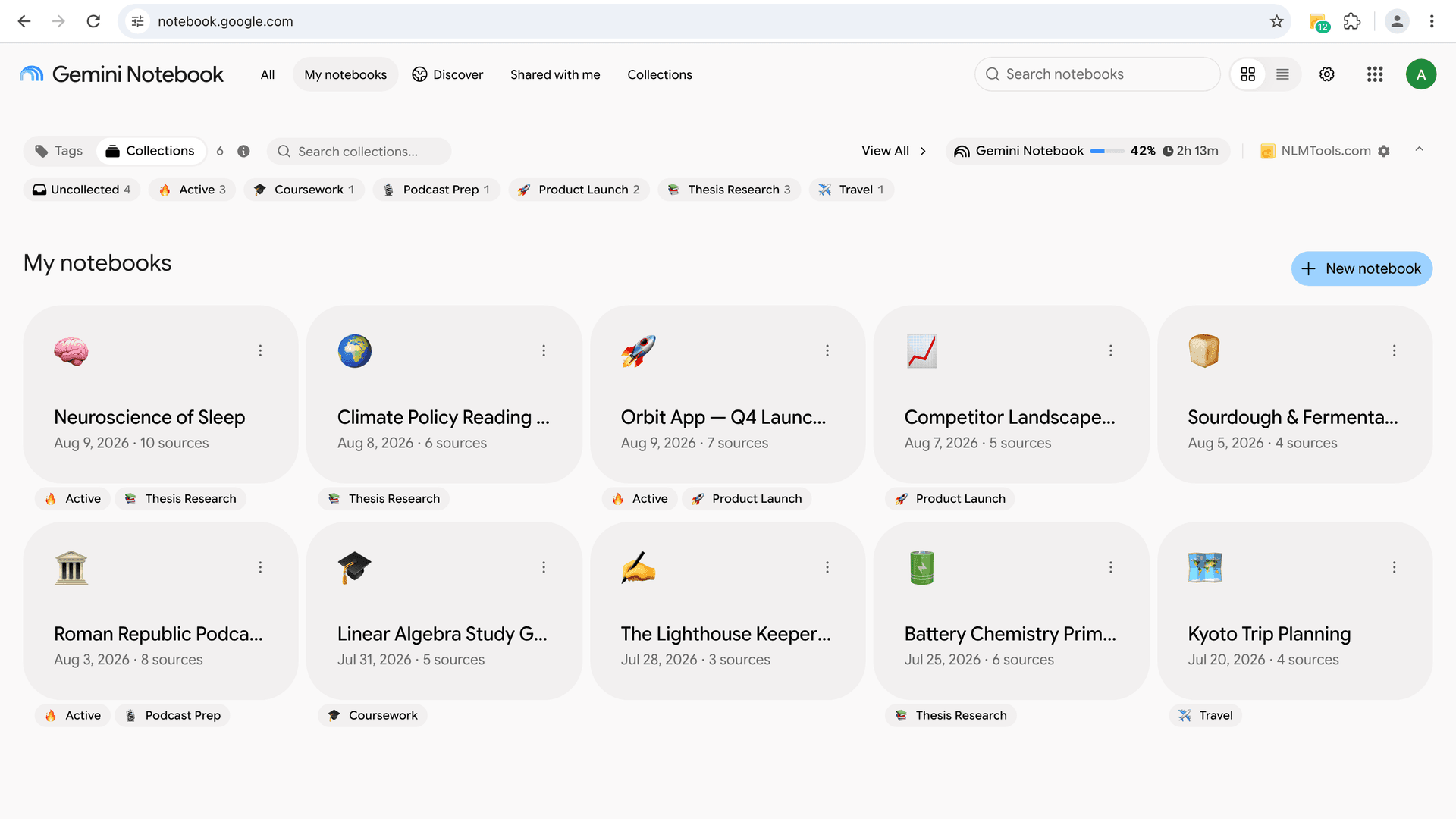
Collection chips on the NotebookLM homepage
The extension also shows each notebook's collections as small chips right on the notebook cards at notebook.google.com — with an emoji when the collection has one. Your organization is visible where you actually work, not just inside the extension.
Collections in cross-notebook search
Collections are a first-class result type in the extension's cross-notebook search: search by a collection's name and jump straight to its notebooks, alongside matches from notebook titles and sources.
Convert Your Tags to Collections in One Click
Been organizing notebooks with the extension's local tags? You don't have to rebuild anything. The Tags → Collections converter turns each tag into a native collection containing the same notebooks:
- One-way and non-destructive — your tags are kept; the converter copies them.
- Tag colors map to suggested emoji (red → 🔴, green → 🟢, and so on) — editable per tag before you run it.
- Idempotent — tags whose names already exist as collections are skipped, so re-running is safe.
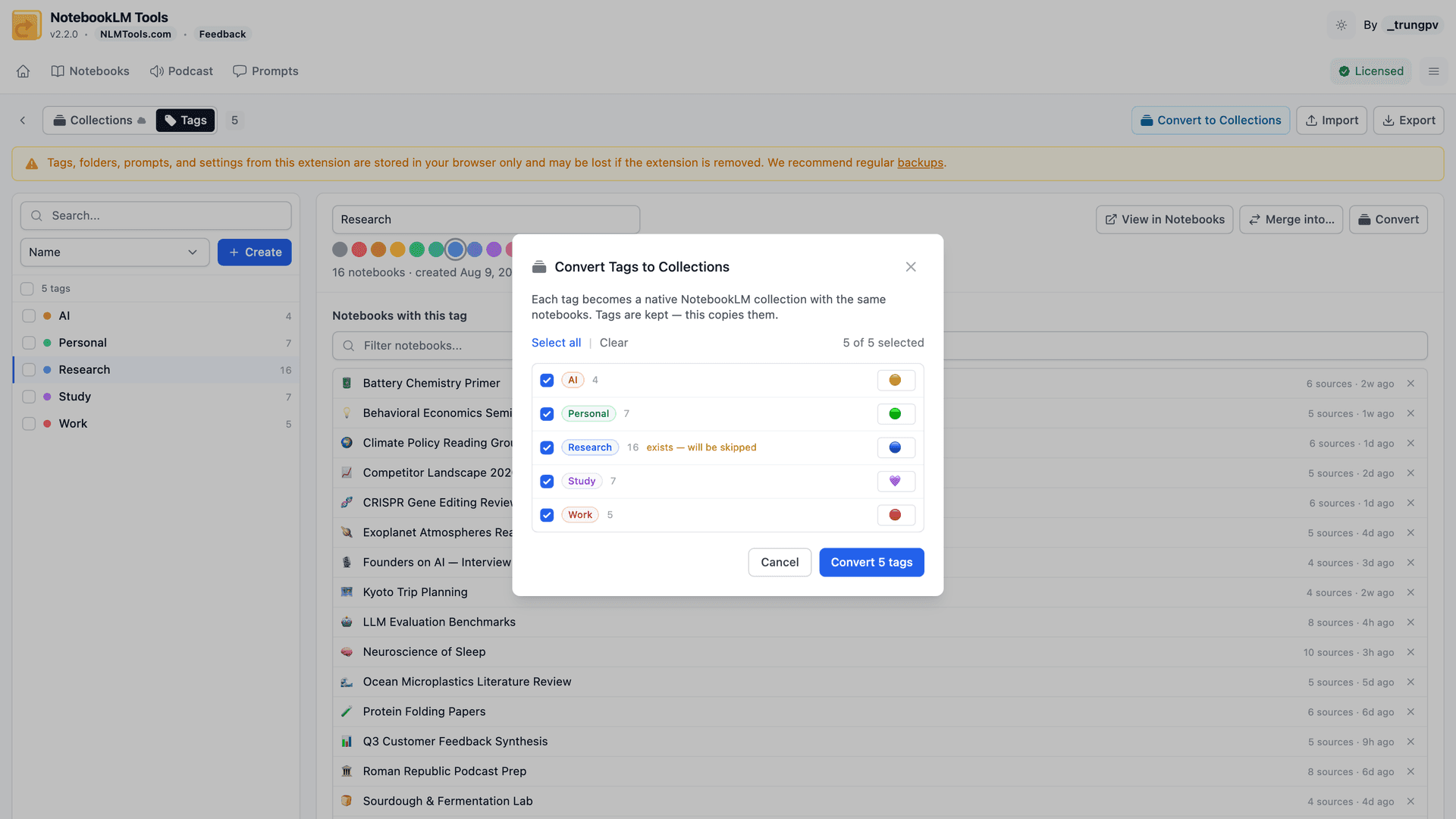
The practical difference after converting: your groups stop being private to one browser and become part of your Google account — visible on every device, with no extension required to see them.
Collection Structure Ideas
The right structure depends on how you work. A few patterns that hold up well:
By project:
- 📚 Thesis Research
- 🚀 Product Launch
- 🎙️ Podcast Prep
By course or semester:
- Biology 101
- Spring 2026
- Exam Review
By client:
- Client — Acme Corp
- Client — Initech
- Internal
By status:
- 🔥 Active
- 💤 On Hold
- ✅ Archived
Because notebooks can belong to several collections, you can combine dimensions — a notebook can live in both "Client — Acme Corp" and "🔥 Active" at once. Start with 3–5 collections and use the "Not in a collection" filter to catch strays.
Frequently Asked Questions
Can you group notebooks in NotebookLM?
Yes. Collections are NotebookLM's native way to group notebooks — each with a name and optional emoji, and a notebook can belong to several at once. The free NotebookLM Tools extension adds a Manage Collections page, bulk assignment, and multi-collection filtering on top.
How do you organize notebooks in NotebookLM?
Use collections to group notebooks by project, course, or client: create a few collections, assign notebooks in bulk, then filter your notebook list by collection. For the material inside a notebook, use source folders and labels instead.
Can you create folders for notebooks in NotebookLM?
Effectively yes — they're called collections, and they behave like folders for entire notebooks: synced to your Google account and visible on notebook.google.com. Folders for the sources inside one notebook are a separate feature — see the source folders guide.
Can a notebook be in more than one collection?
Yes. Collections support multi-membership — the same notebook can sit in "Thesis", "Spring Semester", and "To Review" at the same time, with no duplication.
Do collections disappear if I uninstall the extension?
No. Collections are native NotebookLM data stored in your Google account and visible on notebook.google.com. Everything you create through the extension stays, even without the extension.
What's the difference between collections and tags?
Tags are the extension's own feature — private to your browser, with custom colors. Collections are NotebookLM's own feature — synced and visible everywhere you sign in. The one-click converter turns tags into collections without deleting anything.
What is a collection in Gemini Notebook?
The same thing as a NotebookLM collection. Google renamed NotebookLM to Gemini Notebook in July 2026, and collections carried over unchanged: named groups of whole notebooks, stored in your Google account and shown on notebook.google.com. Everything in this guide — including the NotebookLM Tools management features — applies to Gemini Notebook.
Give Every Notebook a Home
A flat wall of notebook cards doesn't scale past a dozen notebooks. Collections give your library real structure — native, synced, and finally manageable in bulk.
Install NotebookLM Tools to get the Manage Collections page, bulk assignment, the "Not in a collection" filter, and the tag converter — all free. See the feature in context on the collections feature section, or browse the full feature list.
Related articles:
- Can You Create Folders in NotebookLM? Yes — Here's How — Collections group notebooks; source folders organize the sources inside one notebook.
- How NotebookLM Source Labels Work — The other native organization feature: synced, AI-assisted labels for sources.
- NotebookLM Tags vs Collections: Which to Use (+ 1-Click Convert) — The extension's local tags, and how they complement collections.
- Can You Merge or Combine Notebooks in NotebookLM? Here's How — When grouping isn't enough and you actually want one combined notebook.
- The 9 Best NotebookLM Chrome Extensions in 2026 (Compared) — How NotebookLM Tools compares to single-purpose organizers.
Trusted by 100,000+ NotebookLM users
Related articles
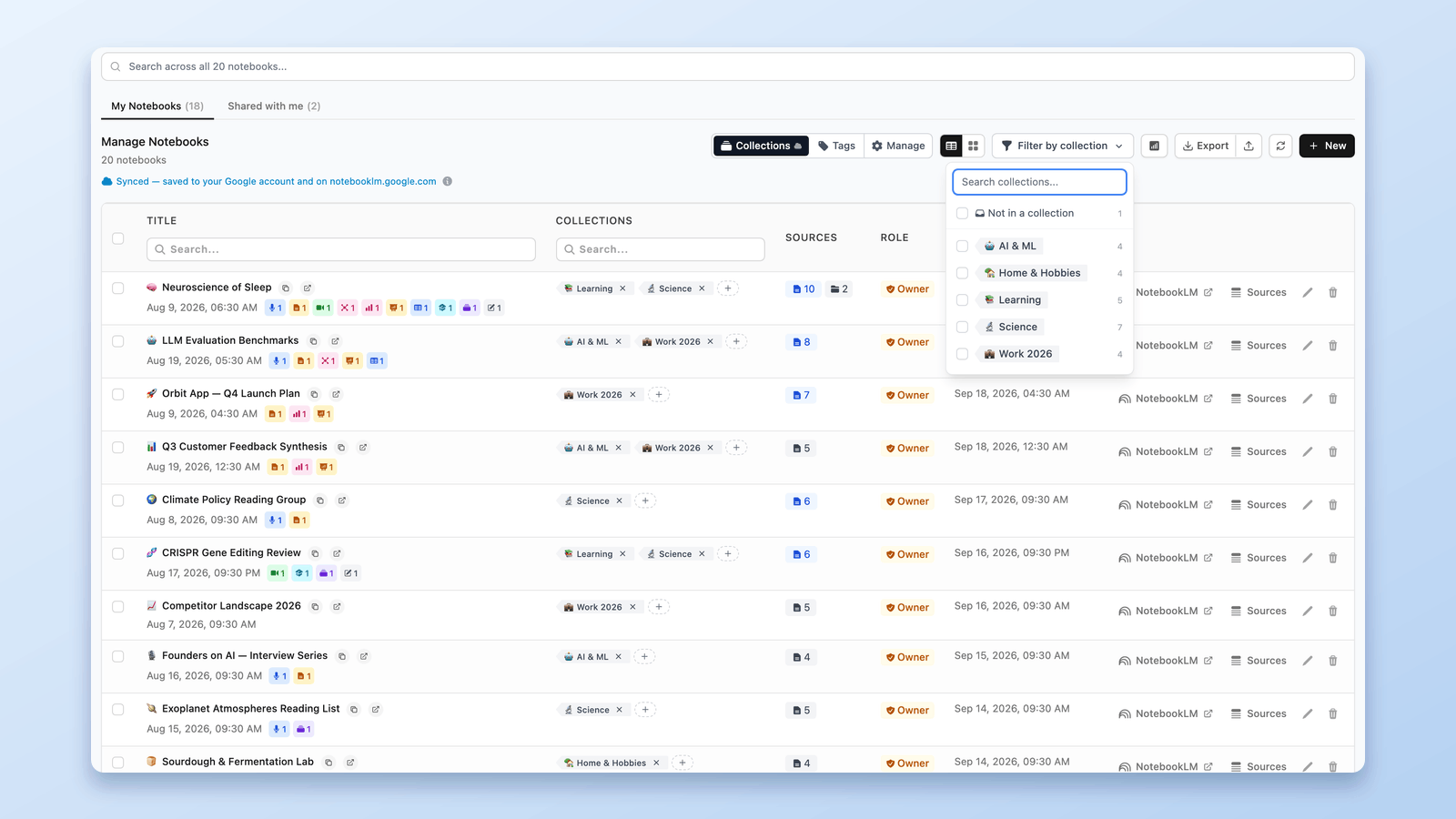
NotebookLM Tags vs Collections: Which to Use (+ 1-Click Convert)
Tags or Collections for your NotebookLM notebooks? When to use each, side by side — plus the one-click converter that copies tags into collections, nothing deleted.
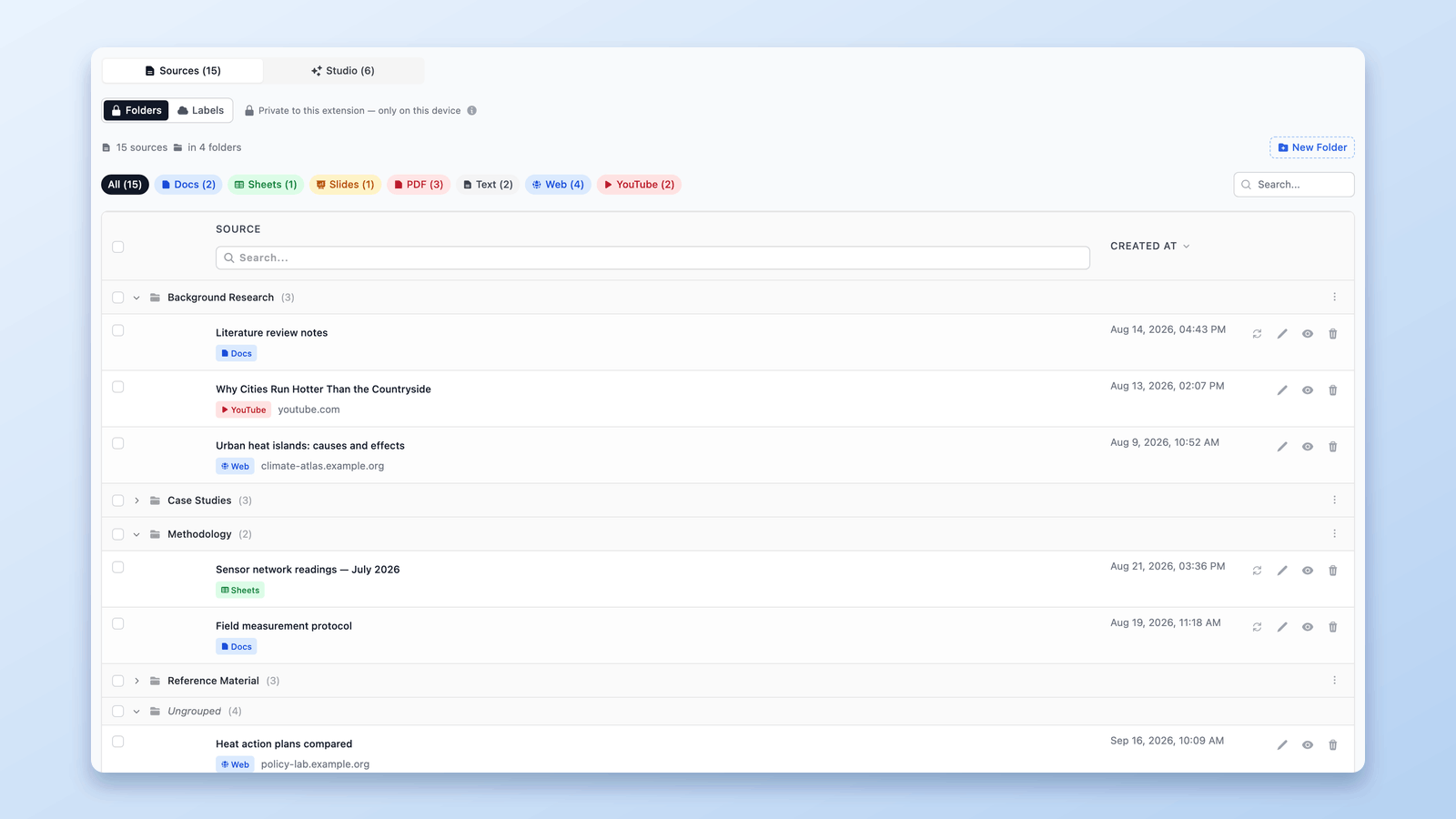
Can You Create Folders in NotebookLM? Yes — Here's How (2026)
NotebookLM has no built-in folders, but you can add them in seconds. Create up to 50 drag-and-drop source folders per notebook with a free Chrome extension.
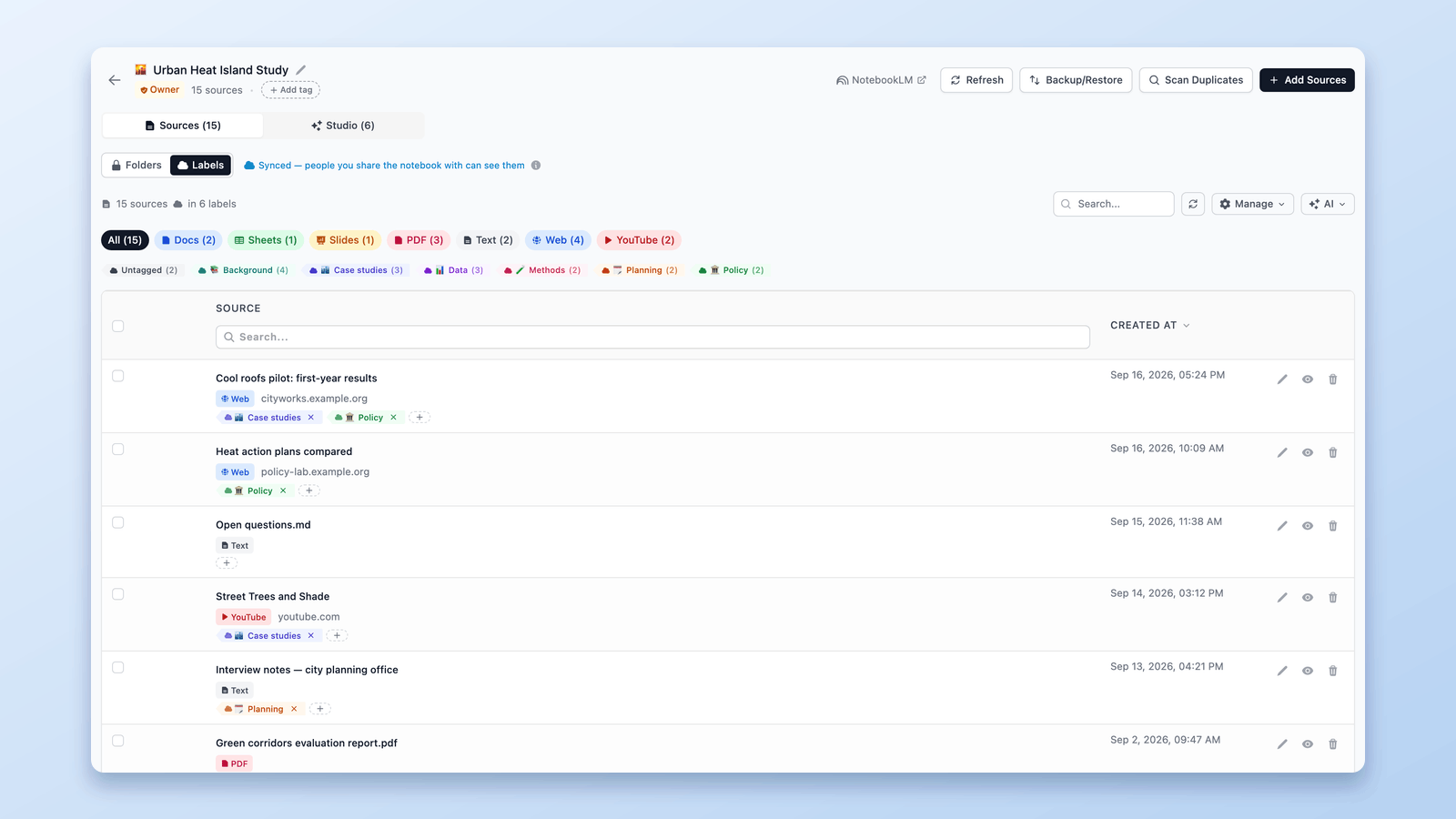
How NotebookLM Source Labels Work (+ Manage Them in a Table)
NotebookLM auto-labels your sources at 5+. See how source labels work — and manage them in a table: make your own, bulk-tag, filter, and search.