NotebookLM Tips #4: Turn Audio into a Real Podcast Player
Enhance your NotebookLM experience with our free browser extension.
View plans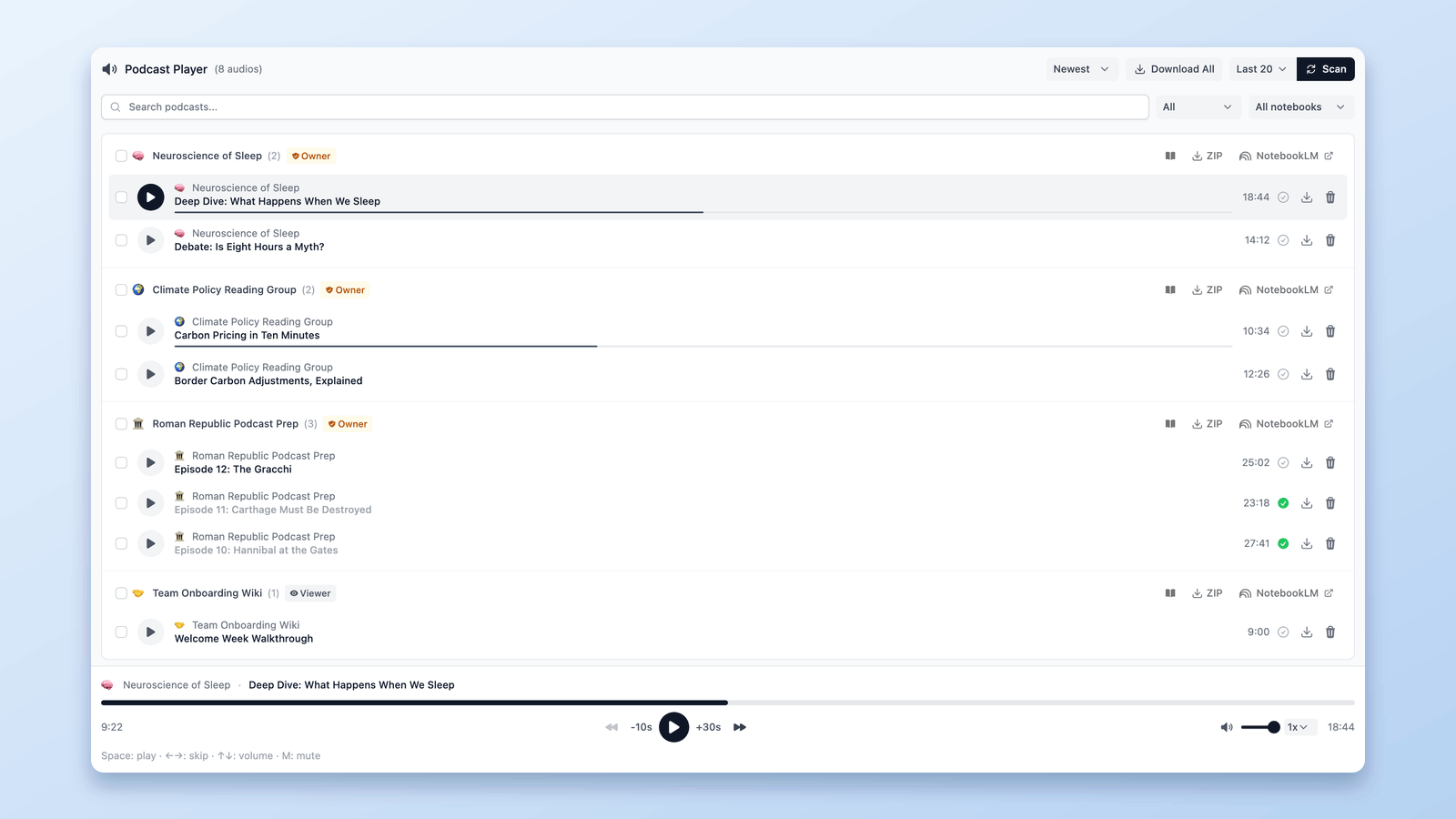
Turning NotebookLM Audio Into a Real Podcast Experience
Since late 2024, NotebookLM (now Gemini Notebook) has quietly become more than just a tool for summarizing documents.
Users are now turning research papers, meeting notes, and long articles into podcast-style audio — something you can listen to instead of read.
And that part works well.
You can generate high-quality audio from your notes in 2-3 clicks.
But once you start creating more than a few episodes, a new problem appears.
Your podcasts don't live in one place.
They're spread across different notebooks.
And there's no real way to listen to them like a podcast.
So the question becomes:
How do you turn NotebookLM audio into something you can actually listen to comfortably and consistently?
That's exactly what the Podcast feature in NotebookLM Tools is designed to solve.
If you want to follow along, you can install NotebookLM Tools here:
NotebookLM Tools - Chrome Web Store
And if you want to see how this works in practice, you can watch the full demo below.
The Problem With Podcast Audio in NotebookLM
NotebookLM can generate podcasts, but it's not designed to be a podcast player.
If you create audio across multiple notebooks:
- Podcasts are scattered across different notebooks
- There's no central place to see everything you've created
- You don't know which notebooks contain audio unless you open them one by one
- Each podcast lives in isolation
And when it comes to listening:
- There's no podcast-style dashboard
- No continuous listening experience
- No easy way to treat your audio like a real podcast library
NotebookLM is great at creating podcasts.
It just doesn't help you use them.
That friction is exactly what I wanted to remove.
Introducing the Podcast Feature in NotebookLM Tools
The new Podcast feature in NotebookLM Tools is built specifically for NotebookLM-generated audio.
Instead of changing how NotebookLM works, it sits on top of it and does one simple thing really well:
It turns scattered NotebookLM audio into a clean, dedicated podcast player.
A Central Podcast Dashboard
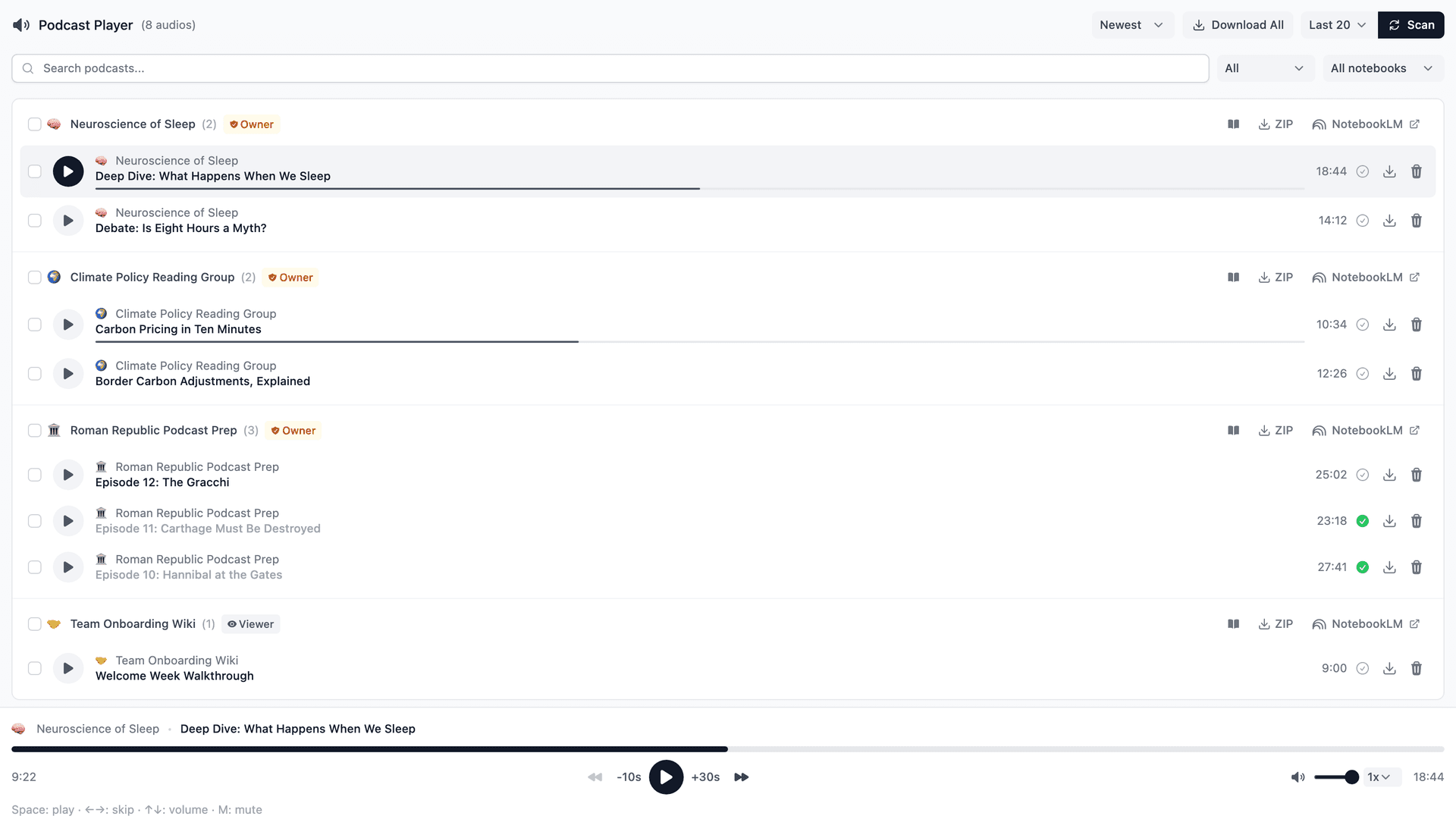
Once you open the Podcast feature, NotebookLM Tools:
- Scans your NotebookLM notebooks when you click Scan — the 20 most recent by default (Last 20), or every notebook if you pick All
- Detects podcast audio
- Groups episodes by notebook
Each notebook becomes its own podcast series, and everything shows up in one place.
No manual setup.
No tagging.
No searching.
If a finished Audio Overview is in a notebook you've scanned, it appears in the Podcast dashboard.
A Real Podcast Listening Experience
Instead of clicking around notebooks, you can now listen like you would in a normal podcast app:
- Instant playback
- Adjustable playback speed
- Skip forward or backward
- Continuous listening across episodes — just press play and keep going
- Keyboard shortcuts for play, pause, skipping, volume, and mute
It feels familiar and fast — especially if you listen while working or multitasking.
This is where the real value comes in.
Your NotebookLM audio stops feeling like "hidden files" and starts feeling like an actual podcast library — something you can actually listen to, not just generate.
One-Click Sync When You Create New Audio
The workflow stays simple:
- Create a new audio episode in NotebookLM using Audio Overview
- Come back to the Podcast Player
- Click Scan (the menu beside it starts at Last 20, your 20 most recent notebooks; pick All to check every notebook)
That's it.
NotebookLM Tools finds the new episode (once it has finished generating) and adds it to the dashboard — no copying, no moving files, no extra steps.
You create audio in NotebookLM.
NotebookLM Tools keeps everything organized.
Making NotebookLM Podcasts Actually Usable
NotebookLM does a great job at generating podcast-style audio.
But generation is only half of the experience.
What really matters is what happens after the audio is created —
how easy it is to find it, manage it, and actually listen to it over time.
Without a dedicated listening experience, podcasts inside NotebookLM often end up feeling like isolated audio files hidden across different notebooks.
They exist — but they're hard to use consistently.
The Podcast feature in NotebookLM Tools is designed to close that gap.
By bringing all your audio into a single dashboard, it turns NotebookLM podcasts into something you can actually use day to day — not just generate once and forget.
You can press play and keep listening across episodes.
You can come back later and instantly pick up where you left off.
You can treat your research, notes, and long-form content like a real podcast library, not a collection of scattered files.
NotebookLM creates the audio.
NotebookLM Tools makes it usable.
If you want to see how this works end to end — from creating audio in NotebookLM to listening in the Podcast Player — you can watch the full demo here:
And if you're already using NotebookLM audio or planning to — you can install the extension here and try it yourself:
NotebookLM Tools - Chrome Web Store
Thanks for reading — and thanks for building smarter research workflows with NotebookLM.
Related: How to Download NotebookLM Audio & Video Overviews (MP3, MP4) — Take your Audio Overviews out of the browser: download episodes as MP3, one at a time or all at once.
Previous in series: NotebookLM Tips #3: All the Ways to Import Sources — Discover every method to get content into NotebookLM.
Next in series: How to Merge Sources in NotebookLM — Combine fragmented sources for stronger summaries.
Trusted by 90,000+ NotebookLM users
Related articles
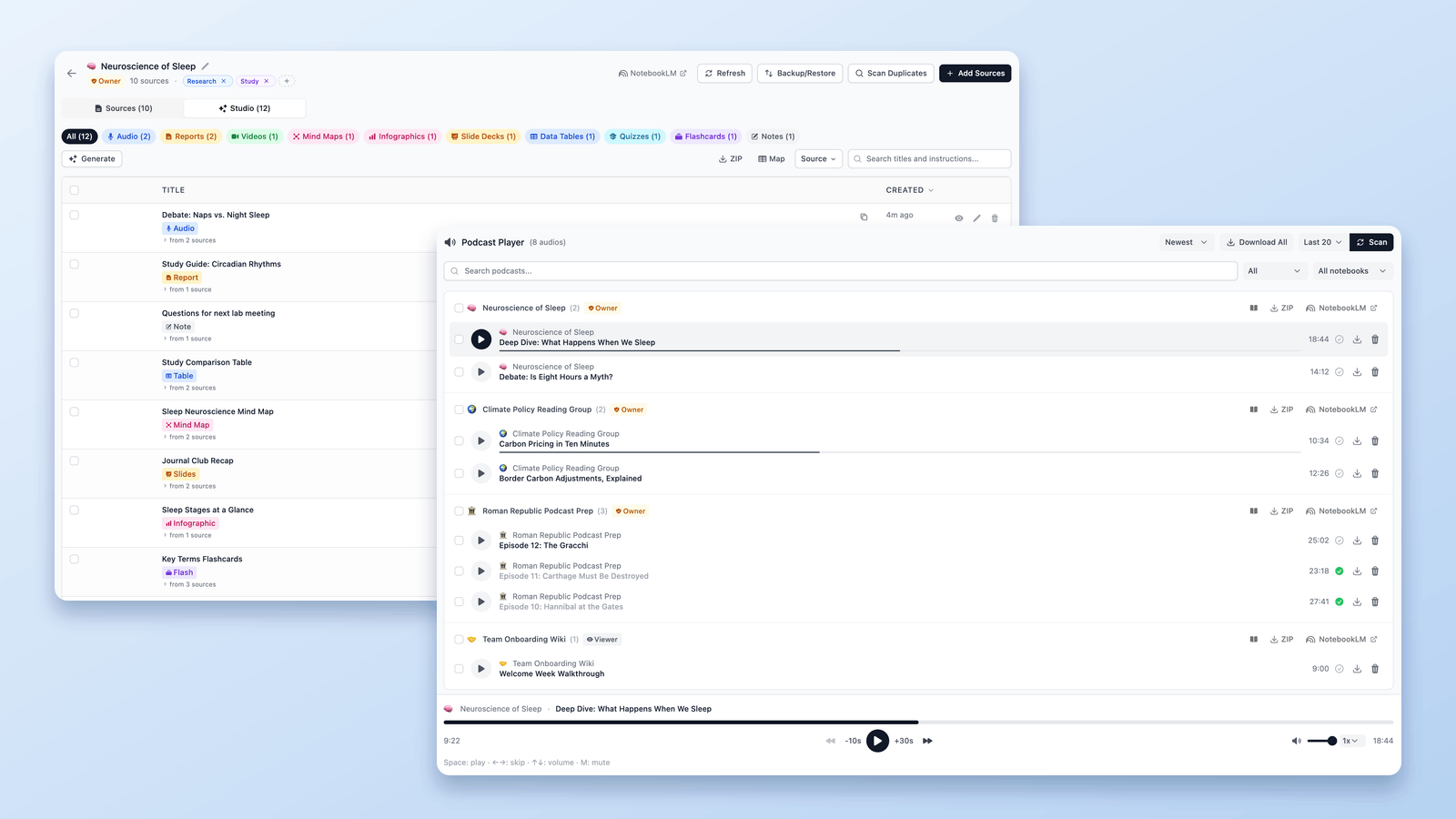
How to Download NotebookLM Audio & Video Overviews (MP3, MP4)
The NotebookLM downloader guide: save Audio Overviews as MP3 — one at a time or all at once as ZIP — download Video Overviews as MP4, free, by link or in bulk.
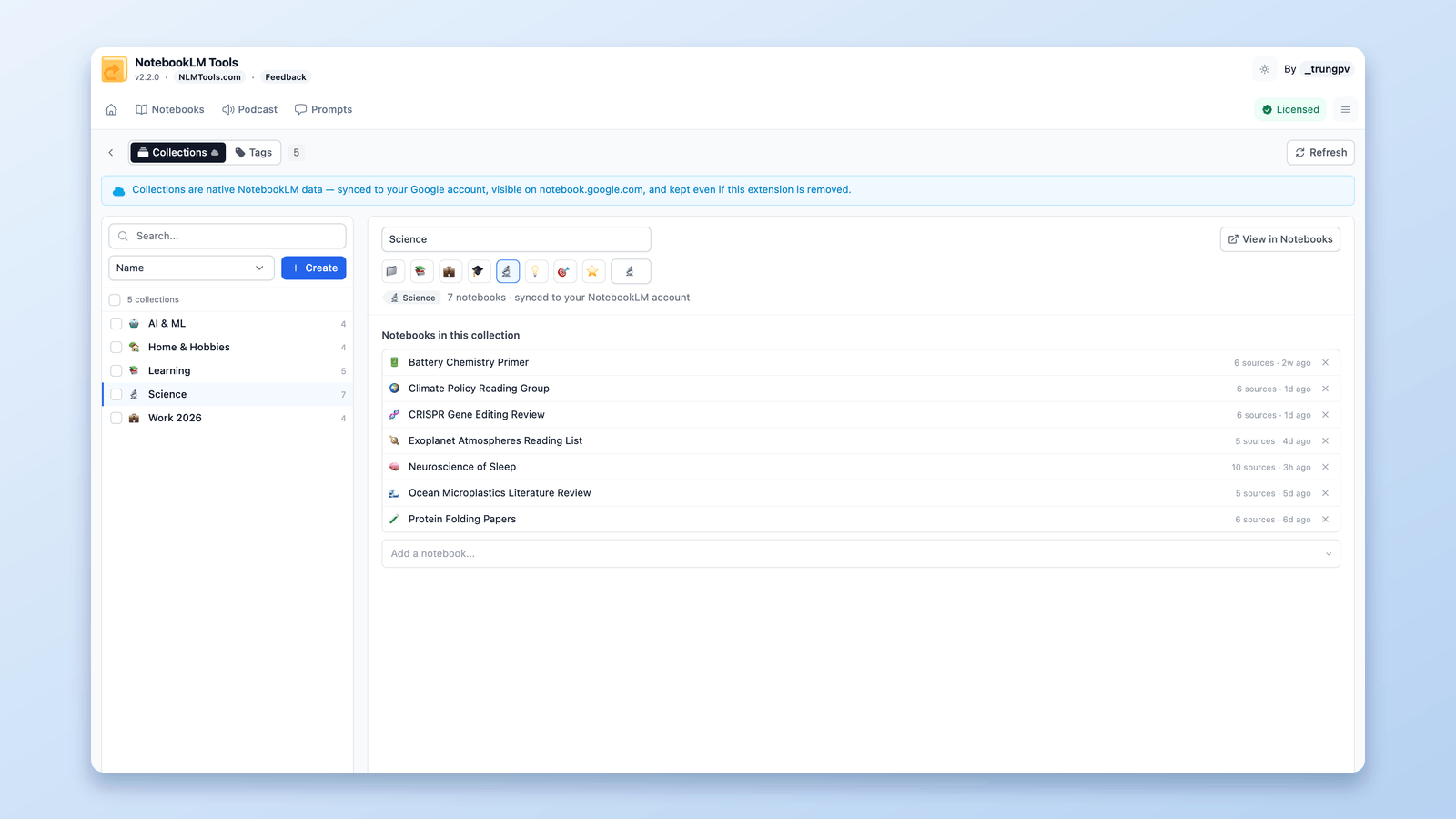
How to Group & Organize Notebooks in NotebookLM (Collections)
Yes, you can group notebooks in NotebookLM. Collections are native notebook folders synced to your Google account — create, bulk-assign, and filter in seconds.
How to Duplicate or Copy a NotebookLM Notebook
NotebookLM added a native Copy action in August 2026. How it works, what it doesn't copy, and when a free extension is still faster: partial copies, moves, merges.