How to Export a NotebookLM Quiz (Spreadsheet, PDF, Answer Key)
Enhance your NotebookLM experience with our free browser extension.
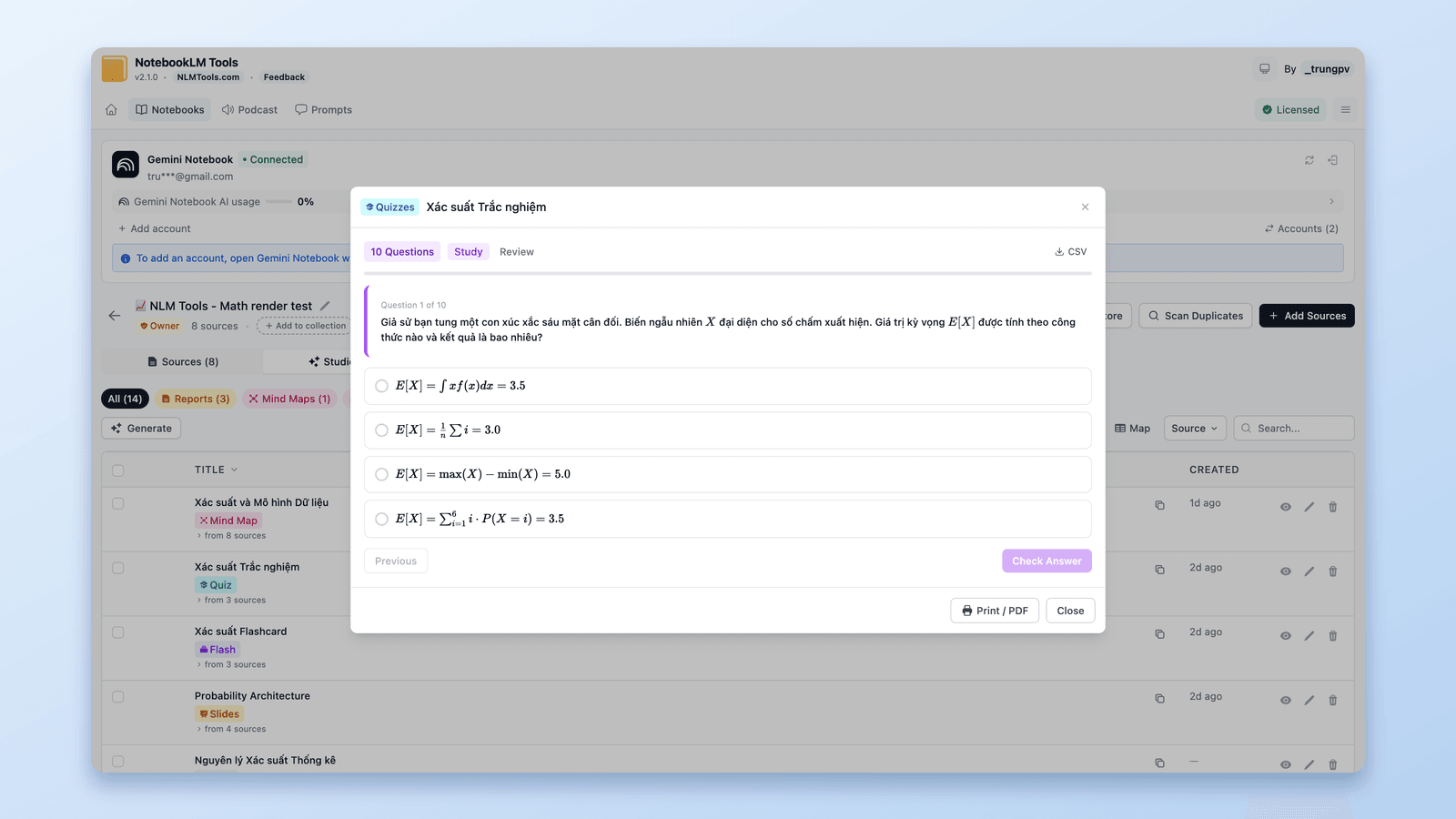
View plansShort answer: NotebookLM (now Gemini Notebook) generates quizzes you take in the browser, but Google's Help Center documents no way to download or export one. The free NotebookLM Tools extension adds two buttons to its quiz viewer: CSV saves the quiz as a spreadsheet (one row per question, with the options, correct answer, rationale, and hint), and Print / PDF opens a print view with the questions first and the answer key after. Flashcard sets get an Anki CSV button whose file has the deck, note type, and fields preset for Anki's Basic note type (if your Anki isn't set to English, check the field mapping in the import dialog).
Does NotebookLM Export Quizzes Natively?
Google's Help Center page Generate Flashcards or Quizzes in Gemini Notebook lists three controls for a quiz: Full Screen, Hint, and Previous/Next. It documents no download or export. Flashcards are different: the same page says you can "Download your flashcards as a CSV file", though it mentions no Anki, Quizlet, Sheets, Forms, or PDF option. Last verified: 24 September 2026.
So a spreadsheet, a printed test with its answer key, or an Anki deck takes something outside the app. Single-purpose exporter extensions exist for this; with NotebookLM Tools the same exports sit next to source backups, bulk import, and Studio downloads in one extension. The rest of this guide is that path.
Download the Quiz as a CSV Spreadsheet
- Install NotebookLM Tools (Chrome, Edge, Brave, Arc, Opera) or the Firefox version.
- Open the notebook on notebook.google.com and click Export Studio on the toolbar the extension adds to the page. The extension opens on that notebook's Studio tab, which lists every generated item.
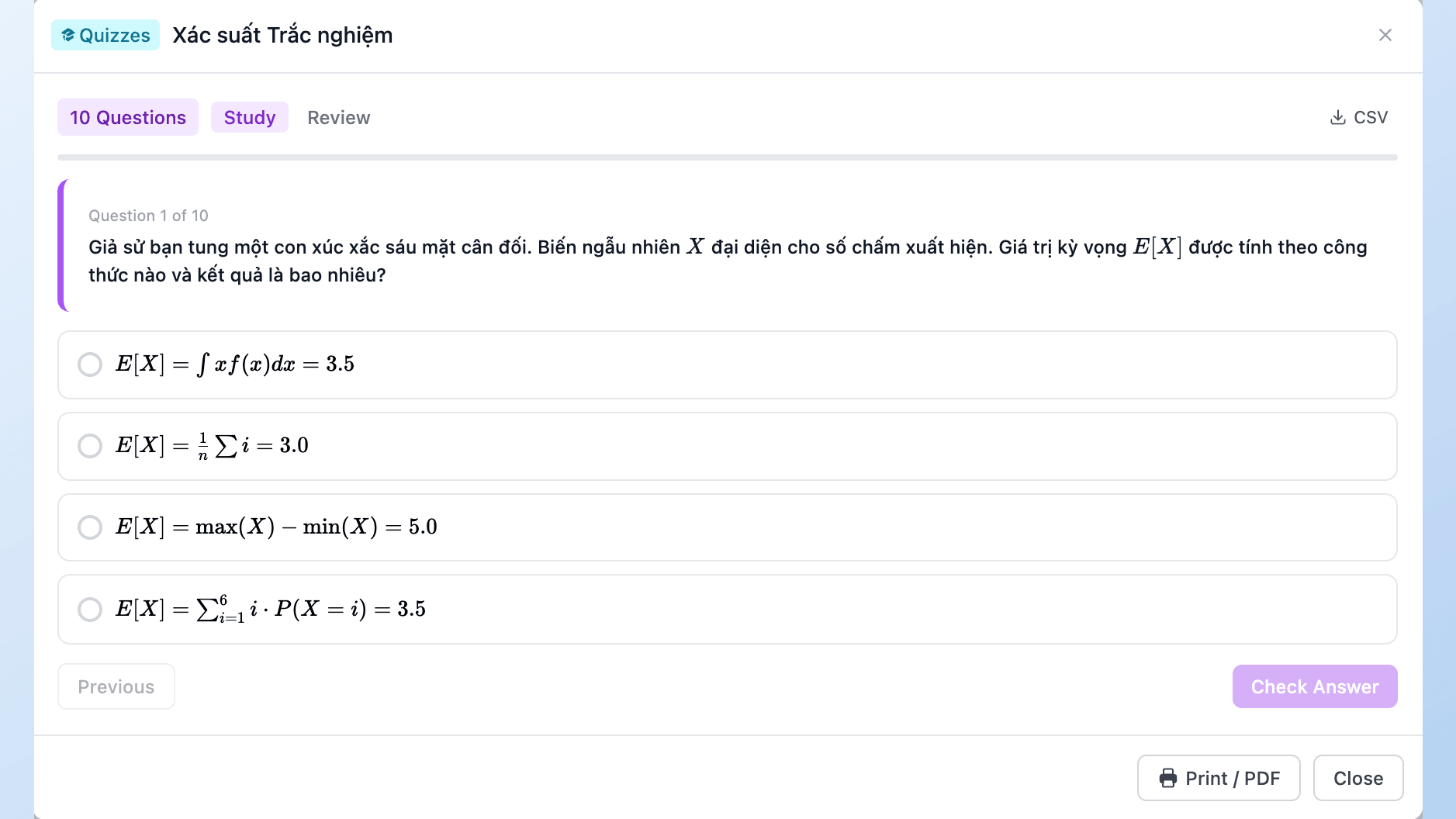
- Click the eye icon (View content) on the quiz. It opens in the extension's quiz viewer (Study to take it, Review to see every question).
- Click CSV in the viewer header, right of the Study / Review toggle. A file named after the quiz lands in your browser downloads.
Open it in Excel, Google Sheets, Numbers, or anything else that reads CSV.
What's in the Spreadsheet
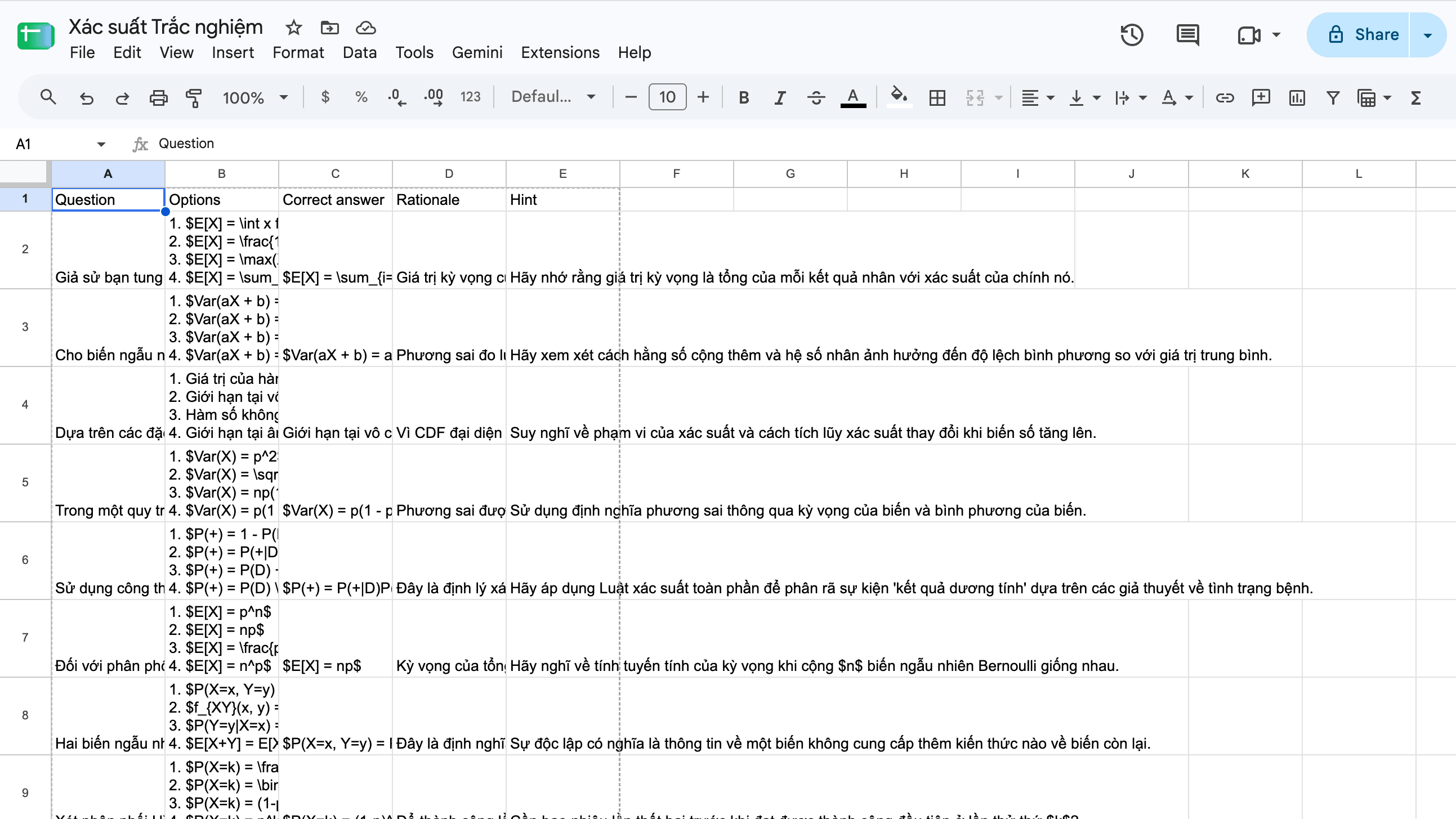
One row per question, five columns:
| Column | Contents |
|---|---|
| Question | The question text |
| Options | The answer options, numbered 1., 2., 3., one per line inside the cell, in the shuffled order the extension's quiz viewer showed them |
| Correct answer | The text of the correct option |
| Rationale | NotebookLM's explanation of why that option is correct |
| Hint | The hint behind the quiz's Hint button, if there is one |
The file starts with a UTF-8 byte-order mark, so Excel shows accents and non-Latin scripts ("Xác suất", "確率") correctly. Math stays as text: $x^2$ in the quiz is $x^2$ in the cell.
From here you can filter or reorder questions, paste them into a form or quiz tool that accepts a spreadsheet, or keep a question bank that outlives the notebook.
Print a Quiz with the Answer Key
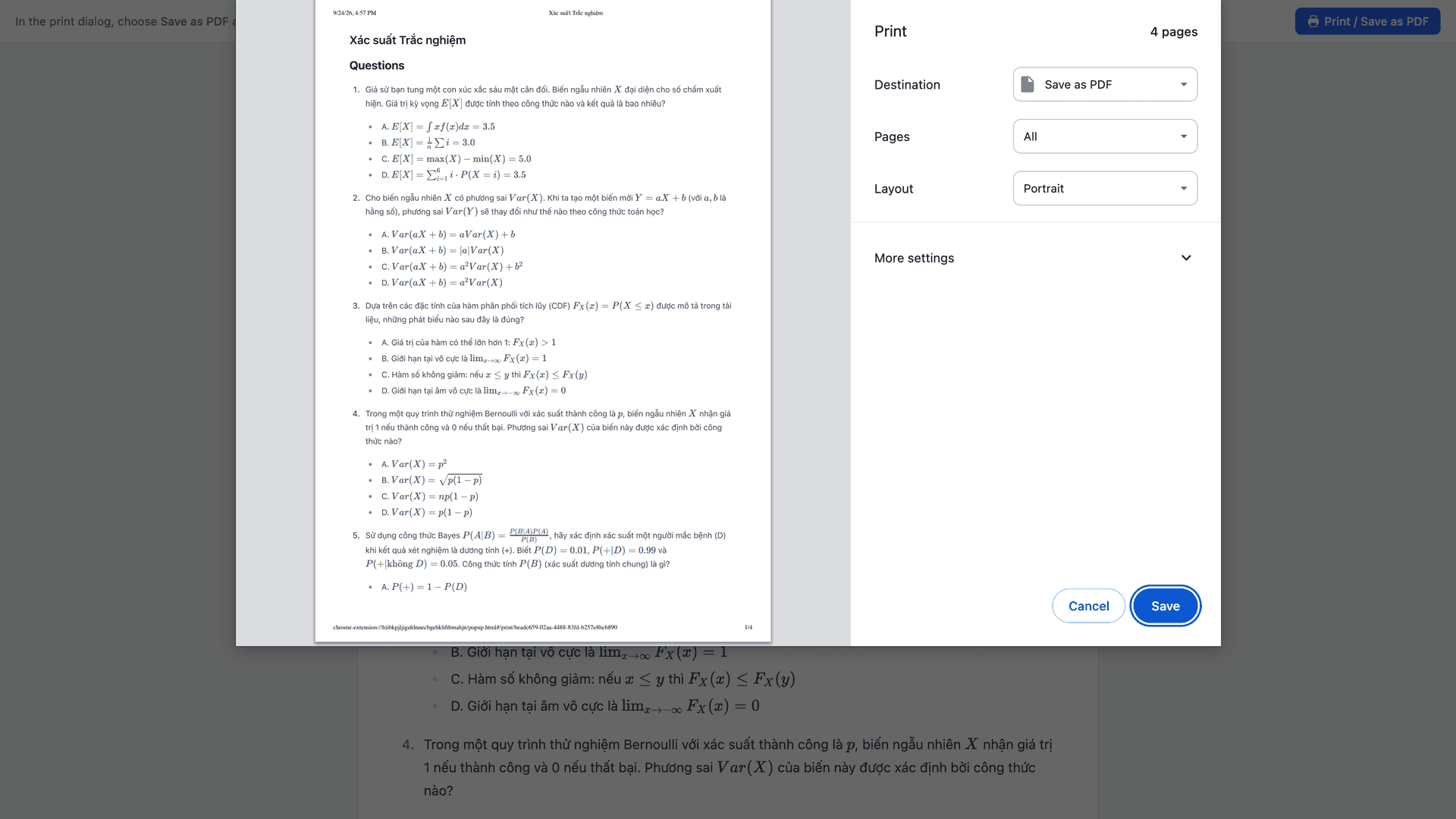
The Print / PDF button sits in the footer of the Studio item dialog, the one the eye icon opens; it is not on the toolbar the extension adds to notebook.google.com. Click it and:
- A print view opens in a new tab, titled after the quiz, with the app's chrome stripped out.
- Your browser's print dialog opens by itself. If you close it, the page has its own Print / Save as PDF button.
- Pick a printer for a paper copy, or choose Save as PDF (Firefox: Save to PDF) as the destination. The saved PDF is named after the quiz.
The layout is built for handing out. A Questions section comes first: each question numbered, its options lettered A, B, C in the same shuffled order the extension's quiz viewer shows. An Answers section follows: the correct letter and its text, the rationale, and a "Hint: …" line where the quiz has one. The Answers section starts right after the last question, not on a new page, so check the print preview before you hand pages out.
The same button appears on reports, notes, flashcard sets (printed as a two-column Front | Back table), data tables, and text sources in the Source Content dialog. Details in How to Export NotebookLM to PDF.
Send NotebookLM Flashcards to Anki
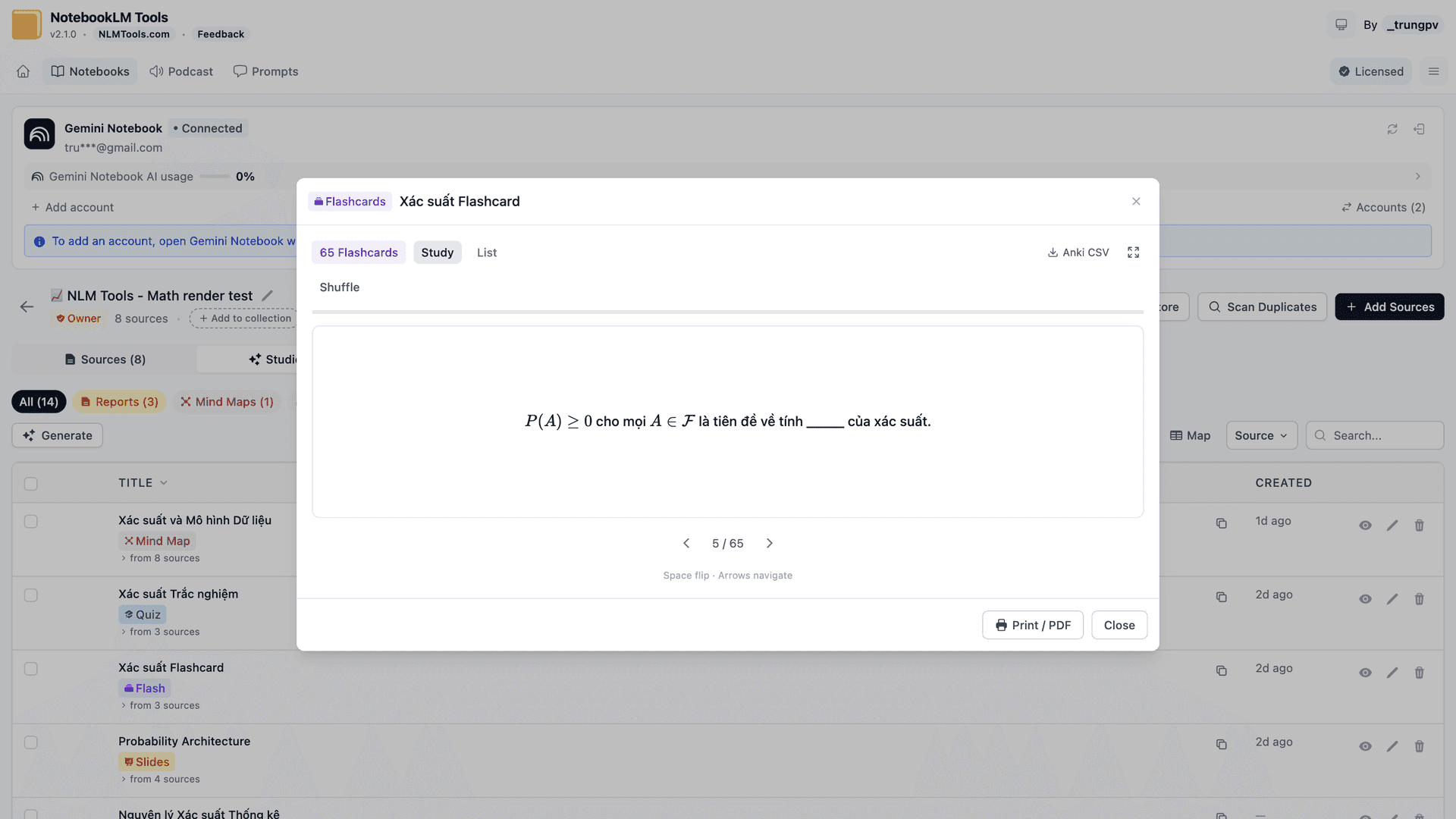
A plain CSV without Anki's directives leaves the setup to you: in Anki's File > Import dialog you pick the deck and note type and match the columns to fields yourself. The extension's Anki CSV button writes a file that carries those settings with it.
Open the flashcard set from the Studio tab the same way as a quiz, then click Anki CSV in the viewer header, right of the Study / List toggles. The file is named after the set and carries Anki's import directives at the top:
- the deck is named after the flashcard set
- the note type is Basic, with the columns mapped to its Front and Back fields
- HTML is off, so the card text is taken as written
- math is converted from
$…$to\(…\)and\[…\], the delimiters Anki's MathJax renders
The first line of the file is a comment with the next step: in Anki, go to File > Import and pick the file. The preset was checked against Anki 25.09.
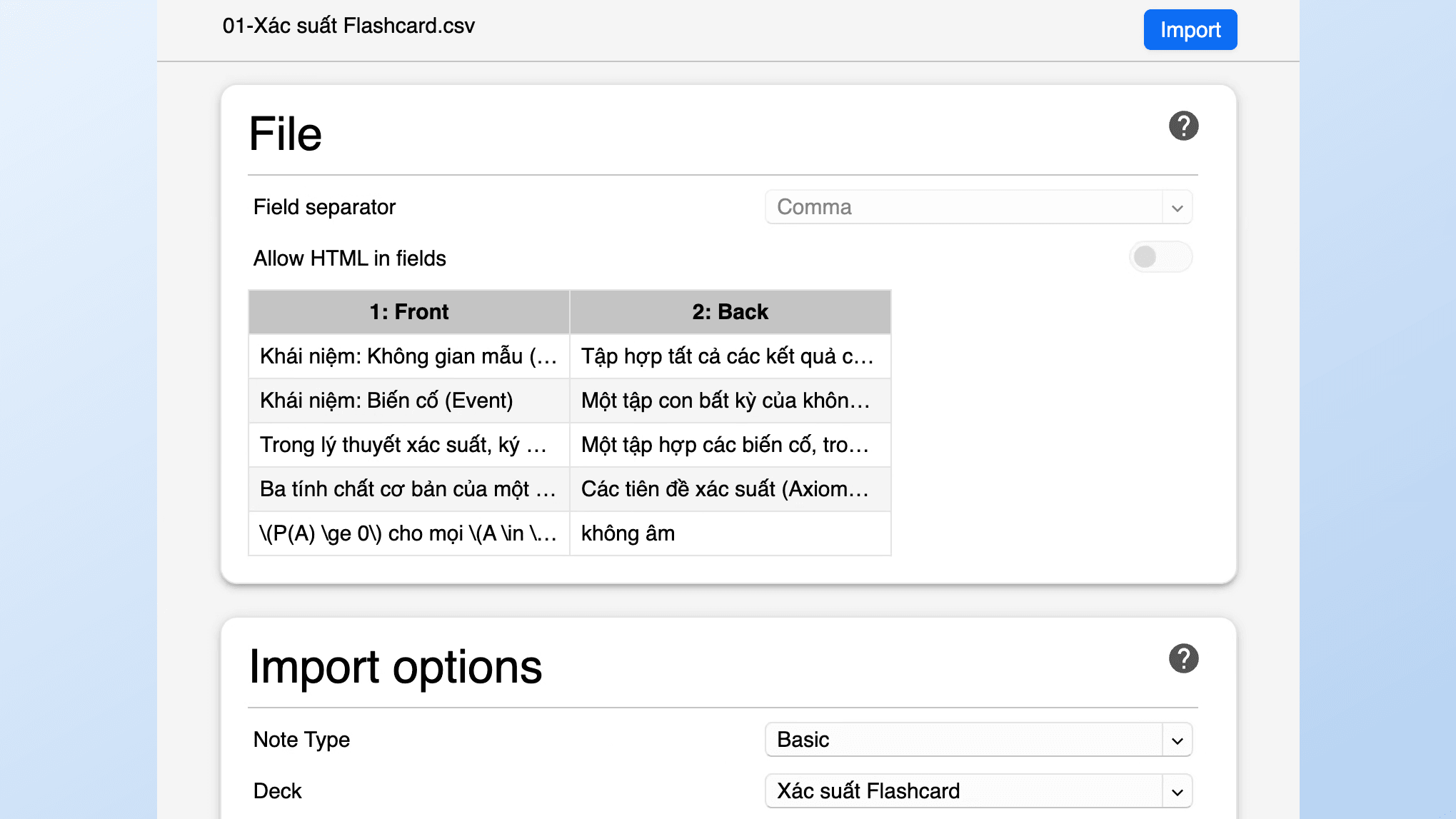
One caveat. Anki matches the note type and its fields by name, and a profile in another language names them differently (Japanese and German Anki ship "基本" and "Einfach" rather than "Basic"). Deck, note type, and fields are preset for Anki's Basic note type; if your Anki isn't set to English, check the field mapping in the import dialog before you confirm.
Formulas Stay Formulas
NotebookLM renders LaTeX in chat, flashcards, and quizzes, a change reported in October 2025. The extension's viewers (quizzes, flashcards, notes, reports, data tables, the Rendered view of a source) and the print view render it too, so a printed quiz shows typeset math rather than backslashes. The exports differ on purpose: the quiz CSV keeps $…$ as plain text, and the Anki CSV rewrites the delimiters so the cards render inside Anki. Last verified: 24 September 2026.
Export the Whole Studio as One ZIP
For everything a notebook generated, click Export Studio on the toolbar, then ZIP on the extension's Studio tab, to download one ZIP: audio as MP3, video as MP4, reports and notes as Markdown, quizzes as CSV, flashcards as an Anki-ready CSV, data tables as CSV, mind maps as JSON, infographics as PNG, slide decks as PPTX or PDF, and files generated in chat with their original extension. Files keep their item's date and are numbered in Studio order. It works on public and link-shared notebooks you can open. Data tables also have Copy as CSV in their viewer.
New Quiz Formats
On 15 September 2026 Google announced new quiz formats, including short answer and fill in the blank, "coming to all users in the next few weeks". The exports here were built around multiple-choice quizzes: one row per question, and multiple-choice questions include their options and the correct answer. The print view follows the same rule. We will update this guide once we have tested the new formats. Last verified: 24 September 2026.
Frequently Asked Questions
Can you export a quiz from NotebookLM?
Google's Help Center documents no quiz download or export (last verified 24 September 2026). NotebookLM Tools adds a CSV button for a spreadsheet and a Print / PDF button for a question sheet with the answer key.
How do I download a NotebookLM quiz as a CSV or spreadsheet?
Open the quiz from the extension's Studio tab and click CSV in the viewer header. The file has one row per question: Question, Options, Correct answer, Rationale, Hint.
Can I print a NotebookLM quiz with the answer key?
Yes. Click Print / PDF in the quiz dialog footer. The print view lists the questions first and the answers (correct letter, rationale, hint) after; print it or choose Save as PDF.
How do I get NotebookLM flashcards into Anki?
Click Anki CSV in the flashcard viewer, then File > Import in Anki. Deck, note type, and fields are preset for Anki's Basic note type; if your Anki isn't set to English, check the field mapping in the import dialog.
Do math formulas survive the export?
Yes. The print view renders them as typeset math, the quiz CSV keeps them as $…$ text, and the Anki CSV converts them to the delimiters Anki's MathJax renders.
Is exporting NotebookLM quizzes and flashcards free?
Yes. CSV, Anki CSV, Print / PDF, and the Export Studio ZIP are part of the free feature set on Chrome and Firefox. See pricing for what Pro adds.
Get Your Quizzes Out of NotebookLM
A quiz that lives only inside one notebook is hard to reuse. With the free NotebookLM Tools extension it becomes a spreadsheet or a printed test with its answer key in one click, and a flashcard set becomes an Anki-ready CSV with the deck, note type, and fields preset (check the field mapping if your Anki isn't set to English). See the full feature list for the rest.
Related articles:
- How to Export NotebookLM to PDF — Print / PDF for reports, notes, and sources; native slide deck downloads.
- How to Download NotebookLM Audio & Video Overviews (MP3, MP4) — The media side of the Studio ZIP.
- How to Download All Your NotebookLM Sources at Once — Export every source's content as Markdown or JSON.
Trusted by 100,000+ NotebookLM users
Related articles
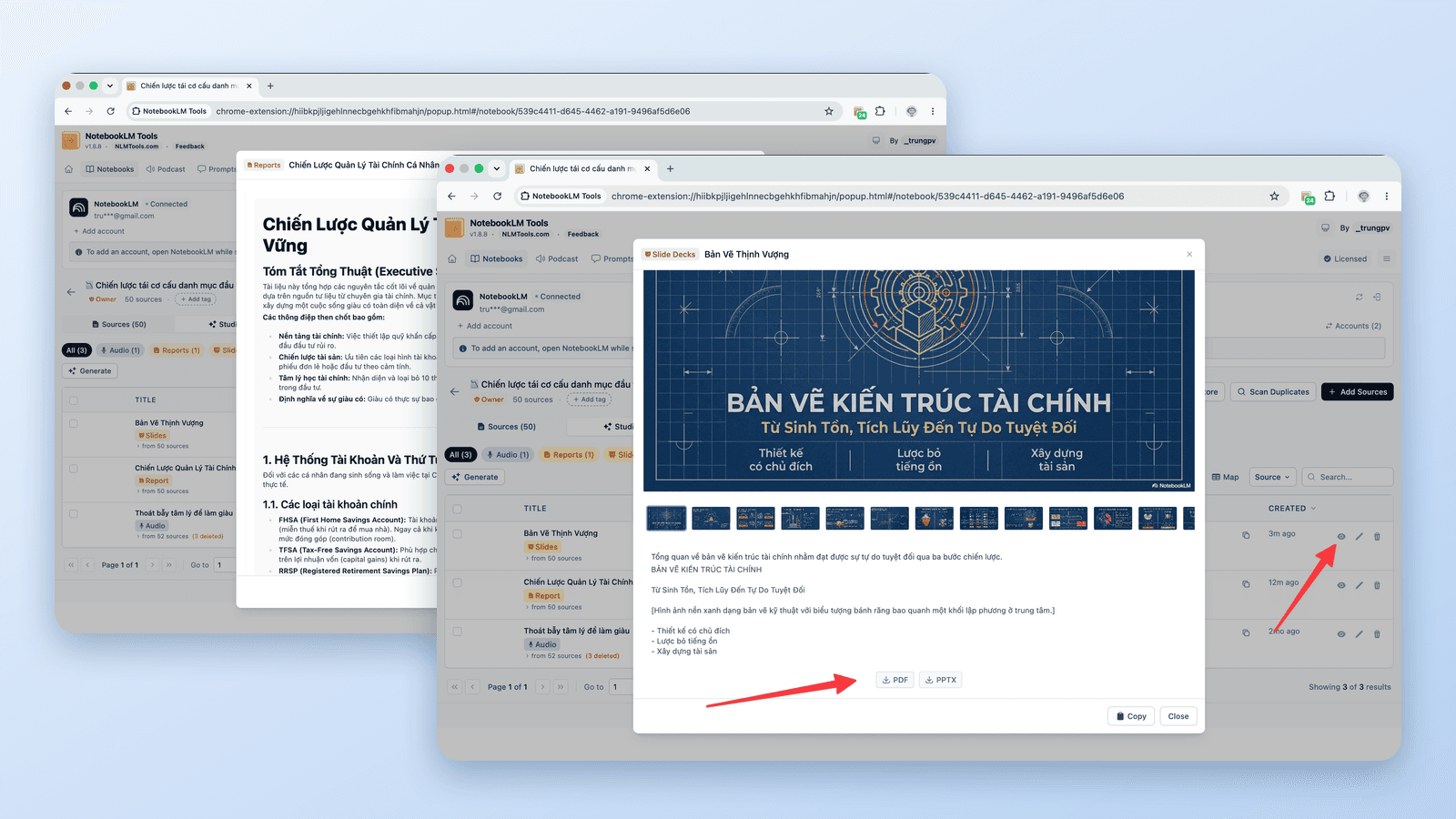
How to Export NotebookLM to PDF (Sources, Notes & Studio)
Yes. Slide decks download as PDF, chat can create one on some plans, and the free NotebookLM Tools Print / PDF button covers notes, reports, quizzes, and sources.
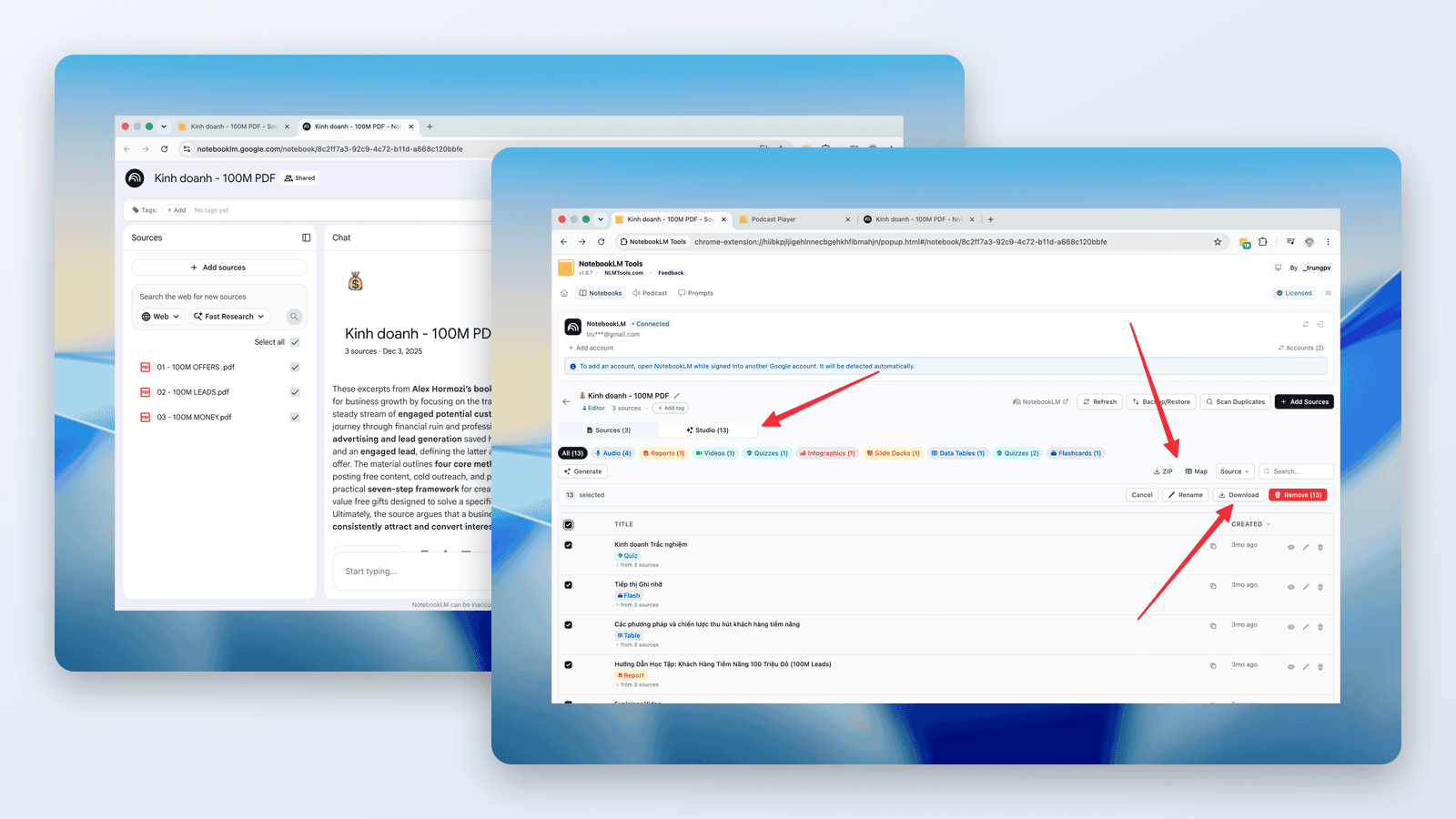
How to Download NotebookLM Audio & Video Overviews (MP3, MP4)
The NotebookLM downloader guide: save Audio Overviews as MP3 — one at a time or all at once as ZIP — download Video Overviews as MP4, free, by link or in bulk.
How to Download All Your NotebookLM Sources at Once (Bulk Export)
Yes, you can download sources from NotebookLM. Bulk-export every source — Drive docs, web pages, YouTube videos, uploads — to a backup file in one click, free.