How to Duplicate or Copy a NotebookLM Notebook
Enhance your NotebookLM experience with our free browser extension.
View plansShort answer: Yes — since August 17, 2026, NotebookLM (now Gemini Notebook) has a native Copy action. Open the notebook, select Copy, then Create, and you get an independent copy with every source and all of its Studio content. Before that date there was no duplicate button at all, and the only way to clone a notebook was the free NotebookLM Tools extension. The extension is still the faster route when you want only some of the sources, want to move rather than copy, want to merge into a notebook that already exists, or need a file backup that keeps your folders.
This guide covers the native copy step by step, what does and doesn't carry over, what to do when the Copy button is missing, and the two extension methods for everything the native copy can't do.
Why People Want to Duplicate a Notebook
A few common reasons:
- A safe sandbox. You want to experiment — add sources, restructure folders, generate new Studio output — without touching the original research.
- A template. You've built a notebook with a specific set of reference sources, and you want to reuse it as the starting point for the next project — or let students and teammates start from a copy of yours.
- A per-client or per-topic split. One notebook has grown too broad, and you want a copy you can prune down to a single client or subtopic.
- A pre-cleanup checkpoint. Before a big reorganization or bulk delete, you want a copy you can fall back to.
What NotebookLM Supports Natively (Updated August 2026)
Since August 17, 2026, Google NotebookLM offers:
- A Copy action on any notebook you own, plus on shared or public notebooks whose owner allows copies. The copy includes all sources and Studio content — including Audio and Video Overviews, Study Guides, Flashcards, Quizzes, and Slide Decks — along with the prompts used to generate them and any custom chat configuration.
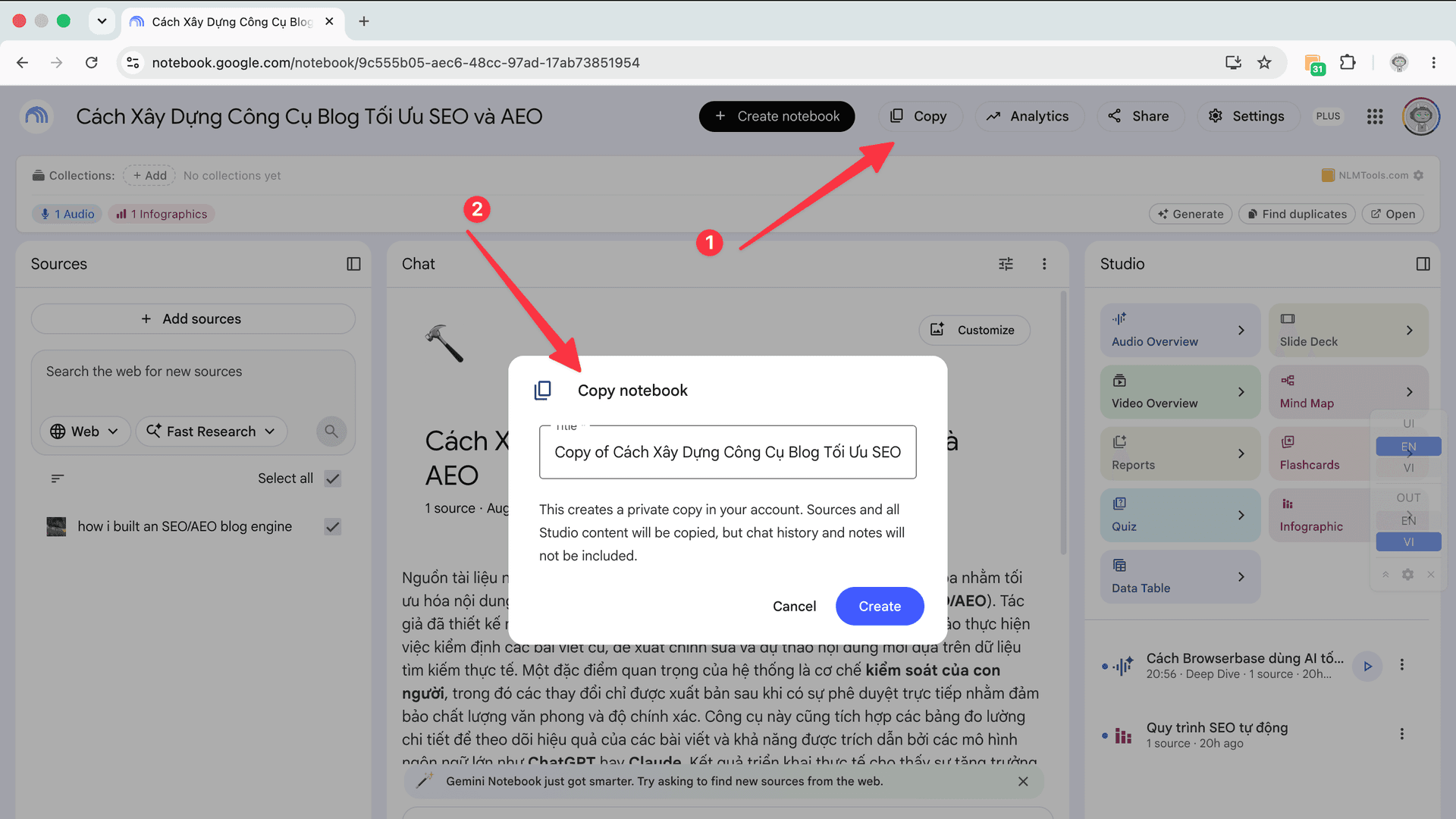
- An Allow copies setting in the sharing dialog, on by default, so owners decide whether the people they share with may clone the notebook.
It still does not offer:
- Copying or moving selected sources from one notebook into another.
- Merging two notebooks into one — a copy always lands in a new notebook.
- Any transfer of chat history.
Sharing is still not the same as copying: sharing grants access to the same notebook, while a copy is an independent notebook that no longer tracks the original.
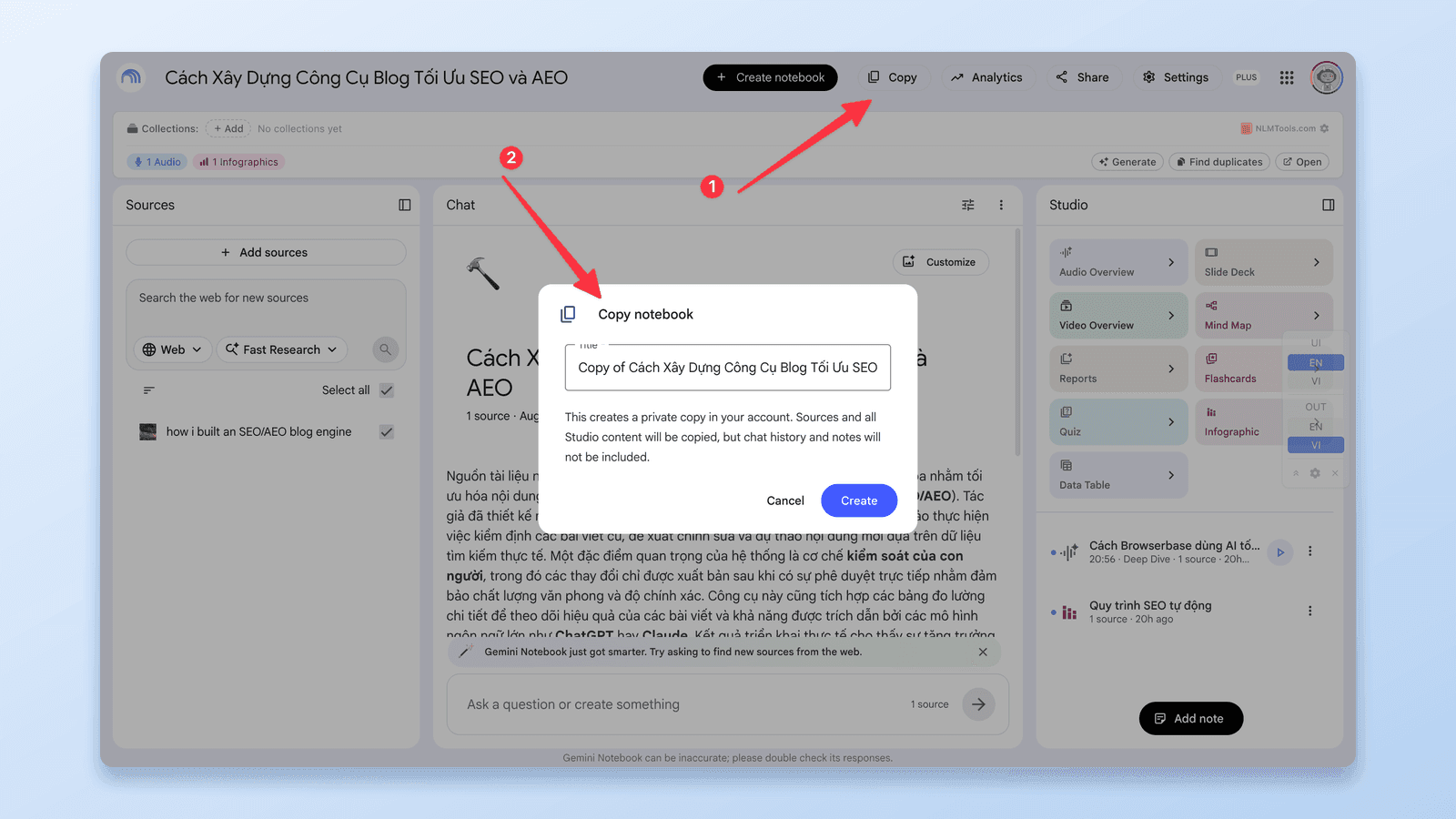
Method 1: Copy the Notebook Natively (Copy → Create)
This is now the right default for cloning a whole notebook, and the only method that brings Studio items along.
- Open the notebook in NotebookLM. You need copy permission — automatic for notebooks you own, and granted on shared or public notebooks whose owner left Allow copies on.
- At the top of the notebook, select Copy, then Create.
- The copy appears in your library as a separate notebook with the same sources and Studio content. Rename it and start editing — nothing you do in the copy affects the original.
To let other people copy a notebook you own: open Share, share it with at least one person, tick Allow copies, and select Save. Google notes that the mobile app "may have limitations" for this feature, so use a desktop browser if the option doesn't appear.
Two things to know before you rely on it:
- Drive sources are conditional. A source that lives in Google Drive is only included in the copy if the account making the copy can access and copy the original file. Otherwise the copy simply skips it.
- Copies don't sync. Once made, the copy is frozen at that moment. If the owner later adds, edits, or deletes something in the original, the copy doesn't change.
Last verified August 26, 2026 against Google's Help Center and the Workspace Updates announcement — see the sources at the end of this post.
Copy Button Missing or "Copying Is Disabled"?
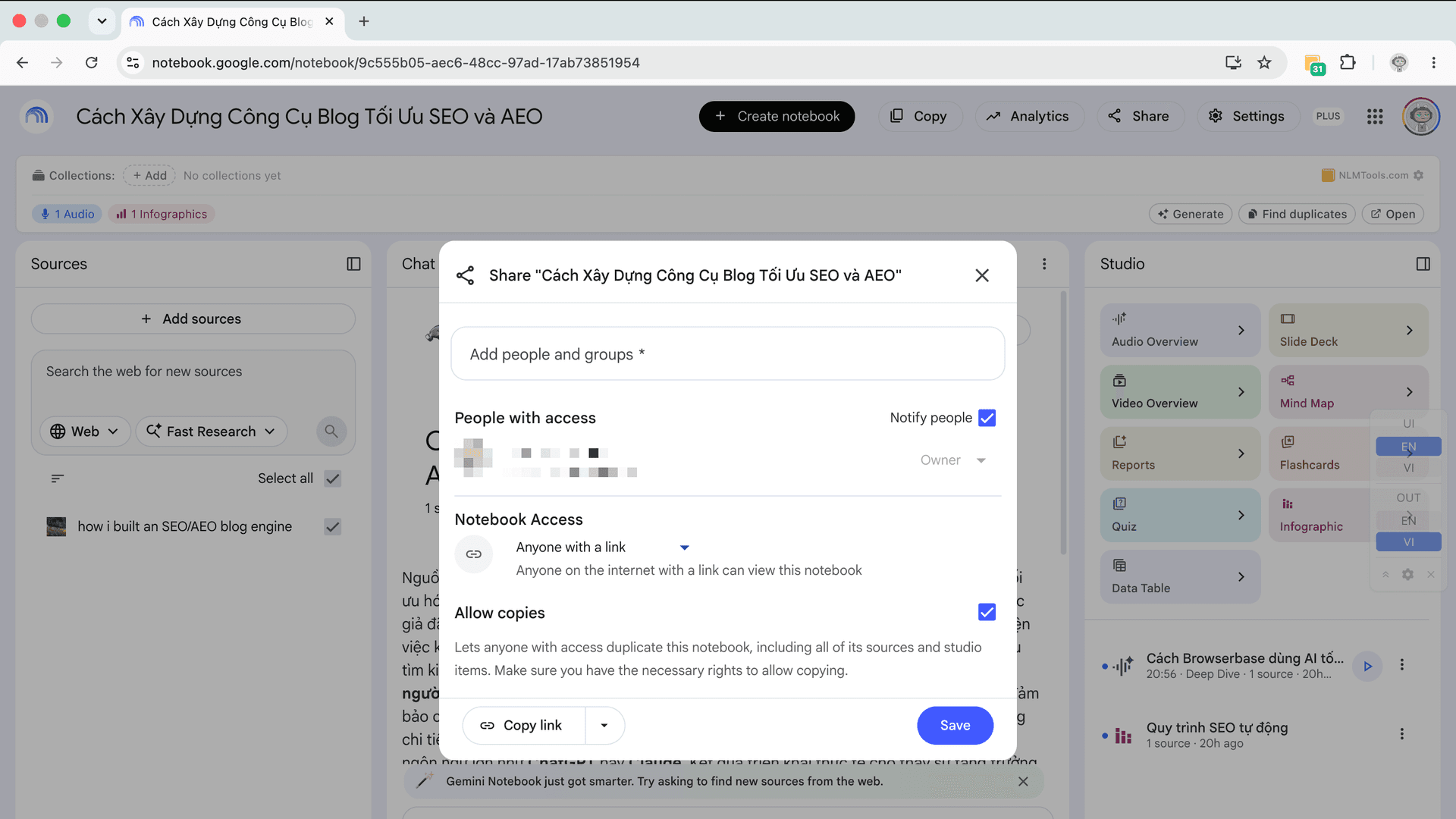
If you can't find the Copy action, work through these in order:
- You don't own the notebook and copies are off. The owner controls Allow copies in the sharing settings. Ask them to open Share, tick Allow copies, and save. Until they do, you can read the notebook and copy content you have access to, but you can't clone it.
- You're on mobile. Google says the Gemini Notebook mobile app may have limitations for this feature. Open the notebook in a desktop browser at notebook.google.com and look again.
- The rollout hasn't reached you. Google lists the feature as available now for Workspace customers and personal Google accounts alike — but if your account still doesn't show it, check again in a few days.
- Sources are missing from the copy. That's usually Drive permissions: the copy only includes Drive files your account can open. Ask the owner to share the file, or re-add it from your own Drive.
For notebooks you do own, you always have copy permission — if the action is genuinely absent on desktop, it's the rollout, not a setting.
Method 2: Copy or Move Selected Sources With the Extension
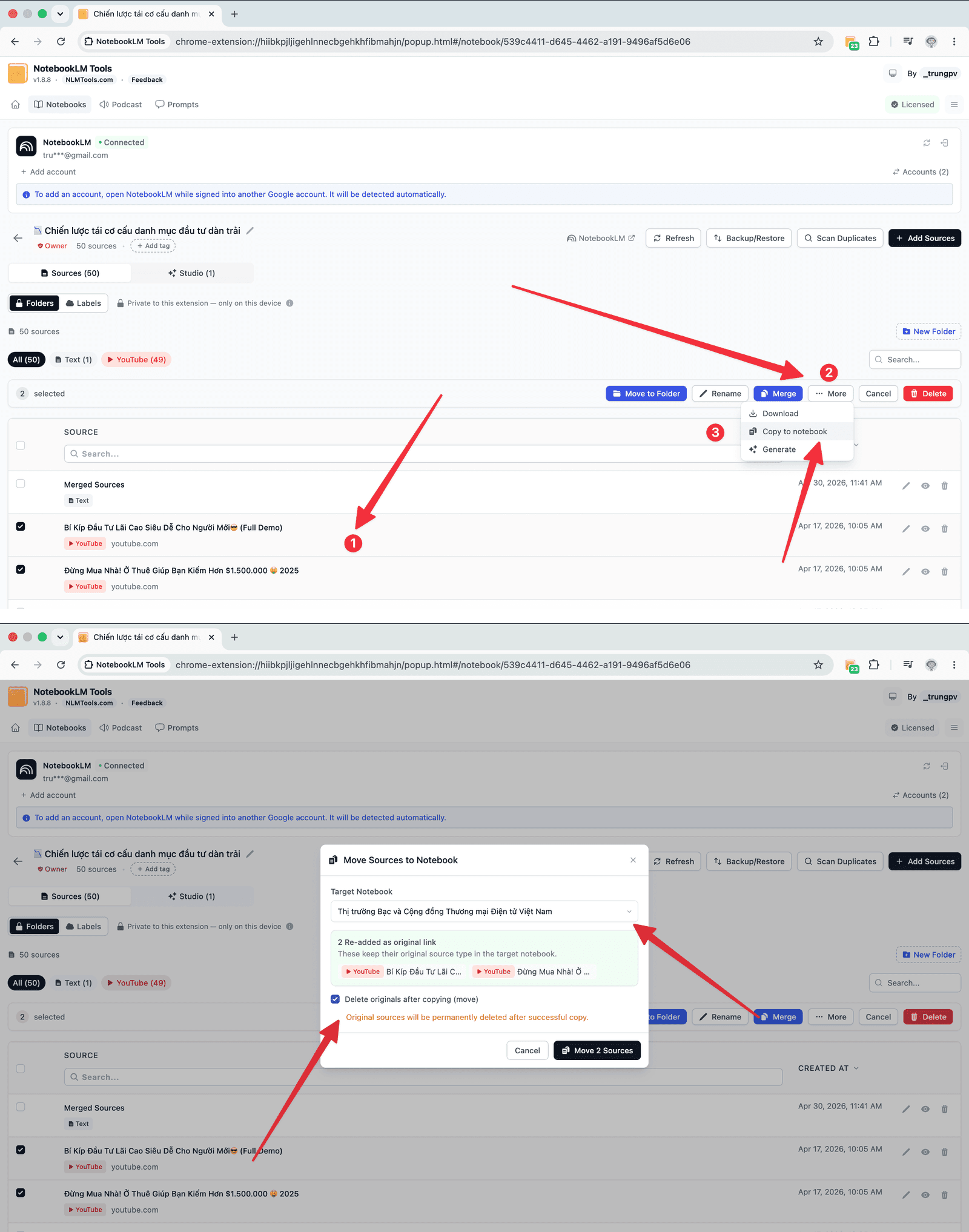
Use this when the native copy is the wrong shape: you want some of the sources rather than all of them, you want them inside a notebook that already exists, or you want to move sources so the original no longer has them.
- Install the free NotebookLM Tools extension for Chrome or Firefox.
- Open the original notebook and click the NotebookLM Tools icon.
- Choose Copy/Move Sources Between Notebooks.
- Select the sources you want, set the destination notebook (new or existing), and choose Copy to keep the originals or Move to relocate them.
- The extension re-adds each source in the destination. Selected sources only — Studio items stay behind, so regenerate those in the destination if you need them.
This is the same mechanism used to merge or combine notebooks — the difference is that a merge sends sources into an existing notebook, while Google's native copy always creates a new one.
Method 3: Clone via Backup & Restore (Keeps Folders, Works as a File)
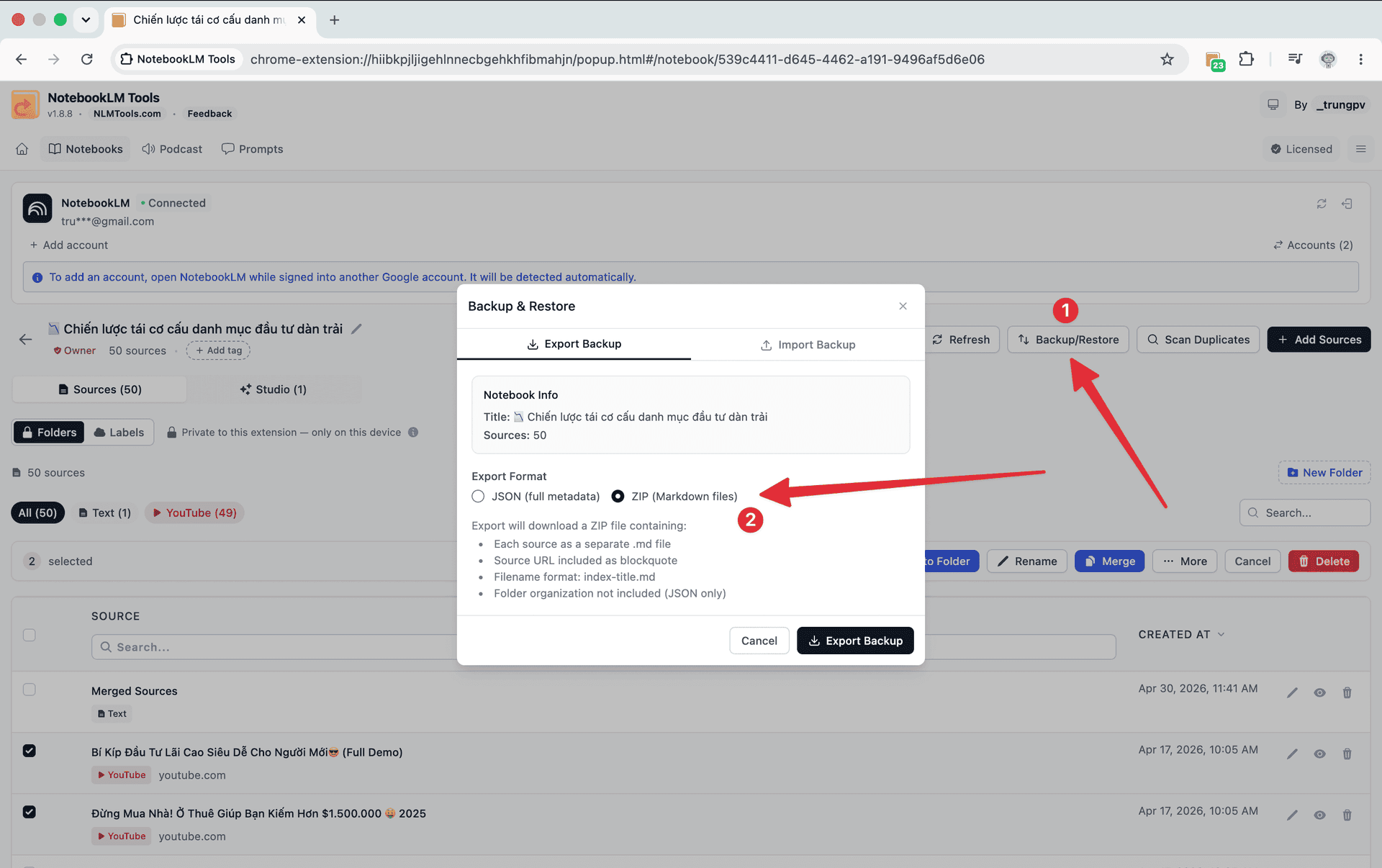
Use this when you organize sources with the extension's source folders and want the copy to keep that structure, when you want an offline backup you control, or when you want to recreate a notebook in another Google account without sharing it first.
- Open the original notebook, open Backup & Restore, and export it as a JSON file. The file holds every source's title, URL, and content, plus the notebook's folder layout.
- Create a new, empty notebook — in any account.
- Open Backup & Restore on the new notebook, switch to the Import tab, and select the JSON file.
- The extension recreates every source and the folder layout in the copy.
JSON is the format to choose when folders matter: the native copy and the plain source copy (Method 2) both bring sources across, but neither carries the extension's folders.
Native Copy vs Extension: What Carries Over
| Native Copy → Create | Copy/Move Sources (extension) | Backup & Restore JSON (extension) | |
|---|---|---|---|
| Sources | All | The ones you select | All |
| Studio items (Audio/Video Overviews, quizzes, flashcards, slides) | ✅ Copied | ❌ | ❌ |
| Chat history and notes | ❌ | ❌ | ❌ |
| Extension source folders | ❌ | ❌ | ✅ |
| Destination | New notebook | New or existing notebook | New or existing notebook |
| Move (remove from the original) | ❌ | ✅ | ❌ |
| Into another Google account | Share it with Allow copies on, then copy from the other account | — | Import the file while signed in to the other account |
| Offline file you keep | ❌ | ❌ | ✅ |
What Doesn't Carry Over
Whichever method you use, be clear about the limits of a duplicate in NotebookLM:
- Chat history — never transferred. Neither Google's copy nor the extension can move it.
- Notes — not included in the native copy. If a note matters, keep its text outside the notebook or add it as a text source before copying, because sources do travel.
- Studio items — only the native copy brings them. The extension methods copy sources only, so regenerate audio overviews, mind maps, reports, and quizzes in the copy if you cloned via Method 2 or 3.
- Source IDs — the extension methods re-add each source, so the copy gets new IDs; citations in the original's chats won't line up with the copy.
- Extension folders — only the JSON backup restores them.
After You Duplicate: Clean Up Duplicates
If you copied sources into a notebook that already had content — Method 2 into an existing notebook, or a JSON import into a non-empty one — you may end up with duplicates. NotebookLM Tools includes a Duplicate Scanner:
- Fast scan matches by title and URL — quick, and catches most re-import duplicates.
- Deep scan compares content similarity — slower, but finds duplicates with different titles.
Run the fast scan first; use the deep scan if you suspect overlapping content.
Frequently Asked Questions
Can you duplicate a notebook in NotebookLM?
Yes. Since August 17, 2026, NotebookLM has a native copy action: open the notebook, select Copy, then Create. It works on notebooks you own and on shared or public notebooks whose owner allows copies. The copy includes every source and all Studio content, but not chat history or notes.
How do I copy a NotebookLM notebook to a new one?
Open the notebook, select Copy at the top, then Create. NotebookLM creates a new, independent notebook in your library with the same sources and Studio content. If you only want some of the sources, or want them inside a notebook that already exists, use NotebookLM Tools' Copy/Move Sources Between Notebooks action instead.
Why don't I see the Copy button?
The usual reasons: the notebook belongs to someone else and its owner turned off Allow copies; you're in the mobile app, which Google says may have limitations for this feature; or the feature hasn't reached your account yet. Try a desktop browser first. Owners can re-enable copying under Share, then Allow copies. If the owner keeps copies off, you can still read the notebook and copy content you have access to, but not clone it.
Does duplicating keep my source folders?
Not with the native copy. Google's Copy carries sources and Studio content, but NotebookLM Tools folders are stored by the extension, so they don't come along. To clone a notebook with its folder layout, export it as a JSON backup with Backup & Restore and import that file into the new notebook.
Will a copied notebook include my chat history?
No. Google's native copy does not transfer chat history or notes, and the extension methods don't transfer chat history either. If a chat answer matters, save its text outside the notebook or add it as a text source before you copy, because sources do carry over.
Does the copy stay in sync with the original?
No. A copied notebook is fully independent: sources added, edited, or deleted in the original later do not flow into the copy, and vice versa. If you need the same new sources in both, add them to both — the extension's Copy/Move Sources action can push selected sources from one notebook into the other.
Which Method Should You Use?
- Clone the whole notebook, Studio items included → Google's native Copy → Create. No extension needed.
- Copy only some sources, move sources, or merge into an existing notebook → NotebookLM Tools' Copy/Move Sources Between Notebooks.
- Keep your folders, archive a notebook as a file, or rebuild it in another account → NotebookLM Tools' Backup & Restore (JSON).
NotebookLM Tools handles the last two — see the full feature list.
Sources: Google Workspace Updates — Make a copy of a notebook in Gemini Notebook (August 17, 2026) and the Gemini Notebook Help Center — Create a notebook. Last verified August 26, 2026.
Related articles:
- Can You Merge or Combine Notebooks in NotebookLM? — The same Copy/Move workflow, used to consolidate notebooks instead of cloning one.
- Deleted a NotebookLM Notebook or Source? What You Can Recover — Why a JSON backup is your safety net before any risky change.
- Can You Create Folders in NotebookLM? — Set up the folder structure that a JSON duplicate preserves.
Trusted by 100,000+ NotebookLM users
Related articles
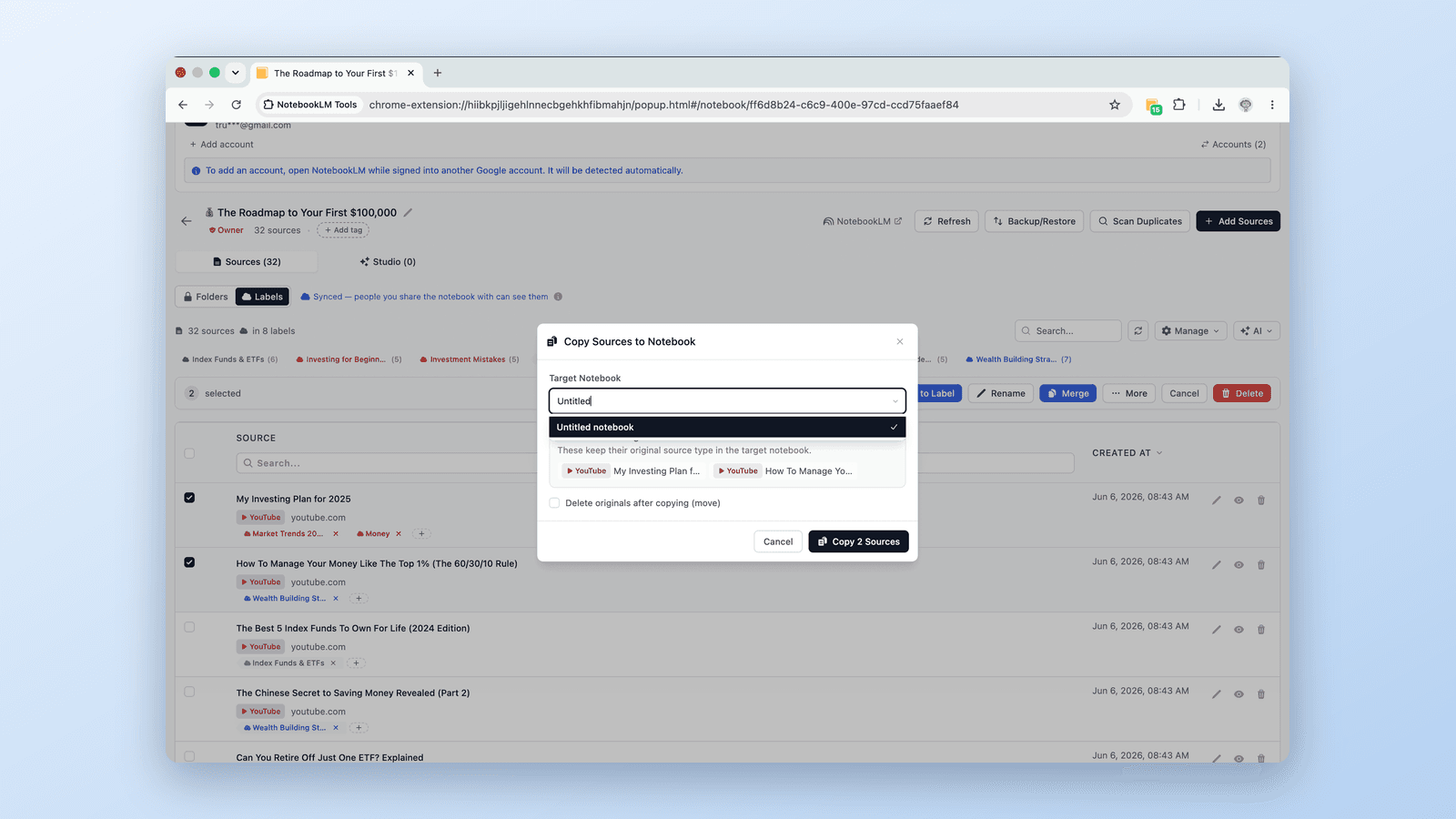
Can You Merge or Combine Notebooks in NotebookLM? Here's How
Not natively — but there's a workaround that works. Combine two or more NotebookLM notebooks by moving every source across in bulk with a free extension.
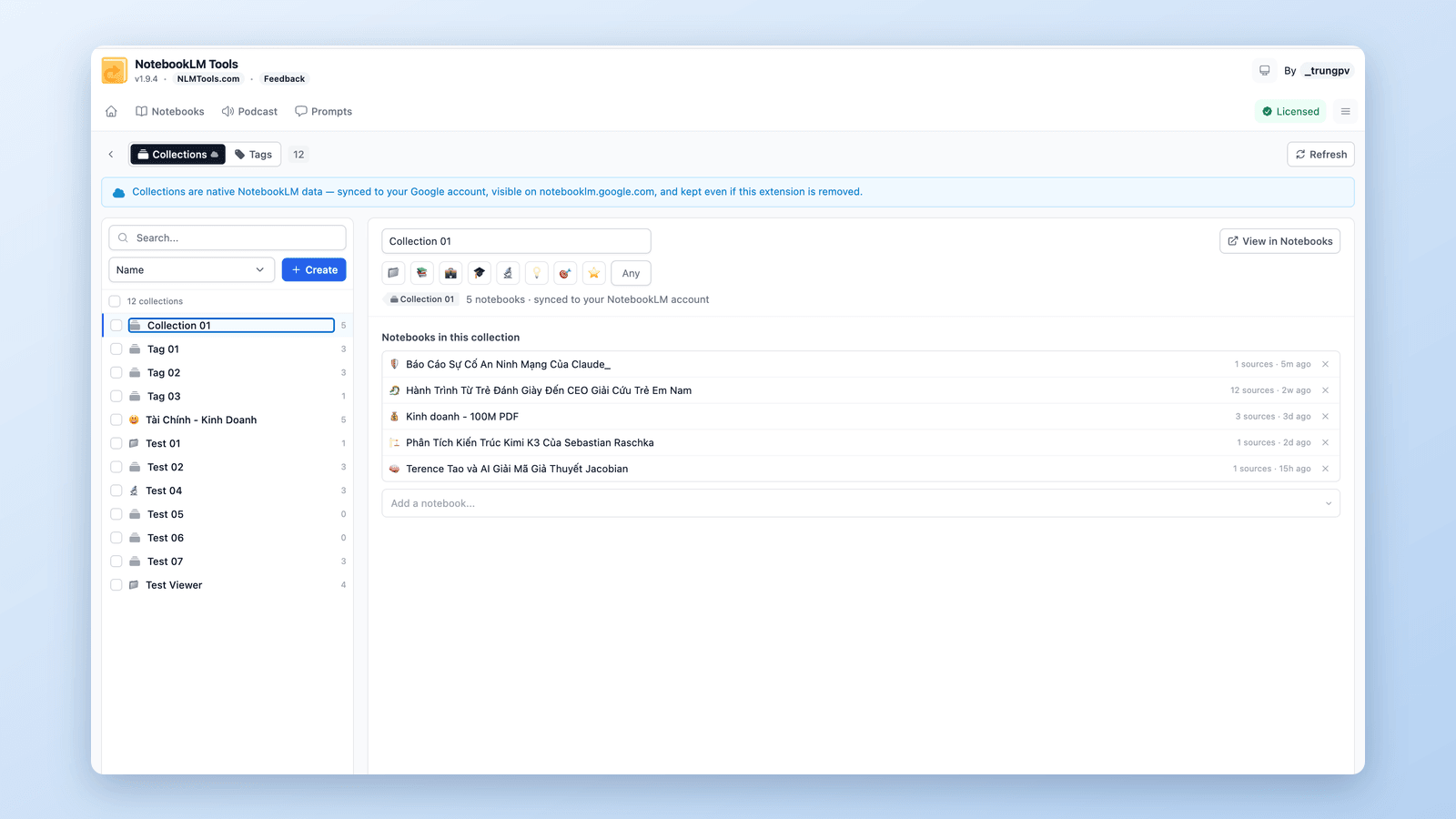
How to Group & Organize Notebooks in NotebookLM (Collections)
Yes, you can group notebooks in NotebookLM. Collections are native notebook folders synced to your Google account — create, bulk-assign, and filter in seconds.
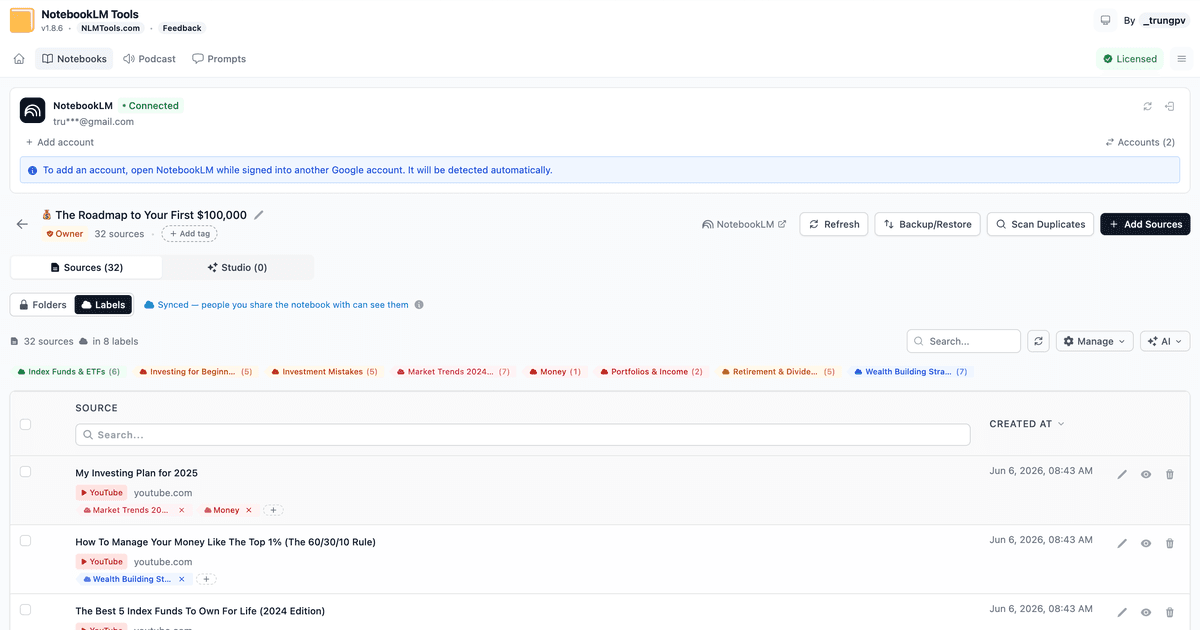
How NotebookLM Source Labels Work (+ Manage Them in a Table)
NotebookLM auto-labels your sources at 5+. See how source labels work — and manage them in a table: make your own, bulk-tag, filter, and search.