How to Change NotebookLM's Output Language (80 Languages, One Click)
Enhance your NotebookLM experience with our free browser extension.
View plansShort answer: NotebookLM (now Gemini Notebook) writes chat answers, study guides, and Audio and Video Overviews in one Output Language — by default, the preferred language of your Google Account. On a computer, you change it under Settings → Output Language. The free NotebookLM Tools extension puts that same setting one click away: star the languages you use (80 output languages are available), then switch between them from a floating widget on the NotebookLM page — every response comes back in that language until you change it.
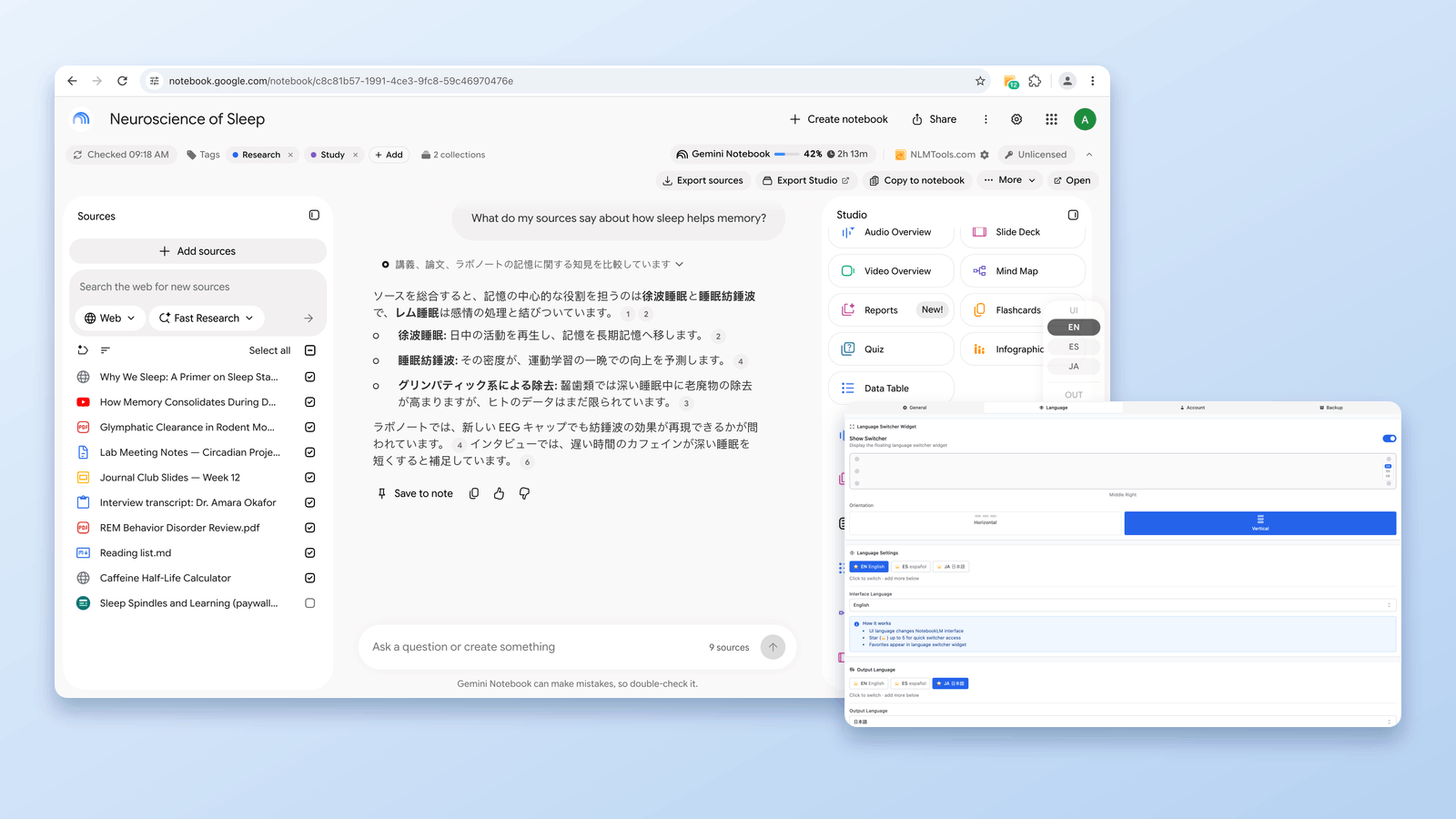
How to Change the Output Language in NotebookLM Itself
On a computer, open NotebookLM at notebook.google.com, select Settings at the top right, then Output Language, and pick a language. Google says this one setting covers chat responses, study guides and other documents, Audio Overviews, and Video Overviews; that it defaults to the preferred language of your Google Account; and that different features may support different languages.
- Android and iPhone/iPad apps: Google says the app uses the preferred language from your device or browser settings, and that the app is rolling out gradually, so your language may not be available yet. Opening NotebookLM in your phone's browser gives you the same Settings → Output Language menu.
- Interface language (menus and buttons) is separate. Google Account Help says the preferred language in your Google Account, set at myaccount.google.com/language, is the language Google services use on the web.
NotebookLM Tools doesn't replace this setting — it changes the same one from the NotebookLM page, so a switch made with the widget also shows up in Settings → Output Language for that account.
Sources: Gemini Notebook Help — Change output language in Gemini Notebook, Google Account Help — Change your language on the web. Last verified: 28 September 2026.
Why NotebookLM's Default Language Behavior Falls Short
NotebookLM writes every response in a single Output Language — by default, your Google Account's preferred language — and changing it means opening Settings each time. That works when everything happens in one language. It gets in the way in common real-world cases:
- Your sources are in English (academic papers, documentation), but you want the summary in Japanese for your team.
- You're studying from English textbooks but prefer flashcards in Spanish.
- Your research mixes Korean primary sources with English secondary literature, and you want a unified summary in one language.
- You're writing a multi-language report and need to switch output between chapters.
- You want to understand a Chinese source but reply in your own language.
Without the extension, you either reopen Settings → Output Language every time you need a different language, or prefix messages with "Respond in Japanese." The prefix only steers that one chat reply — miss it once and the next answer comes back in your Output Language — and it doesn't carry over to Studio outputs.
What the NotebookLM Tools Language Switcher Does
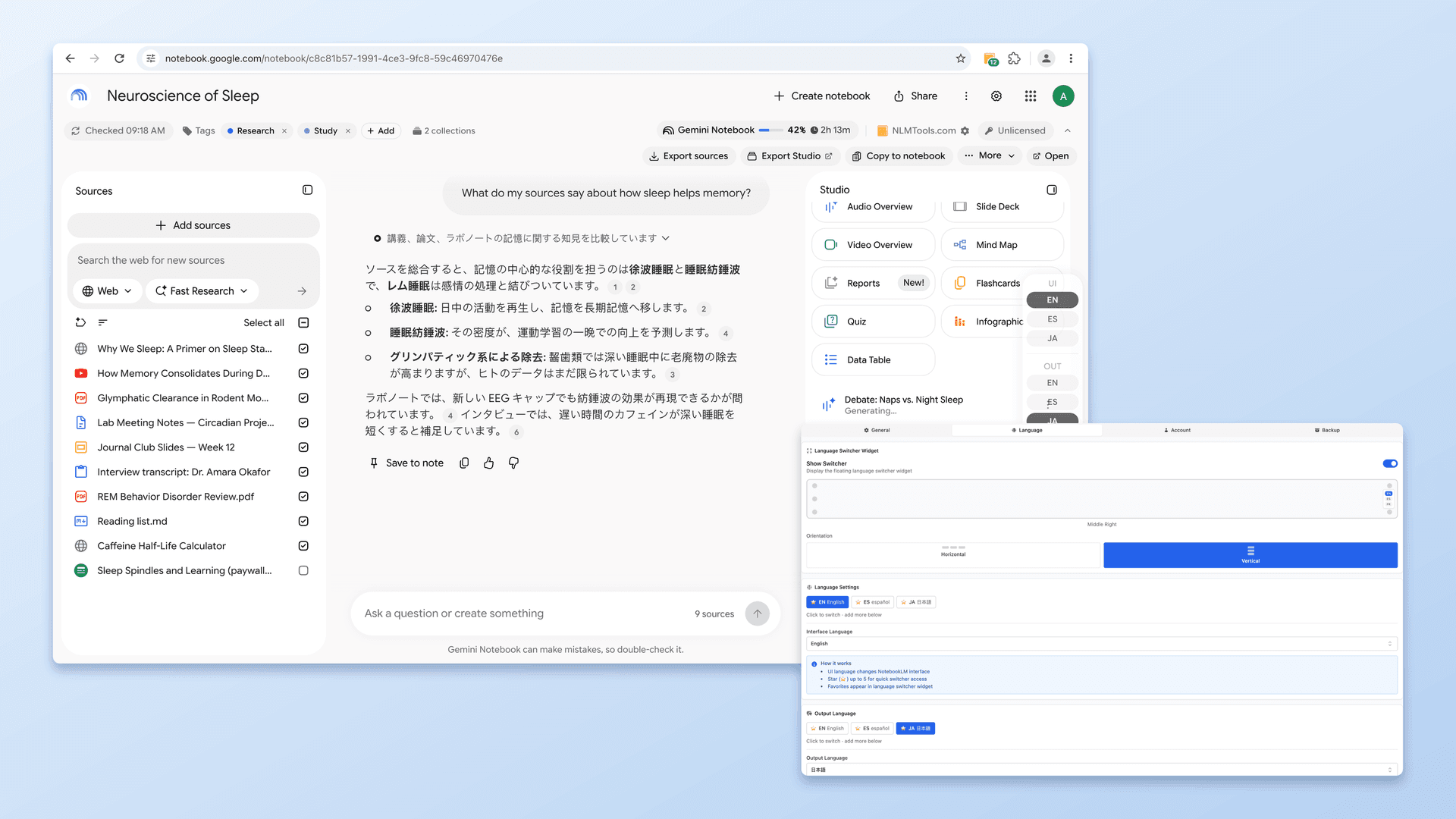
The extension adds a floating widget on NotebookLM pages. You can position it in any of six spots (top/middle/bottom × left/right) and display it horizontally or vertically. Pick a language, and every response until you change it comes back in that language. Sources stay as-is; only the generated output is translated.
Supported Languages (69 interface + 80 output)
Common picks, grouped:
- East Asian: Japanese (日本語), Korean (한국어), Simplified Chinese (简体中文), Traditional Chinese (繁體中文)
- South Asian: Hindi (हिन्दी), Tamil, Bengali, Urdu
- South-East Asian: Vietnamese (Tiếng Việt), Thai (ภาษาไทย), Indonesian, Malay, Filipino
- European: English, Spanish (Español), Portuguese (Português), French (Français), German (Deutsch), Italian (Italiano), Russian (Русский), Polish, Dutch, Swedish, Finnish, Ukrainian, Czech, Romanian, Greek
- Middle Eastern: Arabic (العربية), Hebrew, Turkish, Persian
The full list covers 69 interface languages and 80 output languages. Open the extension's Settings → Language tab to search it and star the languages you use — the floating widget shows your first five starred languages of each kind.
What Changes When You Switch
- Chat responses come back in the chosen language.
- Studio generation (quizzes, flashcards, summaries, reports) generates in the chosen language.
- Studio items you generate from the extension use the output language you select.
- The page refreshes once, about half a second after you switch, so NotebookLM picks up the new setting cleanly — then every response uses it until you change it again.
What Stays the Same
- Your sources don't get translated. NotebookLM still reads them in their original language.
- Notebook names don't change.
The extension can also switch NotebookLM's interface language independently — see the language feature for the UI language options.
Practical Use Cases
Multilingual Research Teams
One researcher reads Japanese primary sources and another team member only reads Spanish. Drop all sources into a shared notebook. The Japanese researcher asks questions and gets Japanese answers. The Spanish reader switches to Spanish and asks the same questions of the same sources. Same data, two comprehension paths.
Language Learning
Study from English textbooks. Ask NotebookLM to explain a concept back in the language you're learning (say, French). Get natural-language explanations you can compare against the source material.
Cross-Cultural Writing
Writing a report that has sections in multiple languages. Switch NotebookLM's language between sections to draft in each language without re-uploading the sources.
International Customer Research
Import customer feedback in multiple languages. Get summaries in one language (your working language) to see patterns without translating each piece manually.
Quick Sanity Checks
Read a source in a language you speak less fluently. Ask NotebookLM to summarize in your stronger language to double-check your comprehension.
Language Switcher vs. Prompt Prefix
You can always prefix with "Respond in X." Why the extension?
- Persistence — set once, stays set until you change it.
- Studio generation — Studio outputs don't read a "respond in X" line from your chat; by default they follow the Output Language setting. Switching that setting — with the widget or in Settings — changes the language of your next study guide or Audio Overview.
- Mixed workflows — toggling the switcher is faster than editing each prompt.
- One-click variations — switch the language, then re-send the same question (or fire it from a saved prompt) to compare answers in three languages back-to-back.
Works Alongside Other NotebookLM Tools Features
- Combine with saved prompts — a single prompt gets translated output in whatever language the switcher is set to.
- Combine with studio generation — generate flashcards, slides, or mind maps directly in the target language.
- Combine with cross-notebook search — find the right notebook by title, tag, source title, or URL, then ask your question there in your chosen language.
Frequently Asked Questions
Does the language switcher translate my sources?
No. Sources stay in their original language. Only the generated responses (chat, studio outputs) come back in the chosen language. Think of it as asking a translator to read the original and summarize for you, not translating the originals.
How accurate is the translation?
NotebookLM handles the translation, not the extension. Quality matches NotebookLM's native quality for the target language — good for most major languages, weaker for lower-resource ones.
Can I mix languages in the same chat?
Yes. Switch the language mid-chat and the next response comes back in the new language. Previous messages stay in whatever language they were generated in.
Does it work with any Google account?
Yes, for the regular NotebookLM at notebook.google.com — personal Google accounts and Google Workspace accounts alike. It doesn't run on the separate enterprise edition at notebook.cloud.google.com, and as a browser extension it works in desktop Chrome, Edge, Brave, Arc, Opera, and Firefox, not in the NotebookLM mobile apps.
Is the language switcher a Pro feature?
No. The language switcher is part of the free feature set. See pricing for what the optional Pro license adds (clean workspace, batch studio generation, 5-device activation, early access to new features).
What if a language I need isn't in the list?
Submit a feature request — the extension adds languages as NotebookLM's language support expands.
Wrap-up
If you've been prefixing every prompt with "Respond in Japanese," the switcher replaces that with a persistent setting. Install NotebookLM Tools to try it. See the language switcher feature, or browse the full feature list.
Related articles:
- NotebookLM Tips #2: Staying Focused with Multilingual Sources — Working with sources in multiple languages.
- NotebookLM Saved Prompts and Slash Commands — Combine with the language switcher for per-language prompt libraries.
- How to Organize NotebookLM Sources with Folders — Group sources by language using folders.
Trusted by 90,000+ NotebookLM users
Related articles
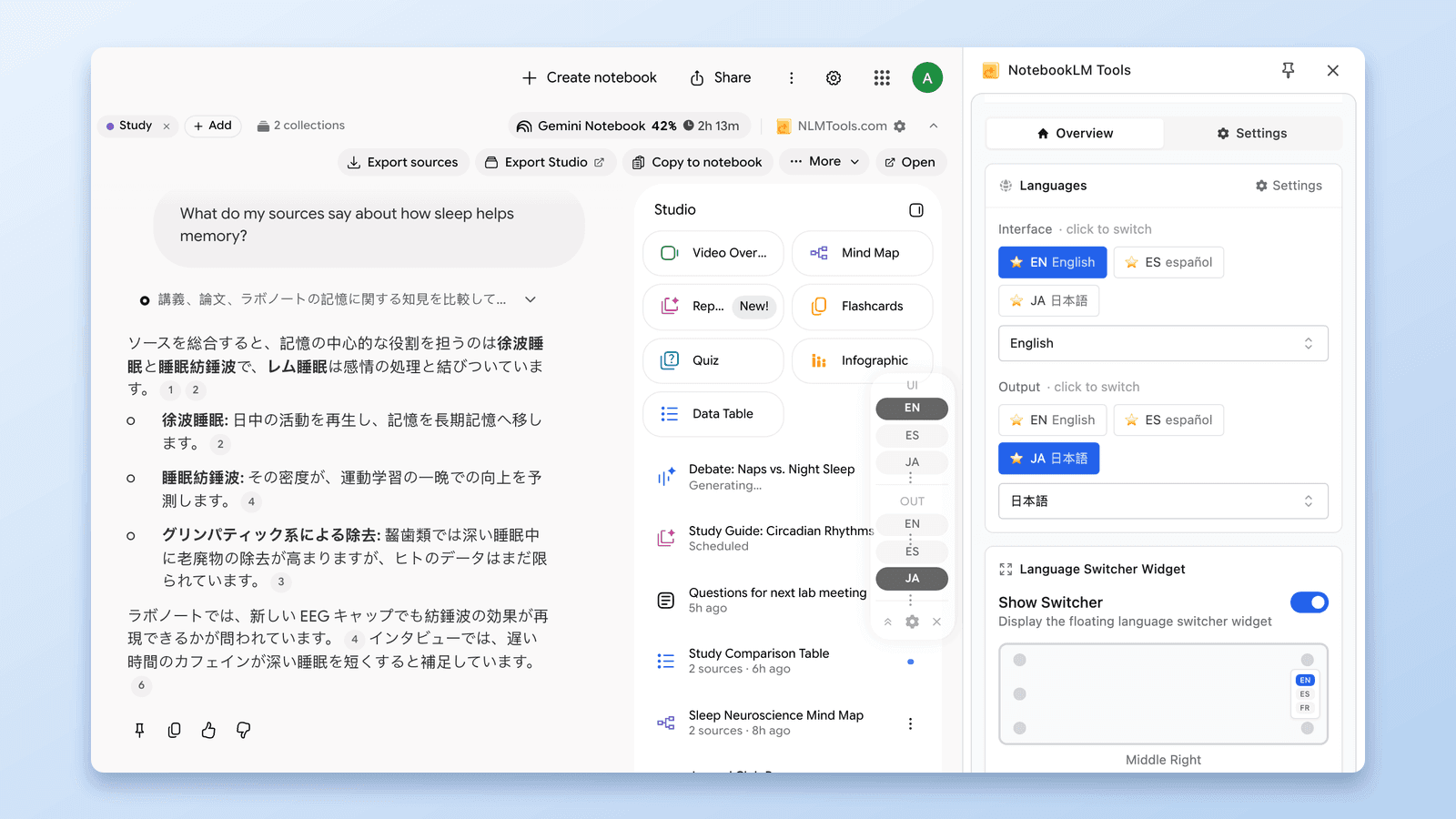
NotebookLM Tips #2: Staying Focused in Multilingual Research
Use multi-language controls in NotebookLM Tools for seamless multilingual research. Switch interface and output languages instantly without breaking focus.
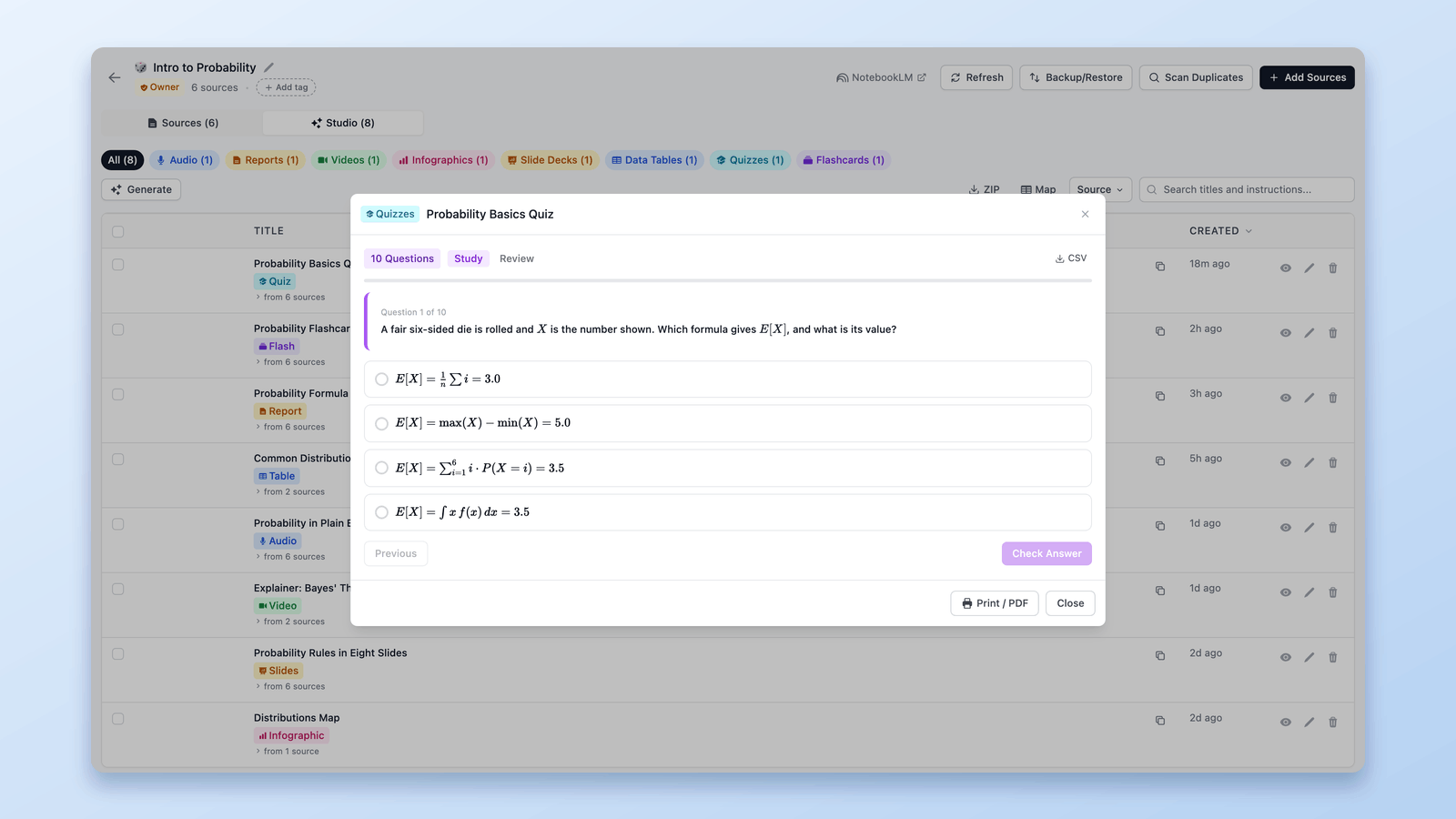
How to Export a NotebookLM Quiz (Spreadsheet, PDF, Answer Key)
Google documents no NotebookLM quiz export. The free NotebookLM Tools extension saves quizzes as CSV, prints them with an answer key, and sends flashcards to Anki.
How to Group & Organize Notebooks in NotebookLM (Collections)
Yes, you can group notebooks in NotebookLM. Collections are native notebook folders synced to your Google account — create, bulk-assign, and filter in seconds.