NotebookLM Tips #2: Staying Focused in Multilingual Research
Enhance your NotebookLM experience with our free browser extension.
View plansWorking Across Languages Without Breaking Your Flow
This blog is part of a NotebookLM tips & workflow series, where I share practical ways to use Google NotebookLM (now Gemini Notebook) more effectively — especially once your work goes beyond simple, single-language note-taking.
In the previous post, we talked about organizing notebooks at scale using the Advanced Notebook Manager.
That foundation matters, but once your research expands globally, another problem quickly appears: language friction.
When language becomes a bottleneck
NotebookLM is powerful, but it's built around a fairly simple assumption:
- One interface language
- One output language
- Minimal switching
That works well as long as all your sources — and your thinking — stay in a single language.
But in real-world research, that's rarely the case.
You might be:
- Reading English articles, Japanese papers, and Vietnamese reports
- Collaborating with people in different regions
- Working with sources in one language while writing notes or generating AI summaries in another
At that point, language switching becomes repetitive, slow, and distracting.
You find yourself opening settings again and again, just to change languages — breaking focus every time and interrupting your research flow.
Multi-Language control, built into the workflow
This is where Multi-Language support in NotebookLM Tools comes in.
Instead of treating language as a static setting, the extension turns it into a quick, always-available control — directly inside your NotebookLM workflow.
The goal isn't translation for translation's sake.
It's control and speed.
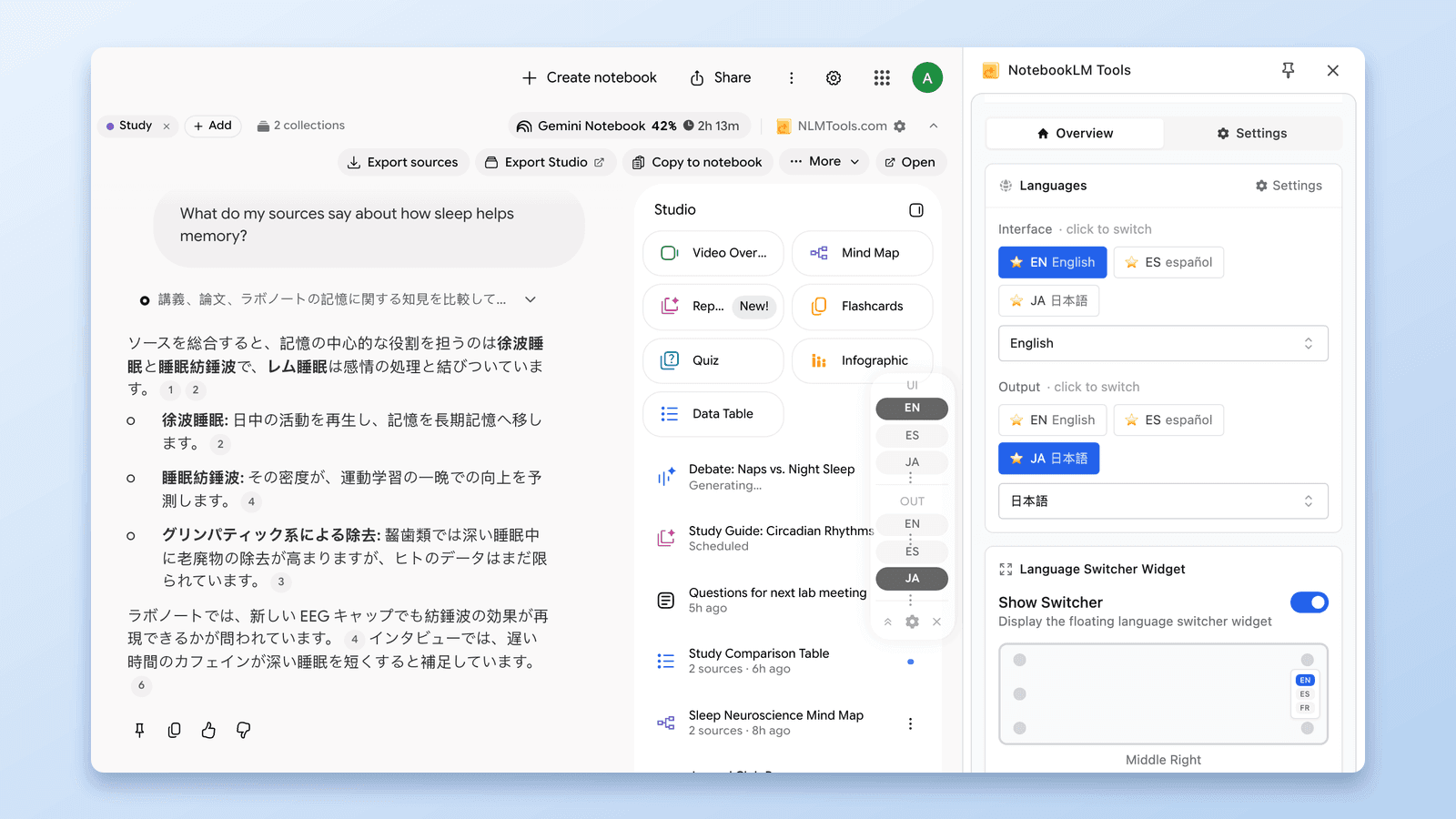
Interface Language vs. Output Language
NotebookLM Tools separates language control into two independent layers, giving you precise control over both how NotebookLM looks and how its AI responds.
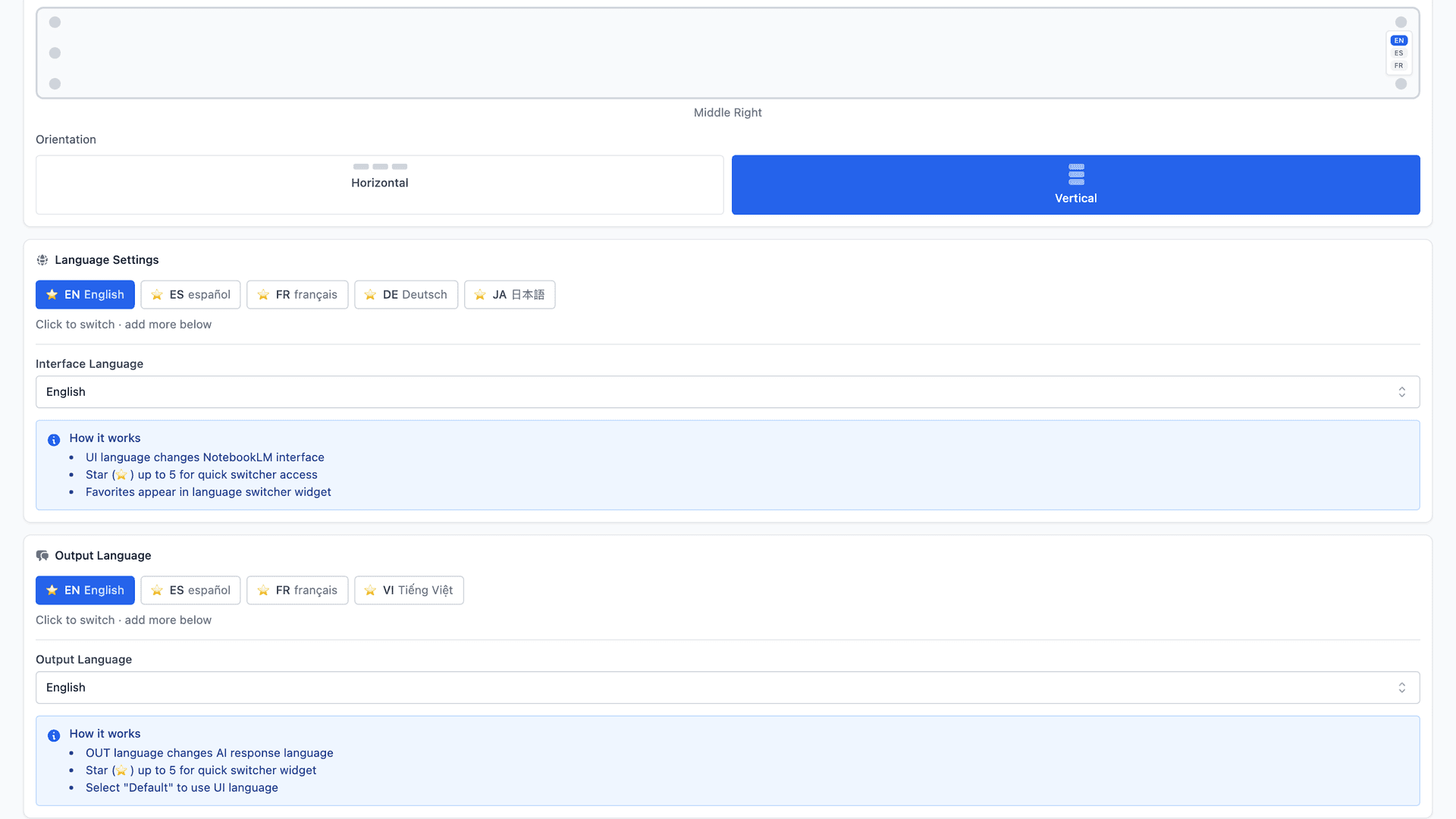
1. Interface Language
Interface Language controls the NotebookLM user interface itself — including menus, buttons, and labels.
- It only affects how NotebookLM is displayed
- It does not change your content
- It does not affect AI-generated output
This is especially useful if you prefer navigating NotebookLM in a specific language, even when your research materials span multiple languages.
2. Output Language
Output Language controls the language used by NotebookLM's AI responses, such as:
- Summaries
- Answers
- Generated notes
This means you can keep the interface in one language while generating AI content in another.
It's a subtle distinction, but an incredibly powerful one — particularly for multilingual research, cross-language synthesis, and international collaboration.
Fast language switching without breaking focus
When you work across multiple languages, switching in one click instead of five matters.
Having to scroll through long language lists every time creates unnecessary friction and pulls you out of your thinking.
That's why NotebookLM Tools lets you star your most-used languages.
Once a language is starred:
- It stays pinned at the top
- It appears directly in the side panel
- Switching languages takes just one click
No settings menu. No interruptions. Just switch and keep going.
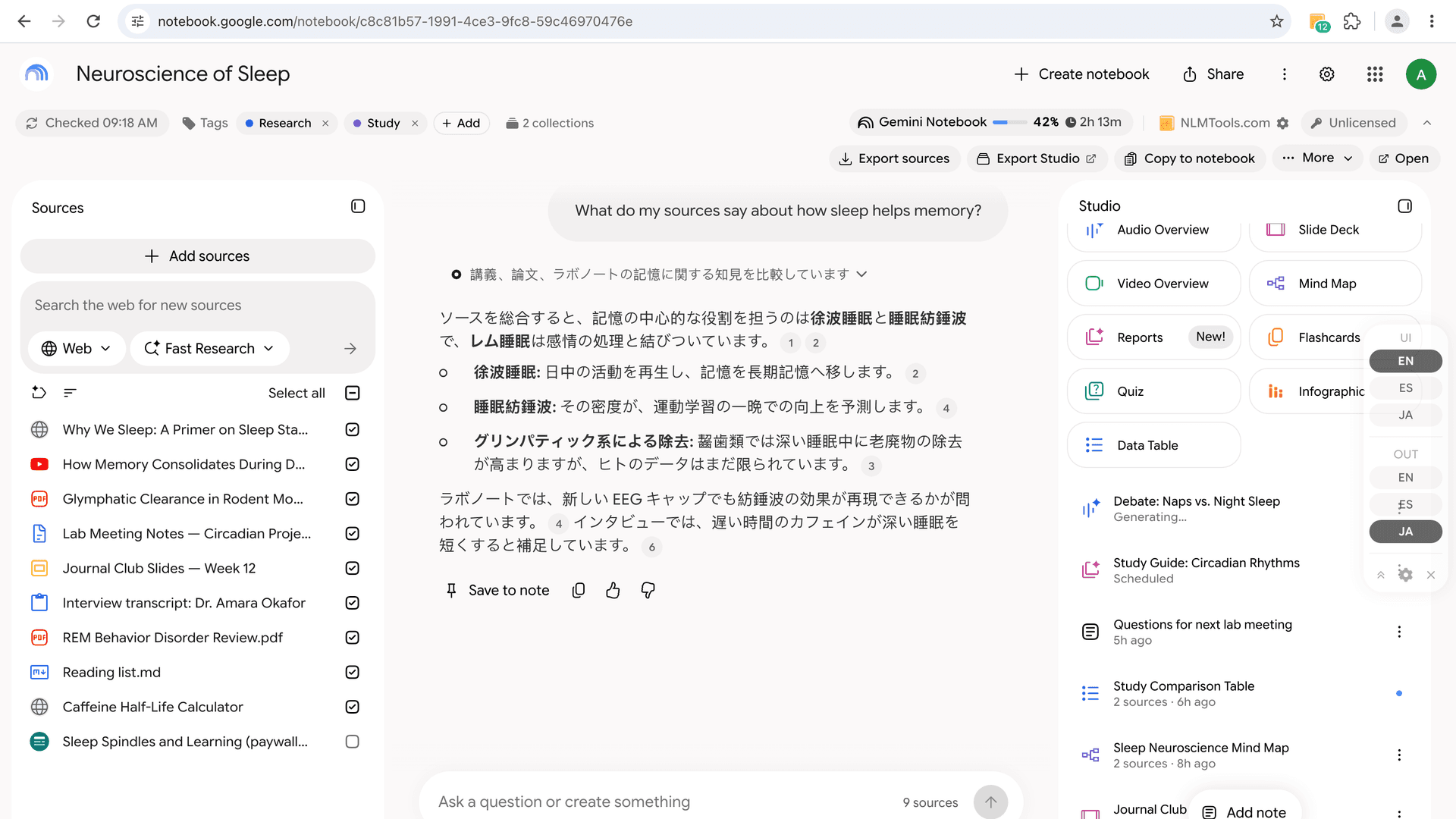
After you star your languages, something subtle but powerful happens.
The NotebookLM page now includes a quick language switcher, allowing instant language changes without opening Settings.
You stay fully inside your research flow, even while moving between languages.
Panel positioning & orientation
Multi-language control isn't just about language — it also respects how you work visually.
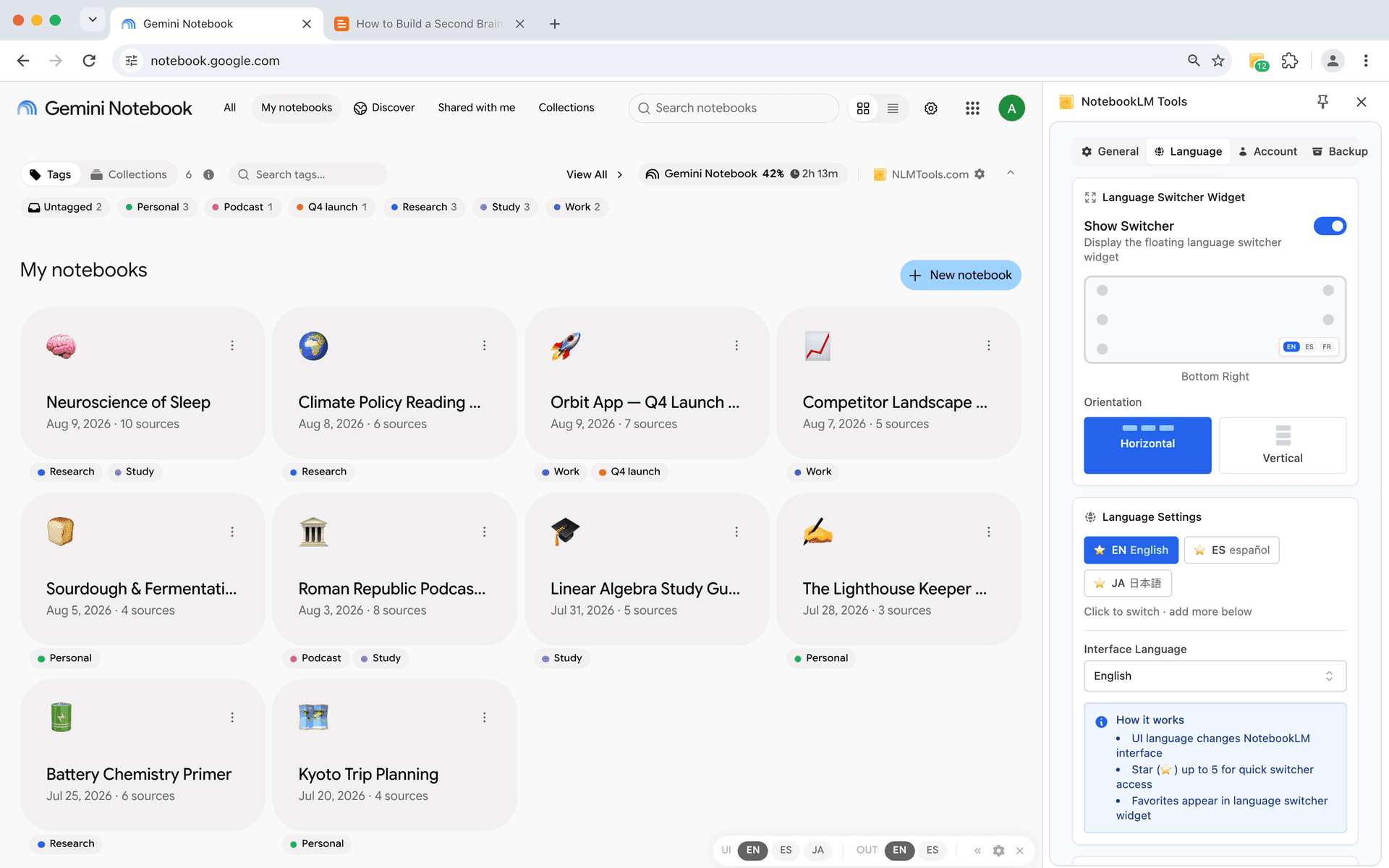
You can customize the floating language panel to fit your screen and reading habits:
- Choose where the panel appears — six positions in total: top-left, middle-left, bottom-left, top-right, middle-right, and bottom-right
- Switch between horizontal and vertical layouts
- Keep the panel visible without blocking your content
These controls may sound minor, but they make a real difference during 2-3 hour reading, note-taking, or synthesis sessions.
Instead of forcing you to adapt to a fixed UI, the language switcher stays where it feels least intrusive — quietly available when you need it, and out of the way when you don't.
The result is a workflow that feels lighter, calmer, and more intentional — especially when language switching is part of your daily research.
Keeping focus in multilingual research
Working across multiple languages isn't mainly a translation problem — it's a focus problem.
Each time you open settings, scroll through language lists, or double-check which language is active, your attention shifts away from the actual work. Over a long research session, those small interruptions add up.
With frictionless language control, you can move between sources, summaries, and notes without breaking your mental flow. Your attention stays on ideas and connections, not on configuring tools.
When combined with features like Advanced Notebook Manager, article importing, and source freshness sync, multi-language support helps NotebookLM grow into a calmer, more sustainable research environment — especially for long-term and international work.
If you'd like a visual walkthrough, I've also recorded a short YouTube demo showing how multilingual controls work in practice:
Download NotebookLM Tools: https://chromewebstore.google.com/detail/notebooklm-tools-for-gemi/hiibkpjljigehlnnecbgehkhfibmahjn
In the next post of this series, we'll take a closer look at source importing and how to work with real-world articles more reliably.
Thanks for reading — see you in the next post!
Related: How to Change NotebookLM's Output Language (80 Languages, One Click) — The step-by-step guide to the language switcher this workflow is built on.
Previous in series: NotebookLM Tags vs Collections: Which to Use (+ 1-Click Convert) — The foundation for managing notebooks at scale.
Next in series: NotebookLM Tips #3: All the Ways to Import Sources — Discover every method to get content into NotebookLM.
Trusted by 90,000+ NotebookLM users
Related articles
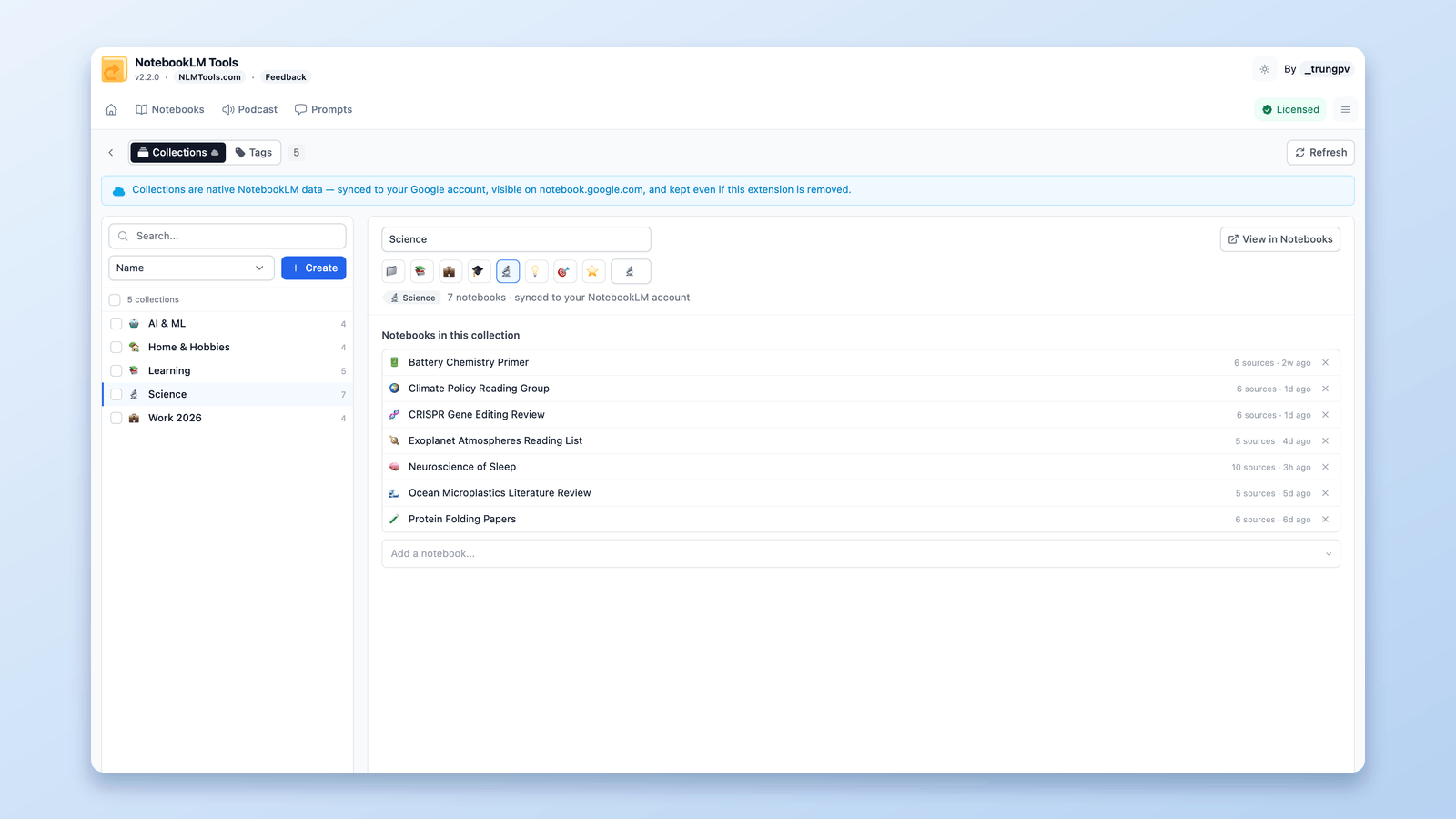
How to Group & Organize Notebooks in NotebookLM (Collections)
Yes, you can group notebooks in NotebookLM. Collections are native notebook folders synced to your Google account — create, bulk-assign, and filter in seconds.
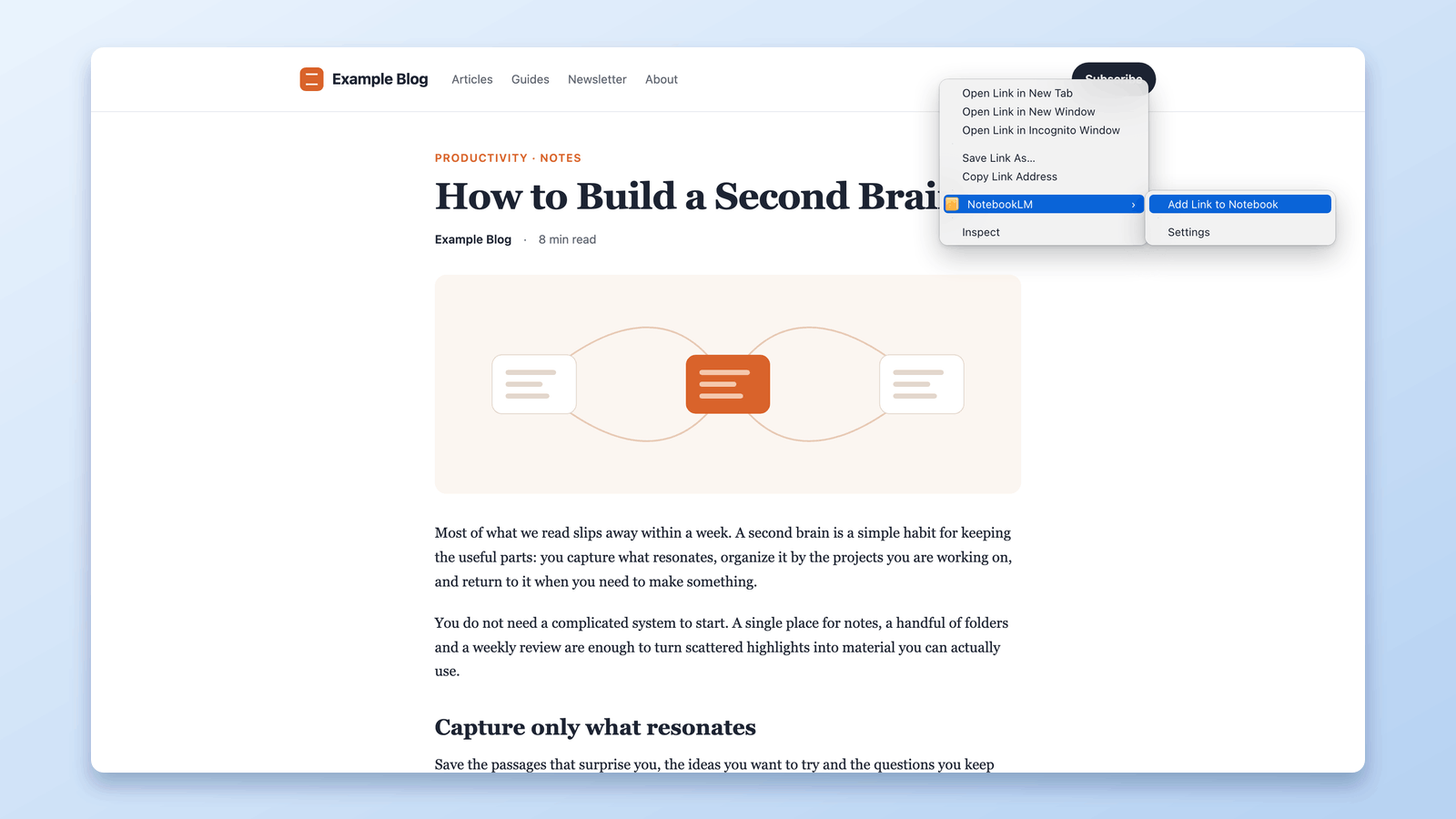
Add Web Pages to NotebookLM with a Right-Click (7 Context-Menu Tools)
Import any web page into NotebookLM straight from a right-click. Seven context-menu actions capture pages, selections, and links as you browse — no copy-paste.
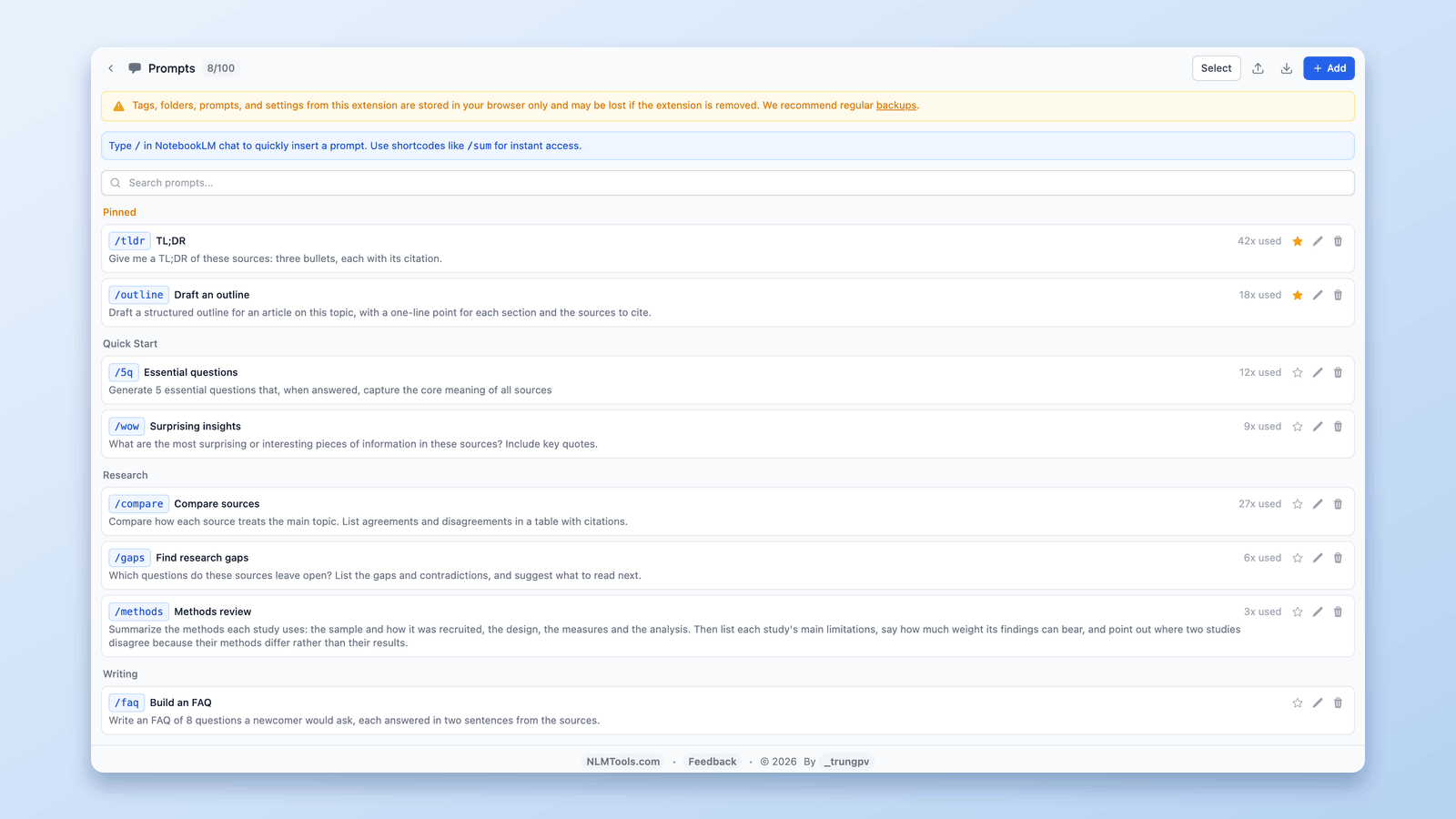
NotebookLM Custom Instructions vs Saved Prompts (Slash Commands)
NotebookLM's custom instructions set one standing prompt per notebook. For a library of 100 reusable prompts with /slash commands, here's the free setup.