How to Organize NotebookLM Notebooks with Tags, Search & Dashboard
Enhance your NotebookLM experience with our free browser extension.
View plansThis blog is part of a NotebookLM tips & workflow series, where I share practical ways to work more efficiently with Google NotebookLM — especially when your projects start to grow beyond just a few notebooks.
NotebookLM is an excellent tool for research, reading, and synthesis.
However, as your usage grows — across multiple topics, long-term studies, or several projects running in parallel — keeping notebooks organized quickly becomes difficult.
At that point, the challenge isn't creating content anymore, but finding, managing, and maintaining structure as everything scales.
That's where Advanced Notebook Manager, a feature of the NotebookLM Tools Chrome extension, comes in.
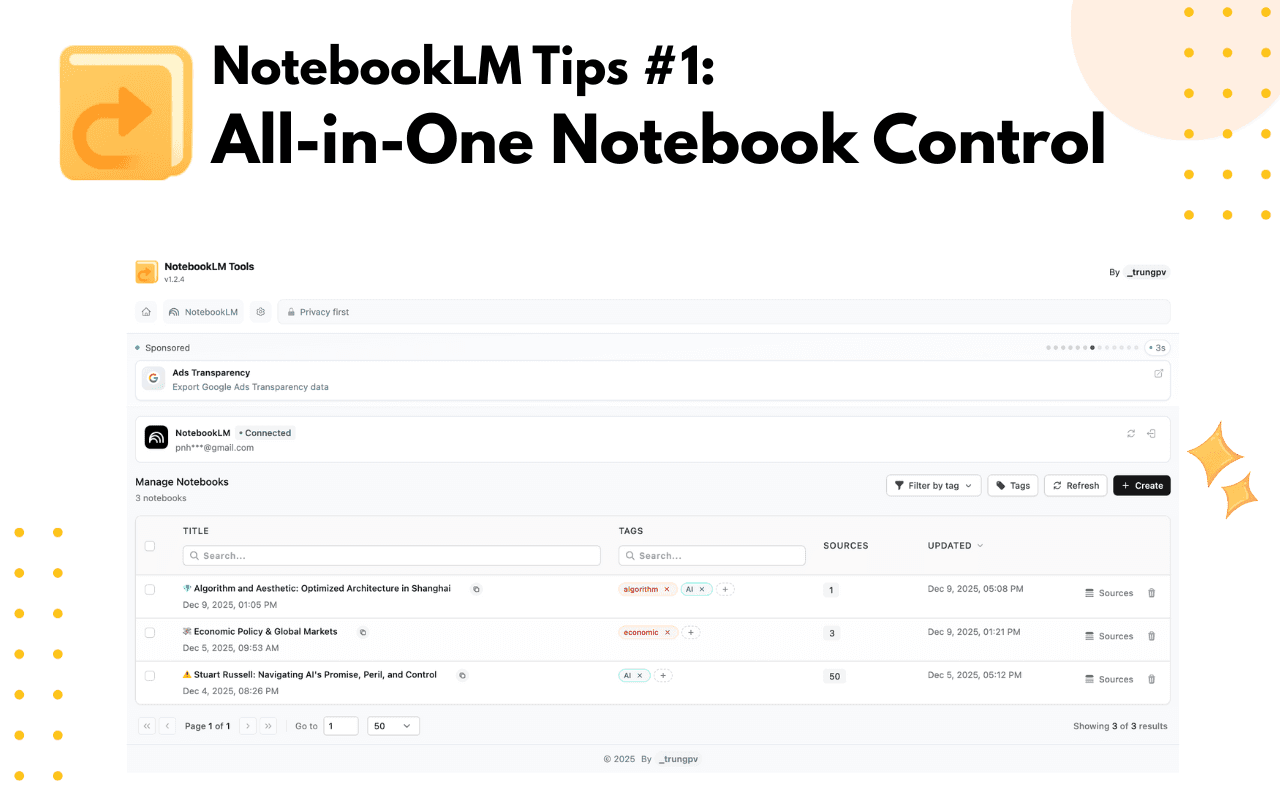
When NotebookLM stops scaling
NotebookLM works great when you have:
- A handful of notebooks
- Short-term research
- Clearly separated topics
But over time, most serious users end up with:
- Dozens of notebooks
- Overlapping themes
- Projects revisited months later
- Sources added incrementally from many places
At that point, the default NotebookLM interface starts to slow you down.
Finding the right notebook often means scrolling.
Comparing projects means opening them one by one.
And organizing everything relies heavily on memory instead of structure.
The problem isn't NotebookLM itself — it's that the interface was never designed for scale.
One dashboard for all your notebooks
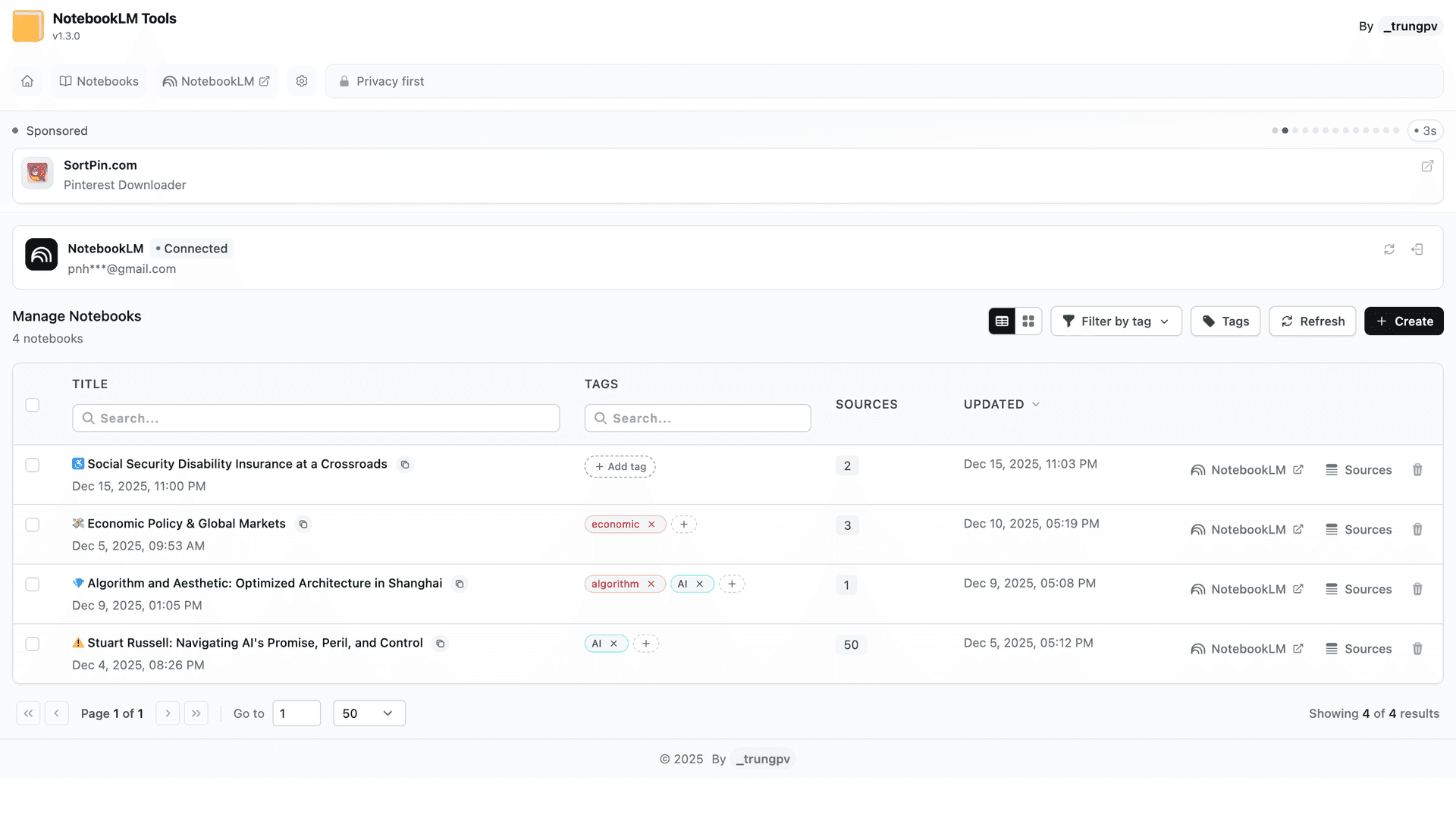
The first thing this feature improves is visibility.
Instead of opening notebooks one by one, the extension provides a single dashboard where all your NotebookLM notebooks are displayed together — available in both table view and card view, depending on how you prefer to scan information.
From this dashboard, you can quickly see:
- Notebook titles
- Assigned tags
- The number of sources in each notebook
- Creation or last update order
This immediately removes the need to scroll or remember where things are.
You no longer have to rely on memory or scroll endlessly to find a notebook.
Everything is visible at a glance, making navigation feel faster and more intentional.
Organizing notebooks with tags (without overplanning)
Titles alone aren't enough to organize complex work.
Advanced Notebook Manager adds tag-based organization, letting you group notebooks by theme instead of relying solely on naming conventions.
You can:
- create tags like AI, Economics, Architecture, or Policy
- assign multiple tags to a single notebook
- visually separate projects even if they were created far apart in time
What works especially well is the flexibility.
You don't have to design a perfect system upfront.
Tags can be created and assigned on the fly, exactly when you need them.
And if your structure changes later, you can edit tag names or colors without breaking anything.
This keeps your organization lightweight instead of rigid — which matters for real research.
Instant search that actually keeps up
Scrolling doesn't work once your list gets long.
The notebook manager adds real-time search, allowing you to filter notebooks instantly as you type by title and tag.
There's no page reload and no waiting.
The list updates immediately, which makes finding the right notebook feel effortless.
If you frequently jump between topics or return to old research, this feature becomes indispensable very quickly.
Jumping straight into source management
Another small but powerful detail is direct access to sources.
From the notebook list, you can open a dedicated source view for any notebook — without first opening the notebook itself.
This makes it much easier to:
- Review what sources belong to a project
- Clean up duplicates
- Manage imports independently of writing or analysis
Separating structure (notebooks) from content (sources) turns out to be a very effective way to manage large projects.
Why this matters
The real value of the Advanced Notebook Manager isn't just about saving time — it's about mental clarity.
When your workspace is:
- Searchable
- Visually structured
- Consistent
You spend far less energy managing notebooks, and far more energy actually thinking, reading, and connecting ideas.
Whether you're working with 15 notebooks or 150, everything stays predictable and easy to navigate.
And that sense of calm matters more than speed when you're doing long-term research.
If you prefer seeing this in action, I've also recorded a short video walkthrough of the notebook dashboard here:
Best Practices for Organizing NotebookLM Sources
If you're looking for best practices organizing sources across a growing NotebookLM workspace, the patterns below come up again and again among power users. They apply whether you have 10 notebooks or 150, and they work hand-in-hand with the Advanced Notebook Manager described above.
Here's how to structure sources so your notebooks stay navigable over months of research:
- Group sources before you group notebooks. Most people try to organize notebooks first, but real clarity starts at the source level. Use source folders inside each notebook to separate primary research, reference material, and supporting context — so the notebook itself becomes easier to reason about.
- Organize notebooks into folders using tags. NotebookLM doesn't have native folders for notebooks, but tag-based grouping in the Advanced Notebook Manager is the practical equivalent. Assign a project tag (e.g., Thesis, Client-Acme, Q2-Review) to every new notebook the moment it's created, not weeks later when memory is fuzzy.
- Use consistent naming conventions. A short prefix —
[AI],[Econ],[Policy]— in the notebook title makes scanning faster even before filters are applied. Pair this with tags for two layers of findability. - Separate active from archived work. Tag notebooks that are no longer active with
archive(or similar) and filter them out of your default view. This keeps your dashboard focused on what actually matters this week. - Revisit source management weekly. Source management isn't a one-time setup. Every week, spend five minutes removing duplicates, retitling unclear sources, and checking for stale Google Drive files. See How to Auto-Update & Refresh NotebookLM Sources in Bulk for how to automate the stale-source part.
- Let structure emerge — don't force it. The biggest mistake is designing a rigid taxonomy on day one. Start with 3–4 tags, add new ones only when a real pattern repeats, and retire tags that nobody is using.
These practices compound. A well-organized workspace isn't built in an afternoon — it's the result of small habits applied consistently. For the full feature list that supports this workflow, see the source folders feature and the rest of the NotebookLM Tools feature overview.
How this fits into the bigger picture
The Advanced Notebook Manager is the foundation of NotebookLM Tools.
Once your notebooks are properly organized, everything else — source management, article importing, and multi-language workflows — becomes much easier to layer on top.
In the next posts of this series, I'll cover:
- Bulk adding content from real articles
- Working across multiple languages inside NotebookLM
If you're using NotebookLM for anything more than casual note-taking, this is what allows your workflow to grow without becoming messy or overwhelming.
If you'd like to try this feature yourself, you can install NotebookLM Tools here (free, takes 30 seconds):
Install NotebookLM Tools from the Chrome Web Store
And from here, every other feature in NotebookLM Tools starts to make sense.
Next in series: NotebookLM Tips #2: Staying Focused in Multilingual Research — Learn how to work across multiple languages without breaking your flow.
Trusted by 80,000+ NotebookLM users
Related articles
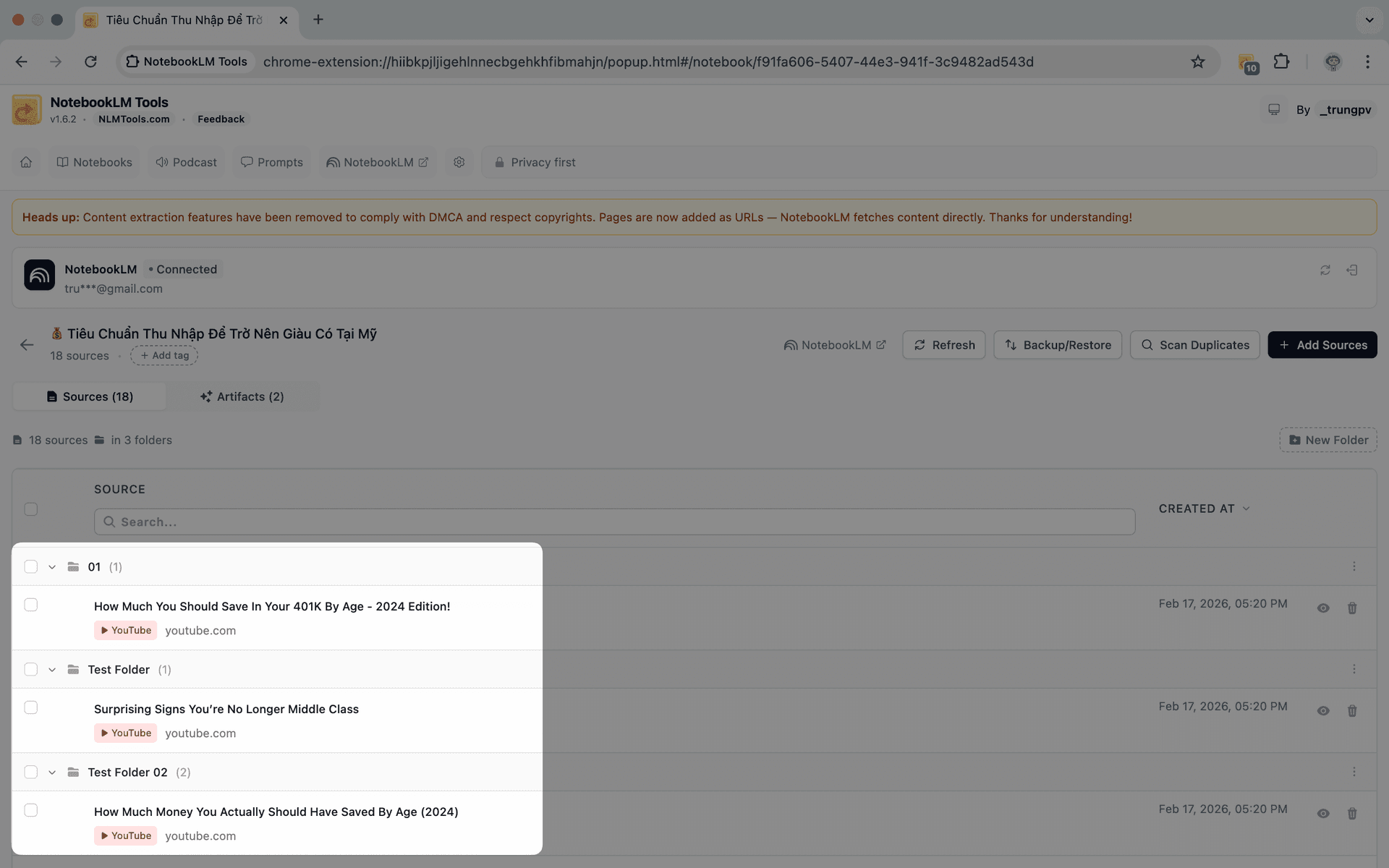
Can You Create Folders in NotebookLM? Yes — Here's How (2026)
NotebookLM has no built-in folders, but you can add them in seconds. Create up to 50 drag-and-drop source folders per notebook with a free Chrome extension.
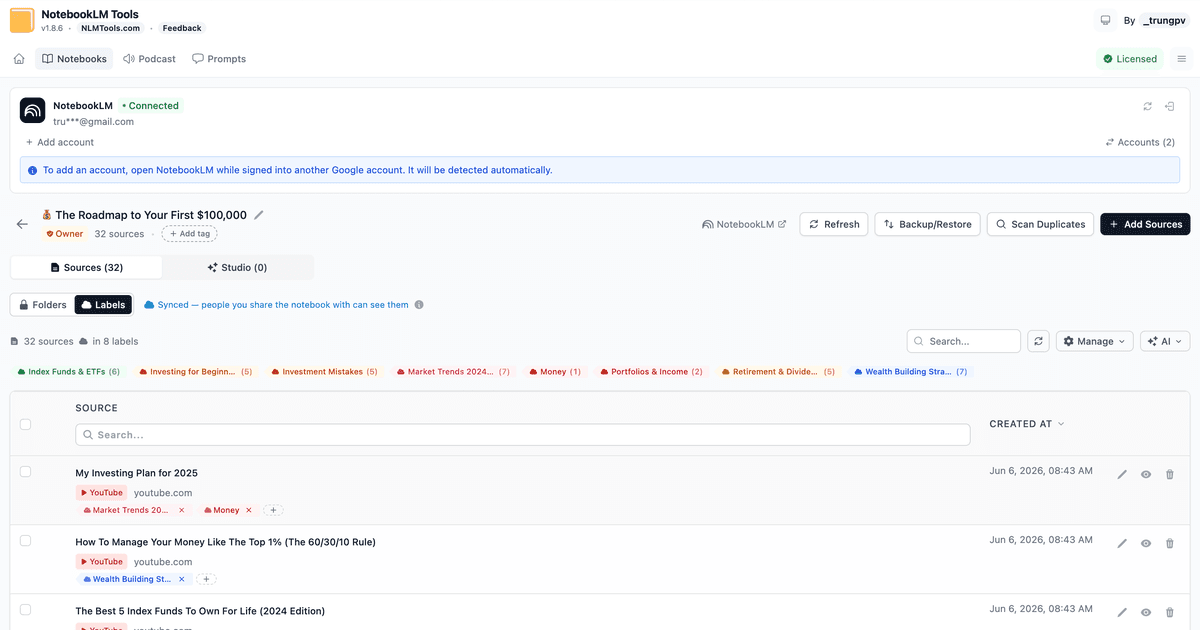
How NotebookLM Source Labels Work (and How to Manage Them in a Table)
NotebookLM auto-labels your sources at 5+. See how source labels work — and manage them in a table: make your own, bulk-tag, filter, and search.
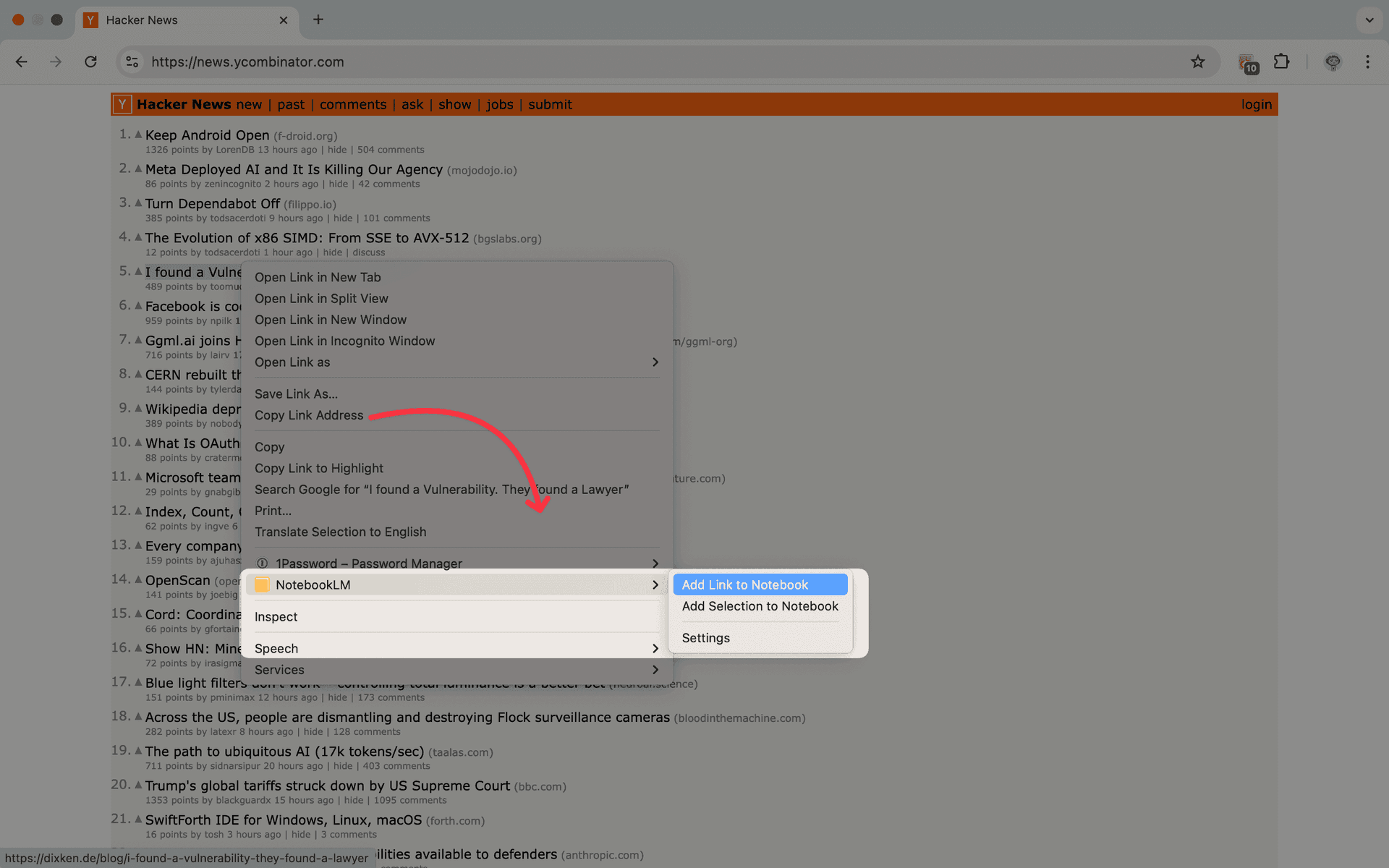
Right-Click to Add Any Web Page to NotebookLM
Add the current tab to NotebookLM with one right-click. Seven context-menu actions to capture pages, selections, and links as you browse — no copy-paste.