How to Duplicate or Copy a NotebookLM Notebook
Enhance your NotebookLM experience with our free browser extension.
View plansShort answer: NotebookLM has no "Duplicate notebook" button. You cannot clone a notebook in one click inside NotebookLM itself. The two reliable workarounds are to (1) bulk-copy every source from the original into a new notebook, or (2) export the notebook as a backup and re-import it into a fresh one — both of which the free NotebookLM Tools Chrome extension handles.
This guide covers when you'd want a copy, what NotebookLM does and doesn't support, and the exact steps for each method.
Why People Want to Duplicate a Notebook
A few common reasons:
- A safe sandbox. You want to experiment — add sources, restructure folders, generate new studio output — without touching the original research.
- A template. You've built a notebook with a specific set of reference sources and folder structure, and you want to reuse it as the starting point for the next project.
- A per-client or per-topic split. One notebook has grown too broad, and you want a copy you can prune down to a single client or subtopic.
- A pre-cleanup checkpoint. Before a big reorganization or bulk delete, you want a copy you can fall back to.
What NotebookLM Supports Natively
As of 2026, Google NotebookLM does not offer:
- A "Duplicate" or "Make a copy" action on a notebook.
- Bulk copying of sources from one notebook into another.
- A template system for starting new notebooks from an existing one.
You can share a notebook with other people, but sharing grants access to the same notebook — it does not create an independent copy you can edit separately. To get a true duplicate, you need to rebuild the source list into a new notebook.
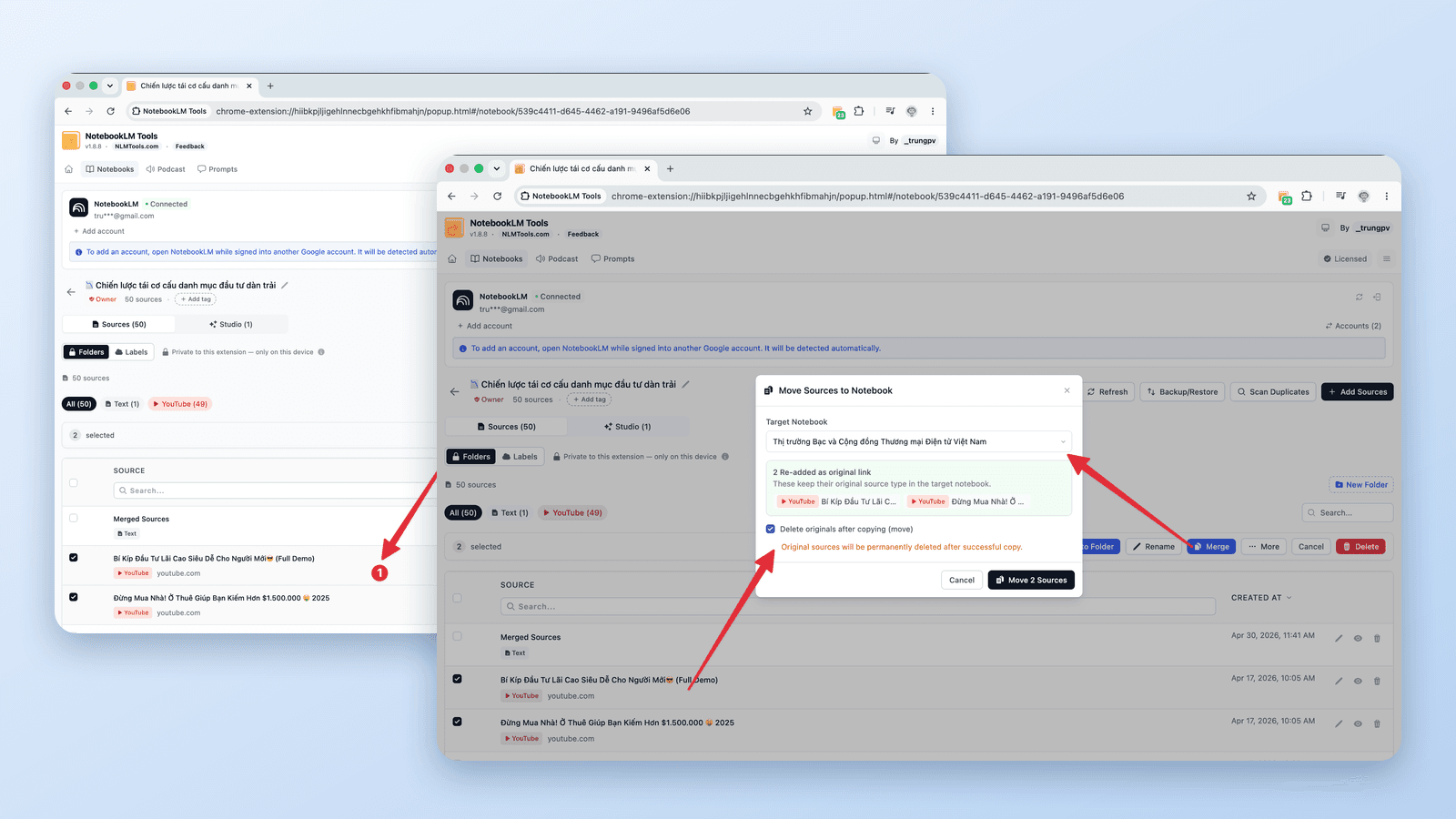
Method 1: Copy Sources Into a New Notebook
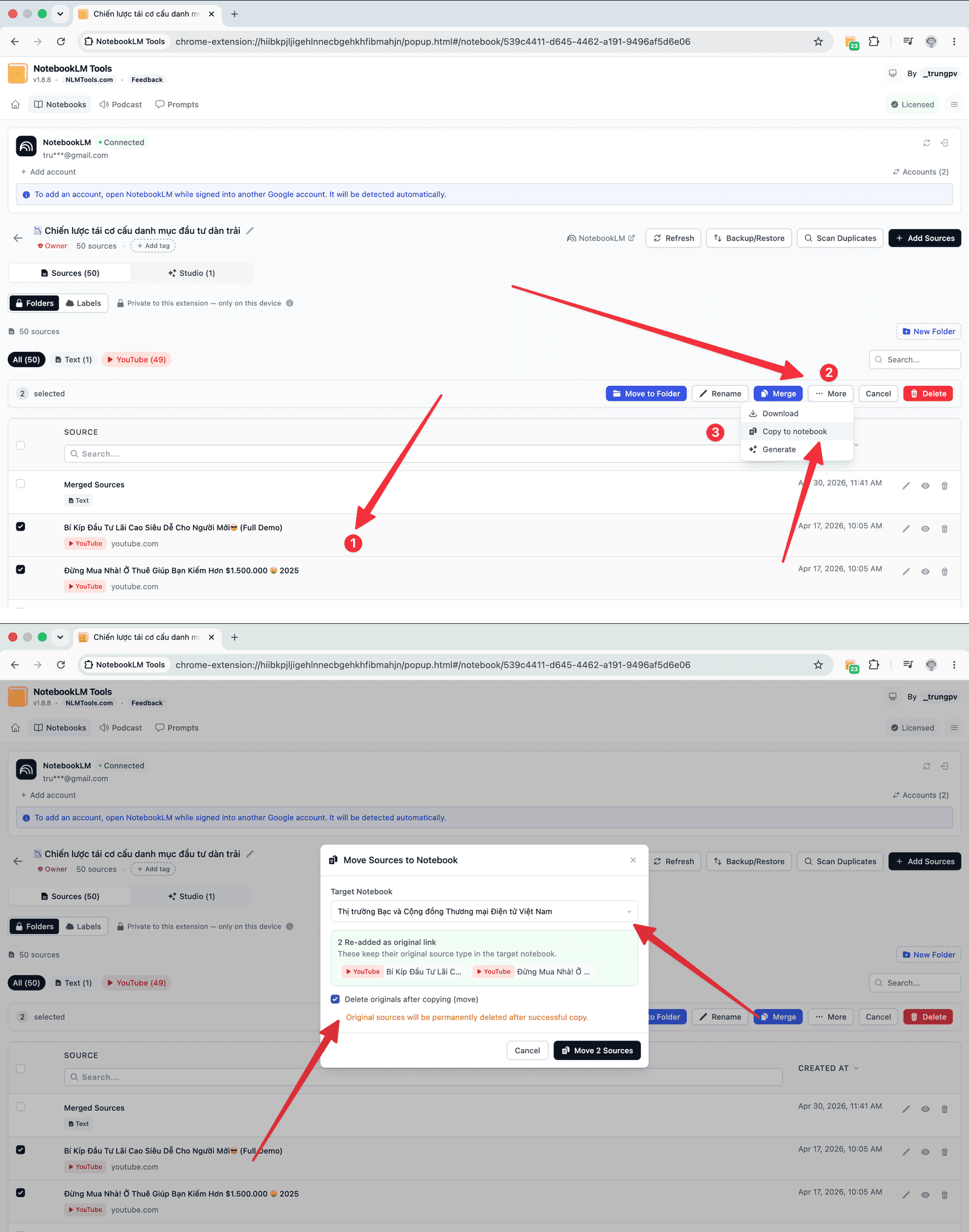
This is the fastest way to clone a notebook's inputs.
- In NotebookLM, create a new, empty notebook to act as the copy.
- Open the original notebook and click the NotebookLM Tools extension icon.
- Choose Copy/Move Sources Between Notebooks.
- Select every source, set the destination to your new notebook, and choose Copy (not Move) so the original keeps its sources.
- The extension copies each source across. Your copy now has the same source list, ready for independent editing.
This is the same mechanism used to merge or combine notebooks — the difference is you're copying into a brand-new notebook and leaving the original alone.
Method 2: Clone via Backup & Restore (Keeps Folders)
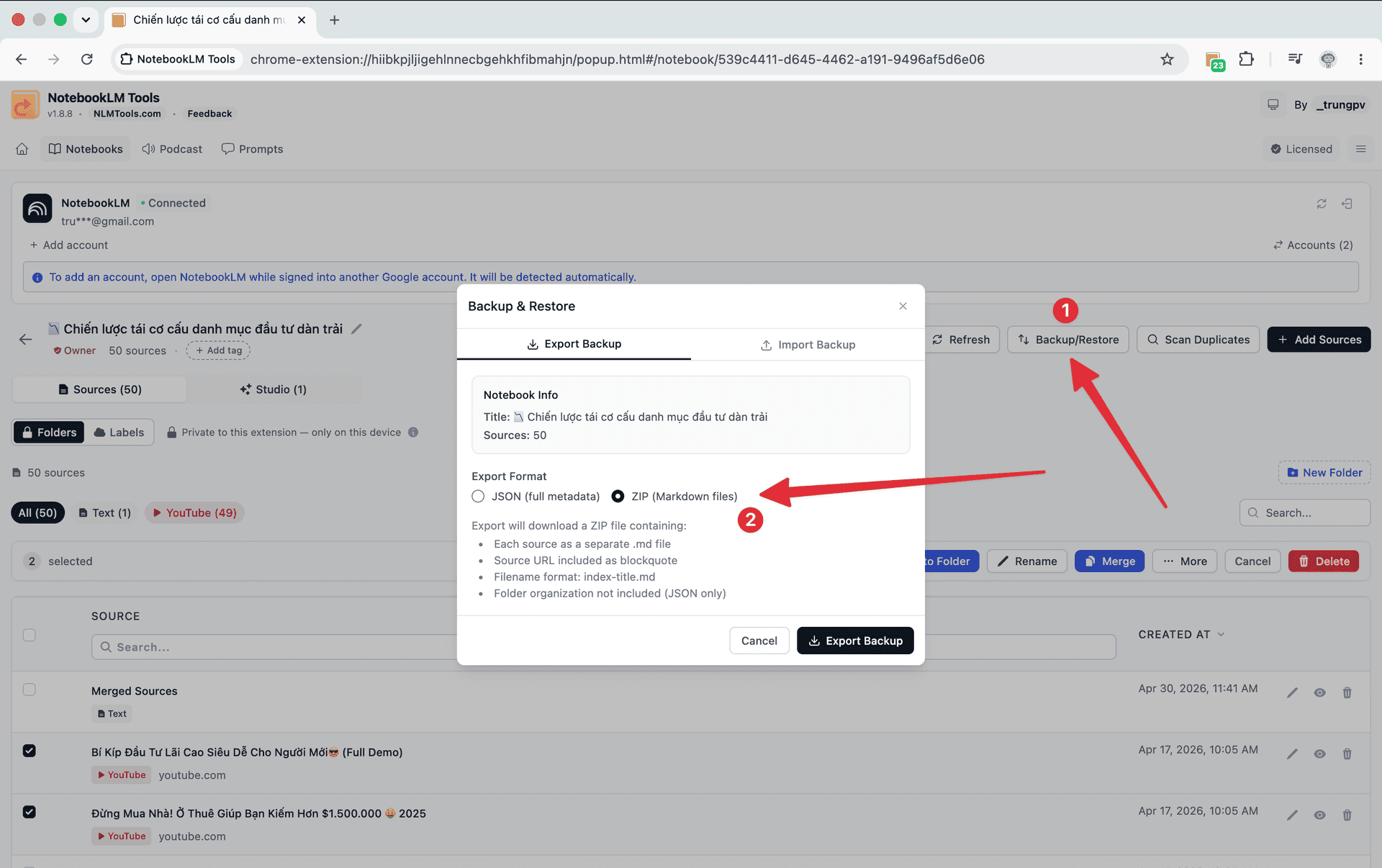
If your notebook uses source folders and you want the copy to keep that structure, use the backup route instead:
- Open the original notebook, open Backup & Restore, and export it as a JSON file. JSON preserves the notebook title, every source's title, URL, and content, and the folder organization.
- Create a new, empty notebook.
- Open Backup & Restore on the new notebook, switch to the Import tab, and select the JSON file.
- The extension recreates every source — and the folder layout — in the copy.
JSON is the format to choose when folders matter; a plain source copy (Method 1) moves the sources but not the folder structure.
What Doesn't Carry Over
Be clear about the limits of any "duplicate" in NotebookLM:
- Chat history — not transferable. NotebookLM doesn't expose it for transfer, so no copy can include it.
- Studio items — audio overviews, video overviews, mind maps, reports, and quizzes don't transfer. Regenerate them in the copy if you need them.
- Source IDs — the copy gets new source IDs, so citations in the original's chats won't line up with the copy.
If a specific chat answer matters, copy it into a note inside the notebook before duplicating — notes are sources, so they travel with a source copy or backup.
After You Duplicate: Clean Up Duplicates
If you copied sources into a notebook that wasn't empty, you may end up with duplicates. NotebookLM Tools includes a Duplicate Scanner:
- Fast scan matches by title and URL — quick, and catches most re-import duplicates.
- Deep scan compares content similarity — slower, but finds duplicates with different titles.
Run the fast scan first; use the deep scan if you suspect overlapping content.
Frequently Asked Questions
Can you duplicate a notebook in NotebookLM?
Not with a built-in button. NotebookLM has no "Duplicate notebook" action. Create a new notebook and copy every source into it with NotebookLM Tools' Copy/Move Sources Between Notebooks feature, or export the original as a JSON backup and re-import it into the new notebook.
How do I copy a NotebookLM notebook to a new one?
Create the destination notebook, open the original, and use Copy/Move Sources Between Notebooks — select all sources, choose the new notebook, and pick Copy so the original is untouched.
Does duplicating keep my source folders?
Only the Backup & Restore (JSON) method preserves folders. A straight source copy moves sources but not the folder layout.
Will a copied notebook include my chat history?
No. Chat history and studio items can't be transferred. Only sources carry over.
Does NotebookLM plan to add a native duplicate feature?
Google has not announced one as of 2026. Until it ships, copying sources or restoring a JSON backup is the practical way to duplicate a notebook.
The Practical Fix: Copy or Restore
There's no one-click duplicate inside NotebookLM, but cloning a notebook is still quick: copy its sources into a fresh notebook, or back it up as JSON and restore it into a new one. NotebookLM Tools handles both — see the full feature list.
Related articles:
- Can You Merge or Combine Notebooks in NotebookLM? — The same Copy/Move workflow, used to consolidate notebooks instead of cloning one.
- Deleted a NotebookLM Notebook or Source? What You Can Recover — Why a JSON backup is your safety net before any risky change.
- Can You Create Folders in NotebookLM? — Set up the folder structure that a JSON duplicate preserves.
Trusted by 80,000+ NotebookLM users
Related articles
Can You Merge or Combine Notebooks in NotebookLM? Here's How
Not natively — but there's a workaround that works. Combine two or more NotebookLM notebooks by moving every source across in bulk with a free extension.
How NotebookLM Source Labels Work (and How to Manage Them in a Table)
NotebookLM auto-labels your sources at 5+. See how source labels work — and manage them in a table: make your own, bulk-tag, filter, and search.
How to Add the Current Tab to NotebookLM
Add the current browser tab to NotebookLM without copy-pasting the URL. Capture any webpage as a source using the NotebookLM Tools Chrome extension.